How to add your LinkedIn profile to your website
LinkedIn's own badge is a View profile button. How to show your name, headline, followers and a Message button on your site instead, with Bokka.
By Amardeep Anand, founder of Bokka · Published
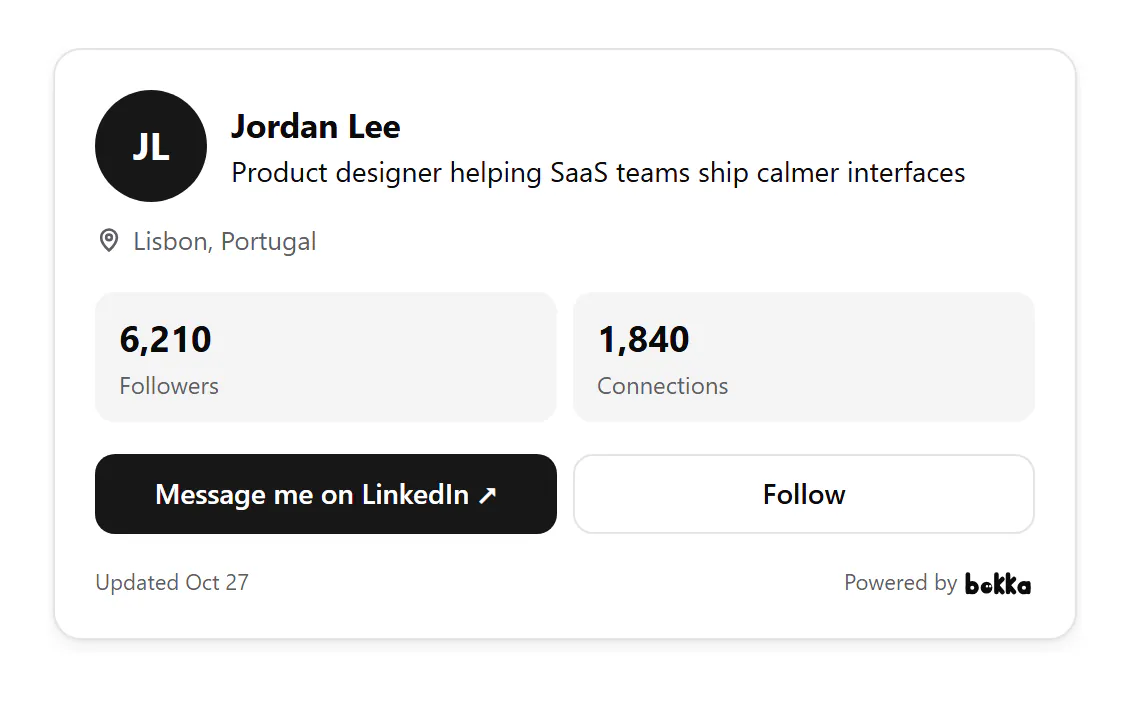
To add your LinkedIn profile to your website, paste a profile widget into the page. LinkedIn's own public profile badge gives you a View profile button. For a card that shows who you are and gets people talking to you, use Bokka's contact card: make it in Bokka, publish it, copy its code and paste it where the card should appear.
A LinkedIn contact card is a small block on your website with your LinkedIn picture, name and headline and a button that takes visitors to your profile to message you. Bokka is an AI-first CRM for your LinkedIn inbox, and its widgets put your own profile where people find you.
What LinkedIn offers
LinkedIn lets you create a public profile badge from your Public profile settings: a "View profile" button you can add to a web-based résumé, a blog or a website (Promoting your public profile, retrieved 27 October 2026). It's a link to your profile. It doesn't show your followers or say how to reach you.
Whatever you put on your site, link to your custom profile URL rather than the one LinkedIn assigned. You can set it once in Public profile & URL: 3 to 100 letters or numbers, changeable five times in six months (Manage your public profile URL, retrieved 27 October 2026).
How to add a LinkedIn contact card with Bokka
- In Bokka, choose Widgets in the sidebar, then New widget, then Contact card.
- On Customize, pick what it shows: picture, cover photo, headline, followers, connections, how fast you reply, location, About, Featured links, the companies you've worked at, and your email, phone or website.
- Choose its colours, font, width and alignment. Preview shows it on a sample website.
- Choose Publish.
- On Integration, pick your site builder, choose Copy, and paste the code where the card should show.
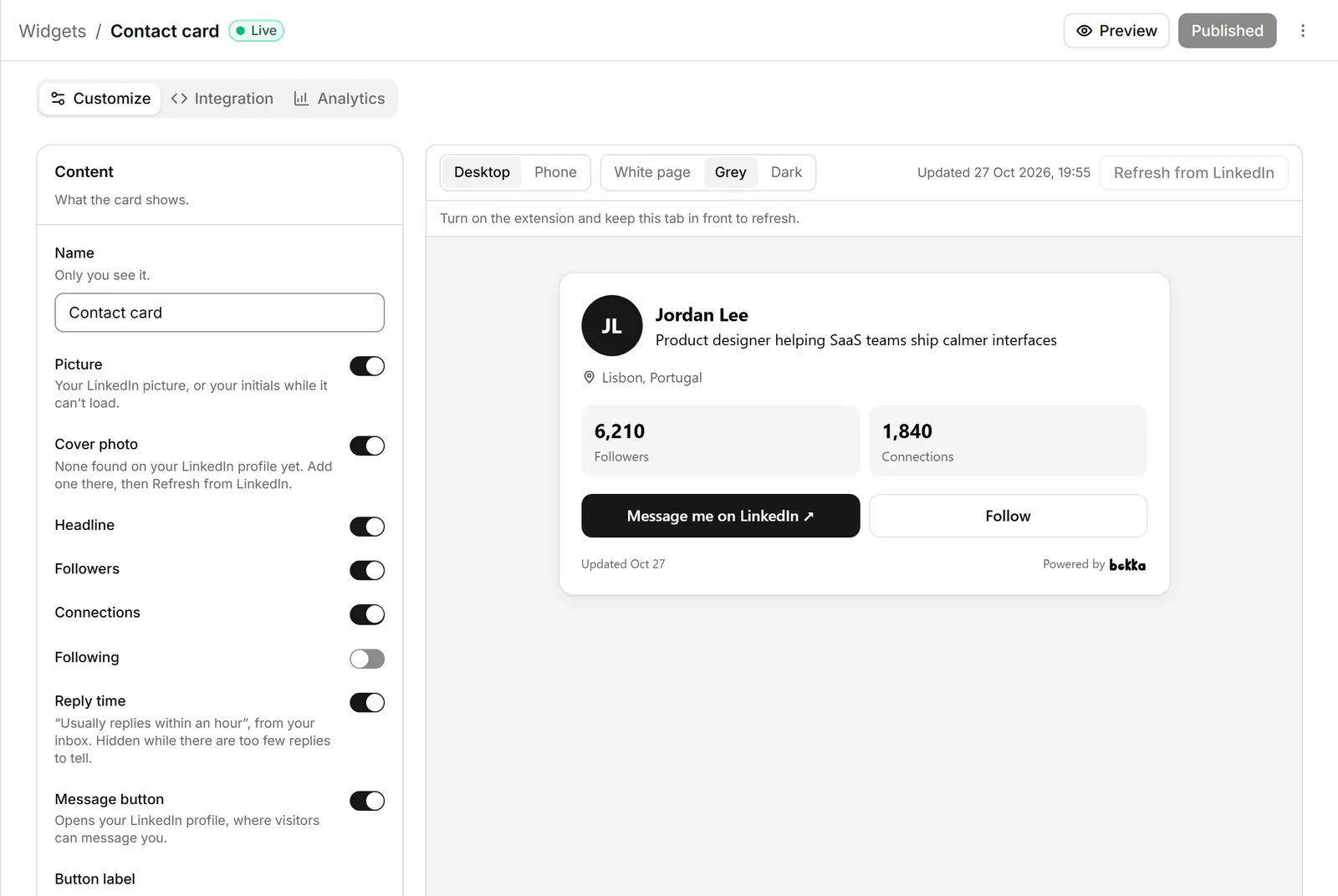
Full steps for each site builder, including the iframe for builders that strip scripts: Add a widget to your website.
What the card shows
- Your picture and name, with your initials while the picture loads or if it can't.
- Your headline, and if you like your location, About, Featured links and the companies you've worked at, newest first.
- Followers and connections, as last read from LinkedIn.
- How fast you usually reply, once you've answered at least five people in 90 days, and only when it's within a week.
- Message me on LinkedIn and Follow: both open your LinkedIn profile, where visitors message or follow you. Their messages land in your LinkedIn inbox, so you answer them in your inbox as usual.
Where to put it
- About or Contact page: the card is a contact option that shows who they'd be talking to.
- A portfolio or personal site: next to your work, so a visitor who likes it can write to you.
- The end of a case study or article: where a reader decides to get in touch.
- A speaker or event page: so attendees can find you after the talk.
Keep it current and see what it does
Bokka never connects to LinkedIn from its servers. A widget shows your own profile and totals as your browser last read them, and says when that was. To update it, press Refresh from LinkedIn in the editor, with the Bokka extension on. Nothing about your visitors is stored: Bokka counts views and clicks per day, and that's all.
Under Allowed sites, add your own site so the card only shows there; with none listed, it shows anywhere. The Analytics tab shows views, clicks to LinkedIn, click rate and "Message me" clicks for the last 7, 30 or 90 days.
Widgets come with every Bokka plan: one of each kind on the free trial and on Starter, five of each on Pro, and 20 per member on Team. A small "Powered by Bokka" line sits under each widget; on Pro and Team you can turn it off. Widgets you publish on the trial keep showing after it ends.
About Bokka
Bokka starts with a free 14-day trial, AI included and no credit card. After it, Starter is $25 and Pro is $35 per user a month ($19 and $30 for your first month). Team, at $50, is coming soon.
Frequently asked questions
Can I put my LinkedIn profile on my website?
Yes. LinkedIn offers a public profile badge, a View profile button, from your Public profile settings. Widgets such as Bokka's contact card show more: your name, headline, followers and a Message button.
Does the Message button send people straight into a LinkedIn chat?
It opens your LinkedIn profile, where they choose Message. Anything they send arrives in your LinkedIn inbox.
Will the card update when my follower count changes?
It shows your totals as Bokka last read them, with the date. Press Refresh from LinkedIn in the editor to update it.
Does it work on WordPress, Wix or Squarespace?
Yes. Paste the embed code into a Custom HTML, Embed or Code block. If your plan strips scripts, use the iframe version instead.
Sources
Other products' prices and features were read on their own pages on 27 October 2026. They change; check each page before you buy.
Try Bokka free for 14 days, AI included, with no credit card. It runs in Chrome, Edge, Brave and Arc on a desktop or laptop.
Start your free trialAbout the author
Amardeep Anand founded Bokka, the AI-first CRM for your LinkedIn inbox, and runs it from Deoghar, India. Questions or corrections: support@gobokka.com.
Related
- How to label LinkedIn conversations (leads, candidates, investors)LinkedIn messaging has no labels. How to tag conversations as Lead, Candidate or Investor and work each label as its own list, in Bokka.
- How to set a reminder to follow up on a LinkedIn messageLinkedIn has no reminders for messages. The closest built-in workaround, and how to set a follow-up that returns only if they haven't replied, in Bokka.