How to label LinkedIn conversations (leads, candidates, investors)
LinkedIn messaging has no labels. How to tag conversations as Lead, Candidate or Investor and work each label as its own list, in Bokka.
By Amardeep Anand, founder of Bokka · Published
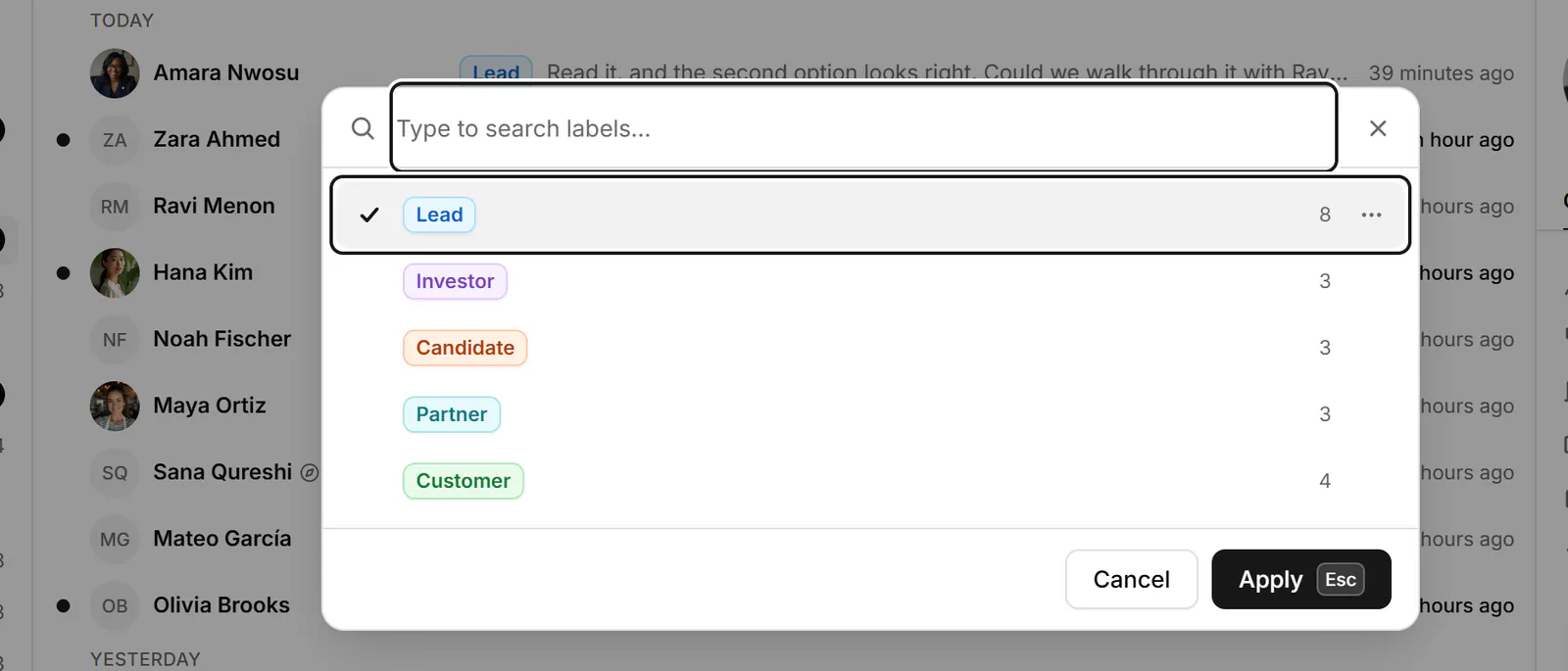
LinkedIn doesn't let you label or tag conversations. You can star them, archive them, or rely on Focused and Other, but you can't mark one as a lead and another as a candidate. To do that, use an inbox tool with labels: in Bokka, press L on a conversation and pick or create a label.
A label is a tag you put on a conversation, such as Lead or Candidate, that also works as a list. Unlike a folder, one conversation can carry several. Bokka is an AI-first CRM for your LinkedIn inbox.
What LinkedIn offers
LinkedIn sorts messages into Focused, Other, Archived and Spam, and filters by Unread, Starred, InMail, My Connections and Jobs (Filter and search messages, retrieved 24 October 2026). Starred is the only one you control conversation by conversation, and it's a single list.
How to label a conversation in Bokka
- Open or select a conversation and press L. You can also click Apply labels on a row, or Edit labels in the contact panel.
- Type in Search or create labels. Press Enter to tick or untick a label. If nothing matches, you're offered to create one with that name (up to 40 characters).
- Choose Apply (⌘+Enter, or Ctrl+Enter on Windows). A message says what changed, with Undo.
To take every label off a conversation, press Shift+L. In the contact panel, the × beside a label removes just that one.
Work a label as a list
Every label is a list under Labels in the sidebar, with a count. Press G then L to jump to your labels, then work through them with J and K like any inbox. A label covers people as well as conversations, so a person you label in People shows up too.
Labels that work
Your account starts with six: Lead, Hot lead, Customer, Friend, Investor and Candidate. Keep the list short; a label you never filter by is clutter. Some sets that work:
| If you're | Try these labels |
|---|---|
| Selling | Lead, Hot lead, Customer, Partner |
| Recruiting | Candidate, Hiring manager, Referral |
| Raising or building | Investor, Advisor, Hire, Customer |
| Freelancing or consulting | Prospect, Client, Past client |
For stages (New, Replied, Proposal, Won) use a pipeline rather than one label per stage: it shows every deal as a column on a board. See Track deals in a pipeline.
Manage labels
In Settings → Labels you can rename labels, change their icon and colour, reorder them, and see how many conversations and people have each. Give a label a Description (who it's for and how to tell): on Pro, Sort with AI uses it to suggest labels for conversations you choose, for you to approve. Deleting a label removes it everywhere but keeps the conversations.
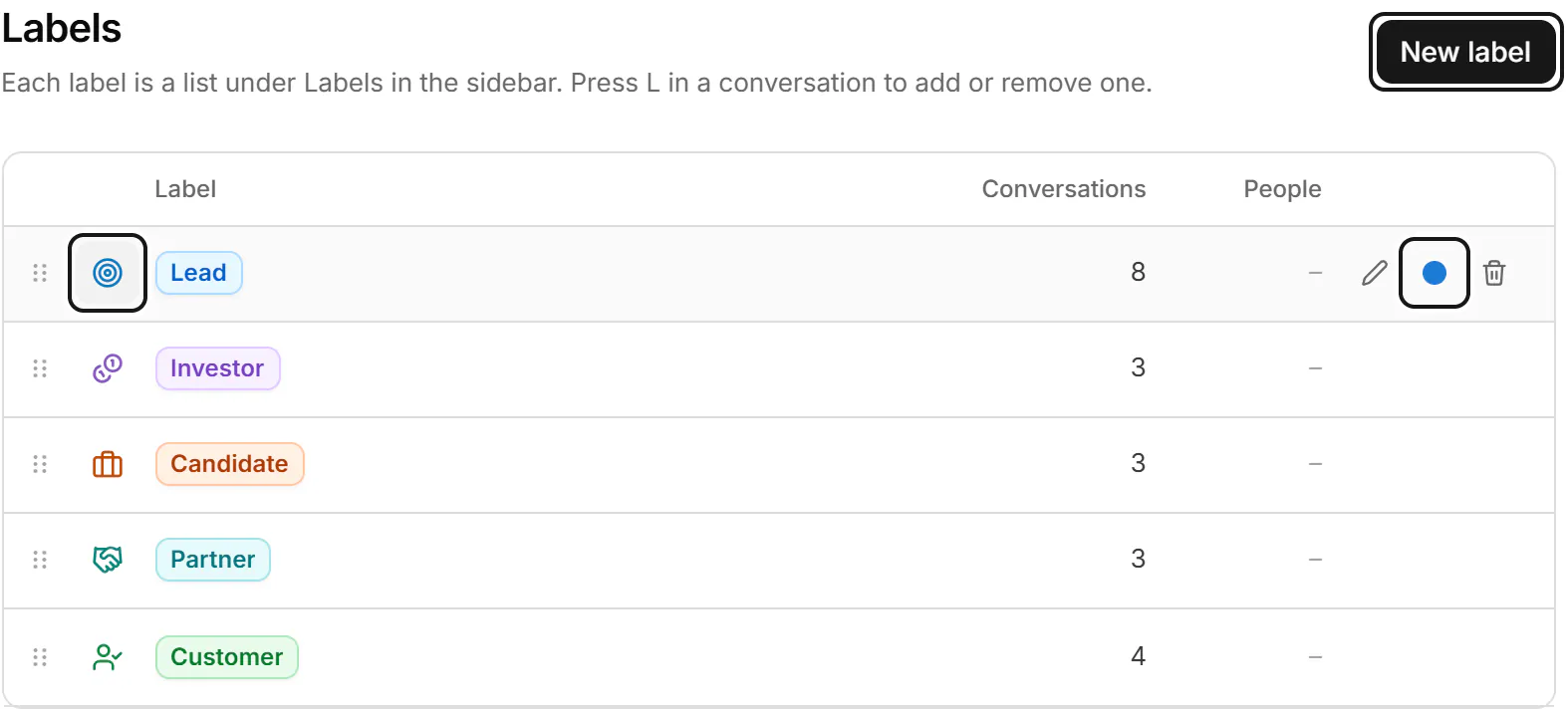
Labels are unlimited on every plan, including Starter at $25 a month. Full details: Label conversations.
About Bokka
Bokka starts with a free 14-day trial, AI included and no credit card. After it, Starter is $25 and Pro is $35 per user a month ($19 and $30 for your first month). Team, at $50, is coming soon.
Frequently asked questions
Can you label messages on LinkedIn?
No. LinkedIn messaging has categories (Focused, Other, Archived, Spam) and filters such as Starred, but no labels or tags you can create.
How do I organise LinkedIn messages by lead or candidate?
Use labels in an inbox tool. In Bokka, press L on a conversation, pick Lead or Candidate (or create your own), and each label becomes its own list in the sidebar.
Can a LinkedIn conversation have more than one label?
In Bokka, yes. A conversation can carry several labels at once, such as Candidate and Referral.
Sources
Other products' prices and features were read on their own pages on 24 October 2026. They change; check each page before you buy.
Try Bokka free for 14 days, AI included, with no credit card. It runs in Chrome, Edge, Brave and Arc on a desktop or laptop.
Start your free trialAbout the author
Amardeep Anand founded Bokka, the AI-first CRM for your LinkedIn inbox, and runs it from Deoghar, India. Questions or corrections: support@gobokka.com.
Related
- How to archive LinkedIn messages, one or many at onceArchive a LinkedIn conversation from its More menu, or many at once with Manage conversations. Where archived messages go, and how to bring them back.
- How to set a reminder to follow up on a LinkedIn messageLinkedIn has no reminders for messages. The closest built-in workaround, and how to set a follow-up that returns only if they haven't replied, in Bokka.
- LinkedIn grey check mark meaning: sent, not read (yet)A grey check mark on a LinkedIn message means Sent: it reached their inbox but isn't shown as read. Why it can stay that way, and what to do next.