Organize
Label conversations
Tag conversations and people with labels, work each label as its own list, and manage your labels in Settings.
Add or remove labels
- Open or select a conversation and press L. You can also use Apply labels on a row, or Edit labels in the contact panel (Add label when there are none). Apply labels opens.
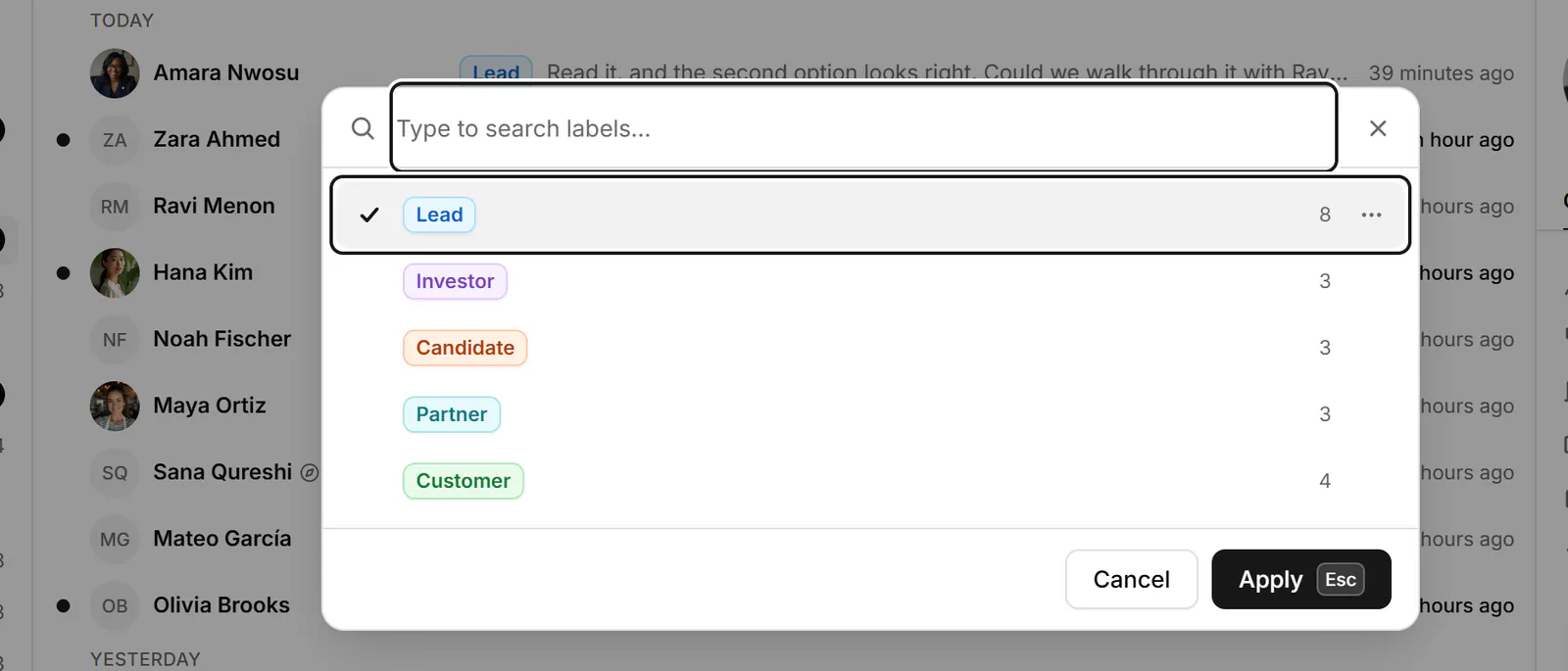
- Type in Search or create labels to find a label. Enter checks or unchecks it (Space does too while the field is empty). If no label matches, you're offered to create one with that name (up to 40 characters).
- Choose Apply (Ctrl+Enter). Cancel, or Close without applying (Esc), leaves the labels as they were. A message says what changed, with Undo.
To take every label off a conversation, press Shift+L. In the contact panel, the × beside a label removes just that one.
Work a label as a list
Every label is a list under Labels in the sidebar, with a count. The starter labels (Lead, Hot lead, Customer, Friend, Investor and Candidate) wait in Organize until you show them; a label you create shows at once. Press G then L to jump to your labels. A label covers conversations and people, so a person you label in People shows up here too.
Manage labels
- Go to Settings → Labels. Each row shows how many conversations and people have that label.
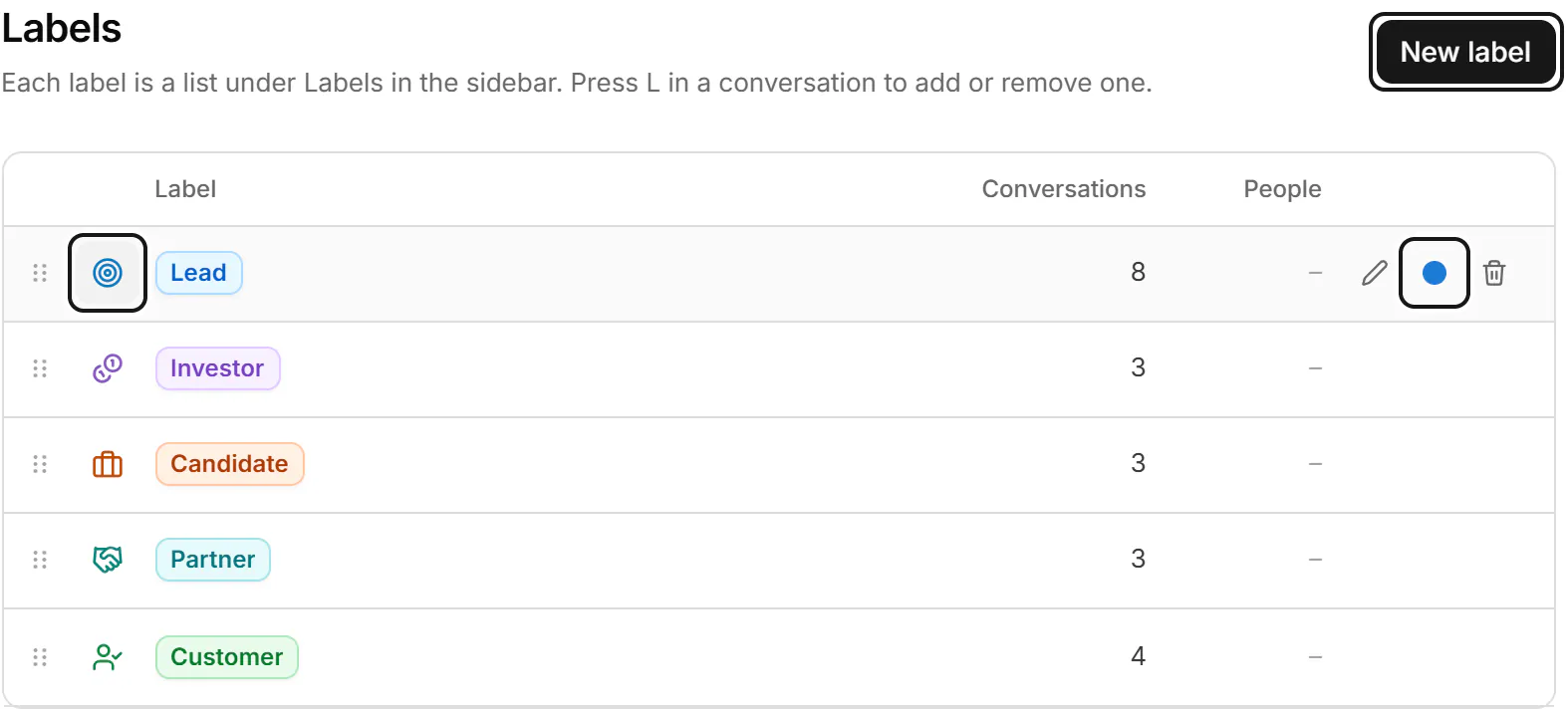
- New label creates one. Each row has buttons to change its icon and colour, Edit it, or Delete it.
- To reorder labels, drag the handle, or press Alt+↑ or Alt+↓.
- Give a label a Description: who or what it's for, and how to tell. Sort with AI suggests a label only when what you wrote fits.
Deleting a label removes it from every conversation and person that has it. The conversations themselves stay.
The labels you start with
Your account starts with six labels: Lead, Hot lead, Customer, Friend, Investor and Candidate, each with a description that Sort with AI follows. Rename, recolour, describe or delete them like any label.
If something goes wrong
- "We couldn't change the labels. Check your connection and try again." Your change wasn't saved. Check your internet connection and apply the labels again.
- "This label doesn't exist anymore." The label was deleted. Pick another under Labels in the sidebar.
Related
- Notes and details about a personUse the contact panel to see who you're talking to, set a reply status, and keep labels and notes on each person.
- Sort my inbox with AIHave AI suggest labels, replies and reminders for your conversations, then take or turn them down in one pass.
- Act on many conversations at onceSelect several conversations, then label, stage, archive, snooze, star or mute them together, or write to them all.
- Use the inbox viewsSee what each inbox view holds and which key opens it, and choose the views your sidebar shows.
Still stuck? Email support@gobokka.com and say what you were trying to do.