Inbox
Use your Sales Navigator inbox
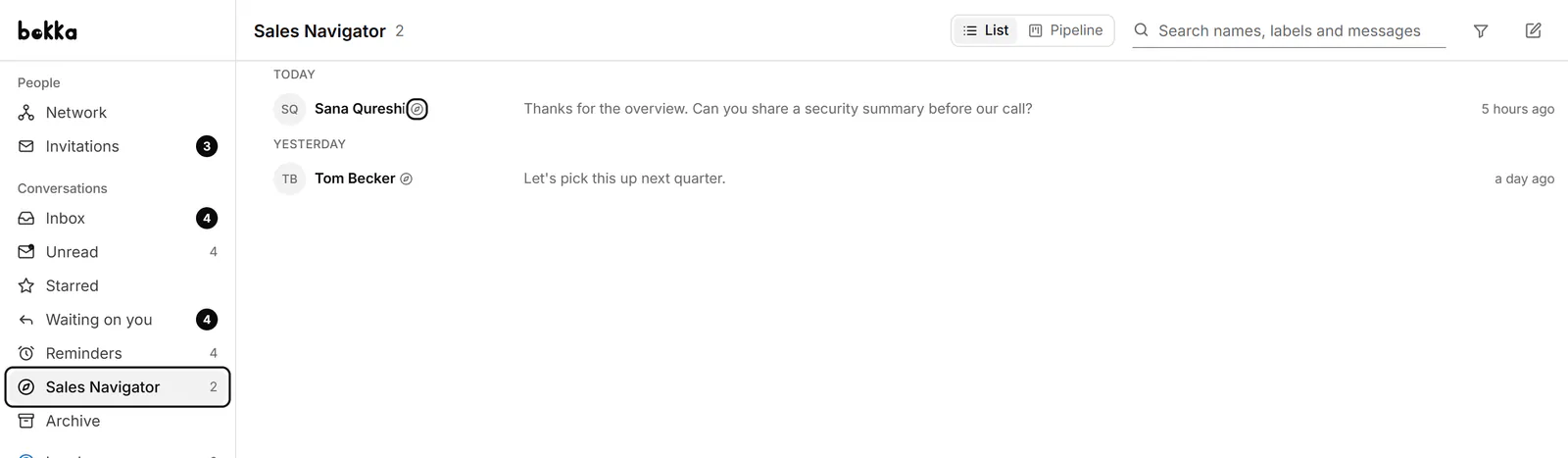
Read your Sales Navigator conversations in Bokka beside your LinkedIn inbox, in a view of their own.
- Press G then S, or show the view in the sidebar: click Organize, then the eye next to Sales Navigator.
- If it says "Sales Navigator isn't connected in this browser. Open Sales Navigator once in a tab, then come back.", click Open Sales Navigator, let it load, then come back.
- Open conversations as in any other view. Sales Navigator conversations carry the Sales Navigator icon.
What's different
- You can't star or mute Sales Navigator conversations, and archiving several at once leaves them out.
- Message selected can't include them.
- If a conversation says "Sales Navigator conversations are read-only here.", click Reply on Sales Navigator to answer there.
If something goes wrong
- "Sales Navigator is on Pro" over blurred rows: your plan syncs your LinkedIn inbox only. Upgrade to Pro to see these; nothing is lost on any plan. See Plans and billing.
- "LinkedIn says this account has no Sales Navigator." If you've just started it, check again.
- "Sales Navigator sync is turned off for now." Your LinkedIn inbox keeps syncing. Check back later.
Related
- Use the inbox viewsSee what each inbox view holds and which key opens it, and choose the views your sidebar shows.
- Choose, change or cancel a planWhat the 14-day trial, Starter and Pro include, and how to choose a plan, switch plans, update your card or cancel.
- Send one message to several peopleWrite one message, personalised with each person's name or company, and send it to up to 10 conversations, approving each send.
Still stuck? Email support@gobokka.com and say what you were trying to do.