AI
Sort my inbox with AI
Have AI suggest labels, replies and reminders for your conversations, then take or turn them down in one pass.
Describe your labels first
AI suggests one of your labels only when what you say it means fits. Give each label a description in Settings → Labels, or follow Describe your labels on the AI page. See Label conversations.
Sort some conversations
- In the sidebar, open AI suggestions (G then X) and choose Sort with AI, or press S on that page. You can choose up to 20 conversations.
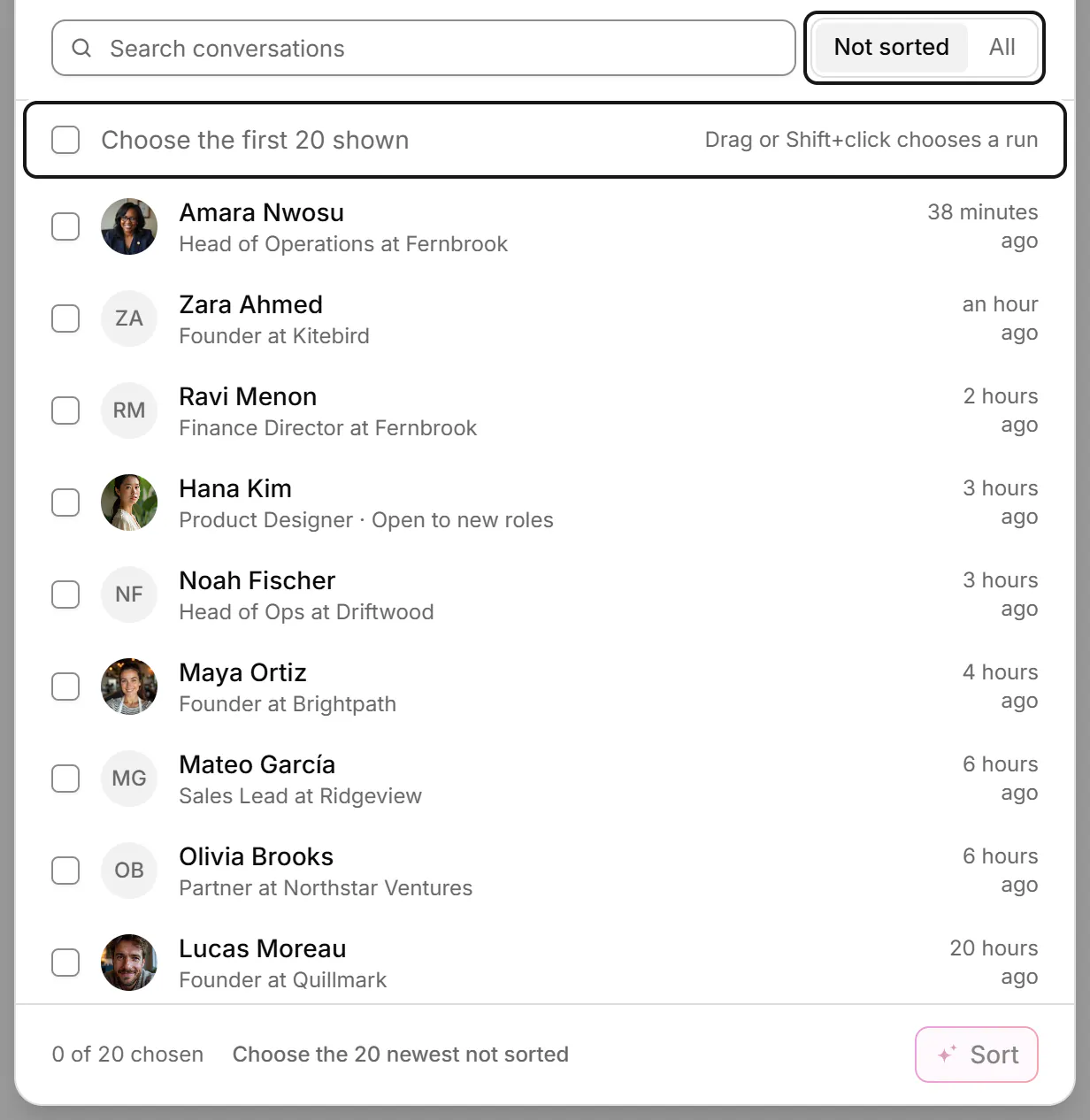
- Show Not sorted or All, then tick conversations, or tick Choose the first 20 shown. Drag or Shift+click to tick a run. Choose Sort.
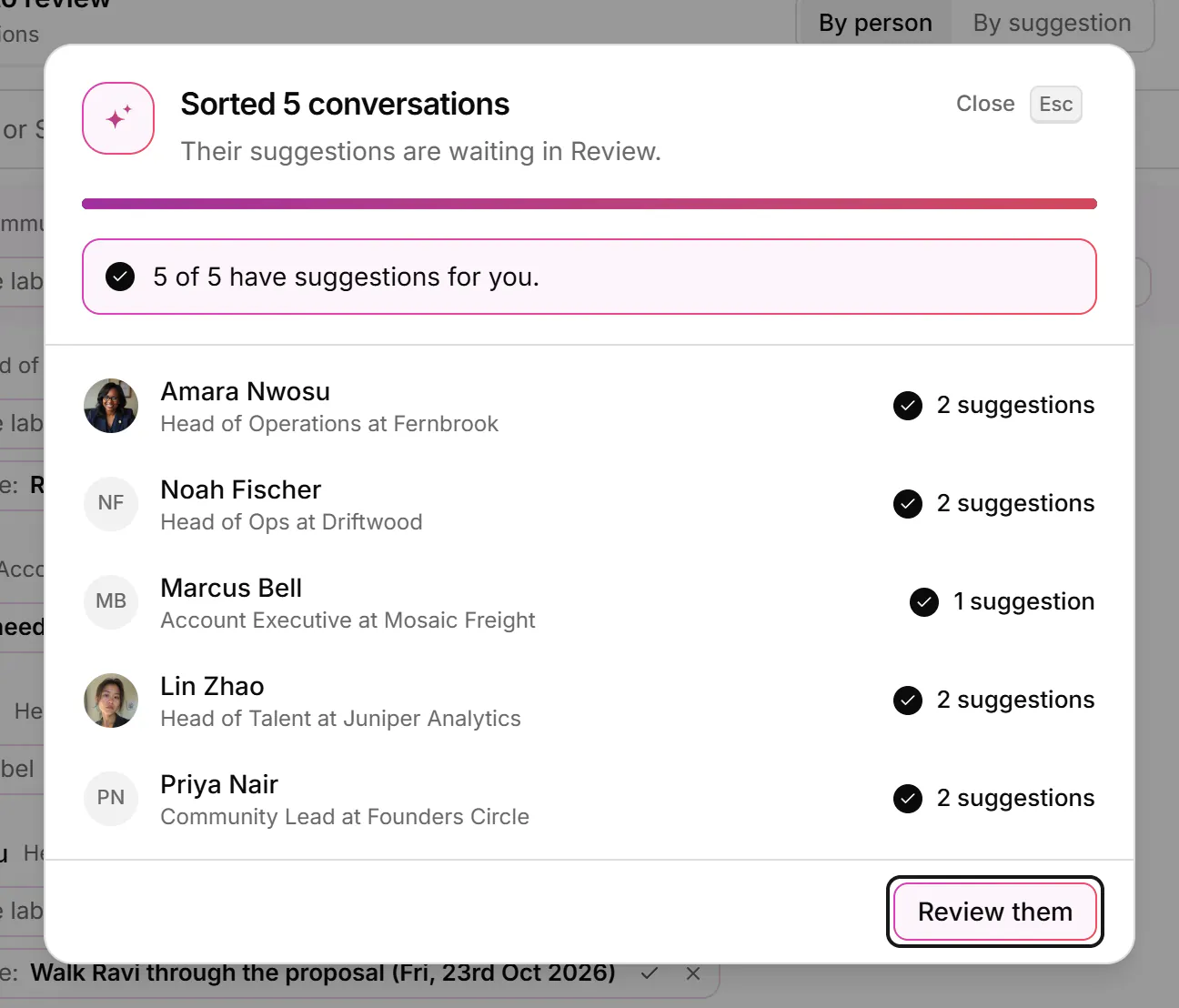
- When it's done, choose Review them.
Review the suggestions
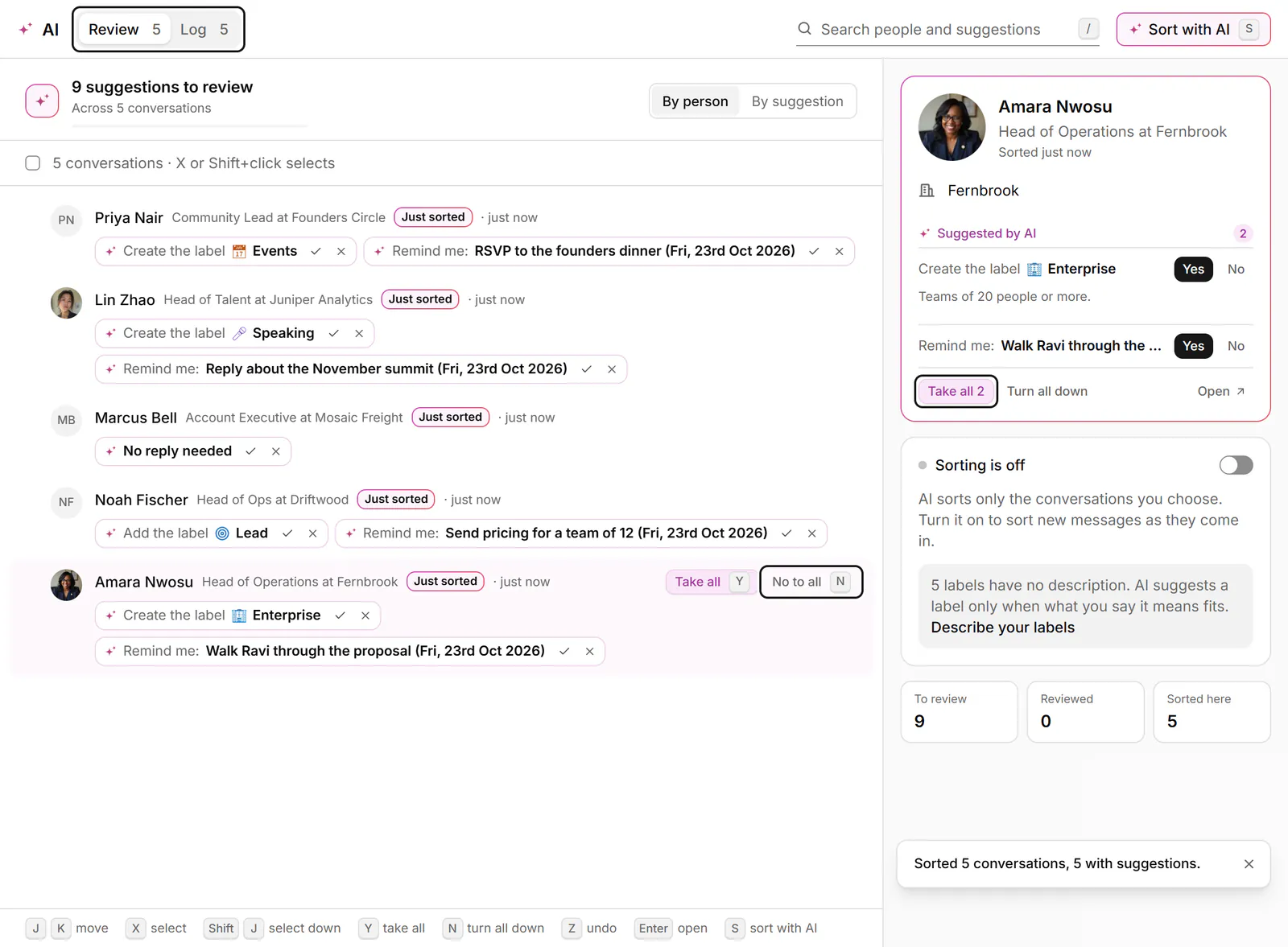
- Group the review By person or By suggestion.
- Each suggestion has its own yes and no, such as “Add the label Customer” or “Remind me: RSVP to the founders dinner”.
- Take all (Y) or No to all (N) answers a whole group. Z undoes, J and K move, and Enter opens the conversation (grouped by suggestion, it opens each person).
- The Log tab shows what came of each one, such as Created and added, Reminder set or Turned down.
In the inbox, press A to take the AI's suggestions for the open or selected conversations, or Q to turn them down. Single suggestions also show in the contact panel under Suggested by AI. For one conversation, use Sort this conversation with AI in the command palette.
Sort new messages as they arrive
Turn on Sort new messages with AI, on the AI page or in Settings → AI. Read What's sent beside the switch first. Suggestions still wait for your yes.
The review and the log are kept in this browser, so another browser doesn't show them.
Related
- What can AI do in Bokka?What AI helps with in Bokka: drafts in your voice, summaries and inbox sorting, and what it never does on its own.
- Label conversationsTag conversations and people with labels, work each label as its own list, and manage your labels in Settings.
- Get reminded to follow upSnooze a conversation until later, or set a reminder that comes back only if the other person hasn't replied.
- Notes and details about a personUse the contact panel to see who you're talking to, set a reply status, and keep labels and notes on each person.
Still stuck? Email support@gobokka.com and say what you were trying to do.