Inbox
Use the inbox views
See what each inbox view holds and which key opens it, and choose the views your sidebar shows.
Bokka splits your LinkedIn inbox into views, so the conversations that need you sit apart from the rest. A view is a slice of the same conversations: switching views moves nothing.
| View | What's in it | Key |
|---|---|---|
| Inbox | Your main inbox | Shift+A or G then I |
| Unread | Conversations you haven't read | Shift+U |
| Starred | Conversations you starred | None |
| Waiting on you | One-to-one conversations where they wrote last. Group chats aren't listed. | Shift+W |
| Waiting on them | One-to-one conversations where you wrote last, and ones you marked Follow up | Shift+S |
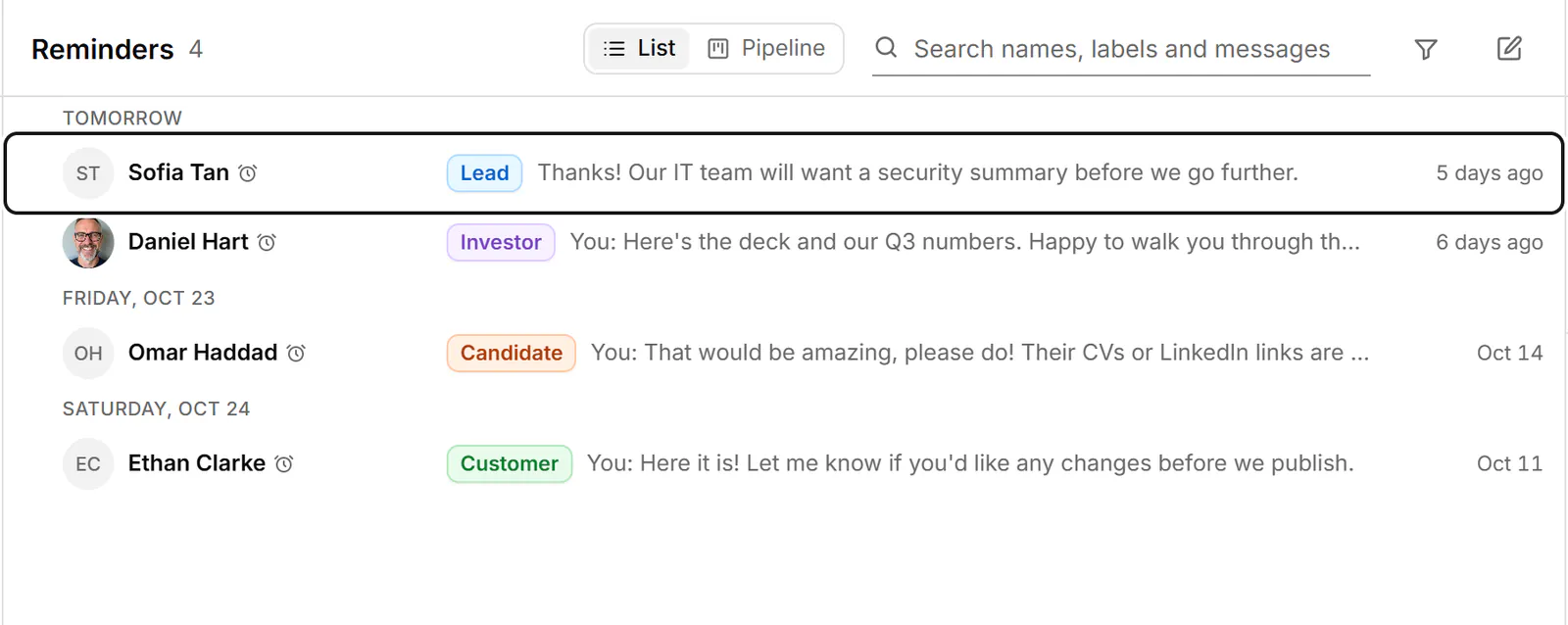
| Reminders | Snoozed conversations and follow-ups, soonest first | G then R |
| Archive | Conversations you archived | G then A |
| Other | LinkedIn's Other folder and message requests (the heading reads Other and message requests) | None |
| Spam | LinkedIn's spam, plus conversations you marked as spam, shown in grey | None |
| Sales Navigator | Your Sales Navigator inbox, on Pro. See Sales Navigator. | G then S |
Views without a key open from the command palette (Ctrl+K) or the Filter menu. Press [ and ] to step to the previous or next view.
Waiting on you and Waiting on them
These two views group conversations by how long they've waited: Under a day, 1 to 3 days, 3 to 7 days, 7 to 30 days and Over 30 days. Work from the oldest group up.
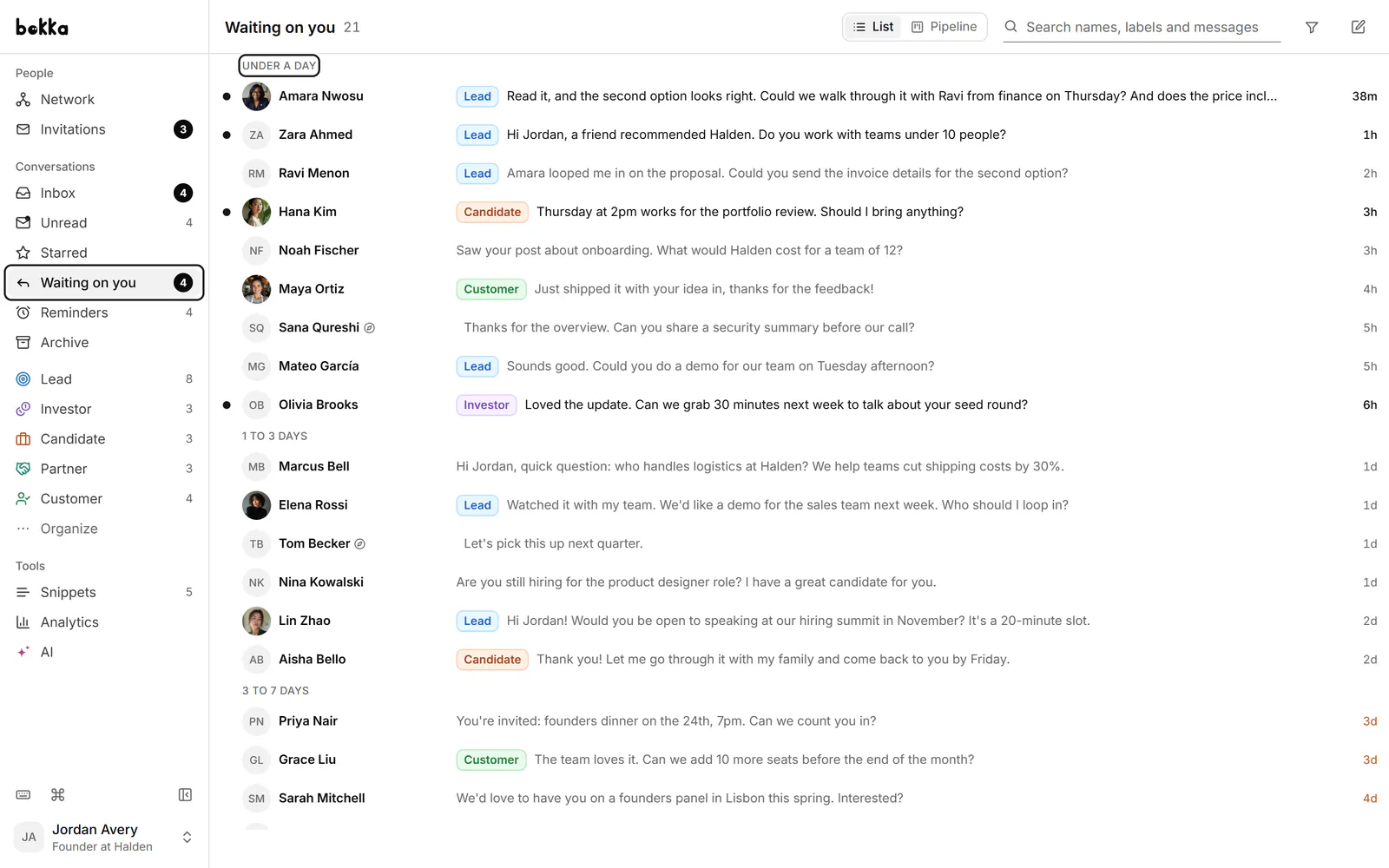
If a conversation doesn't need an answer, press Shift+N (Mark as no reply needed). It leaves both views until a new message arrives.
Reminders
Snoozing a conversation takes it out of every view but Reminders until its time comes. Each row shows when it's due. See Get reminded to follow up.
Choose which views show
The sidebar starts with Inbox, Starred and Reminders; the other views start hidden, and each one still opens with its shortcut. To change what the sidebar shows:
- Click Organize in the sidebar, below your labels, or choose Organize sidebar in the command palette.
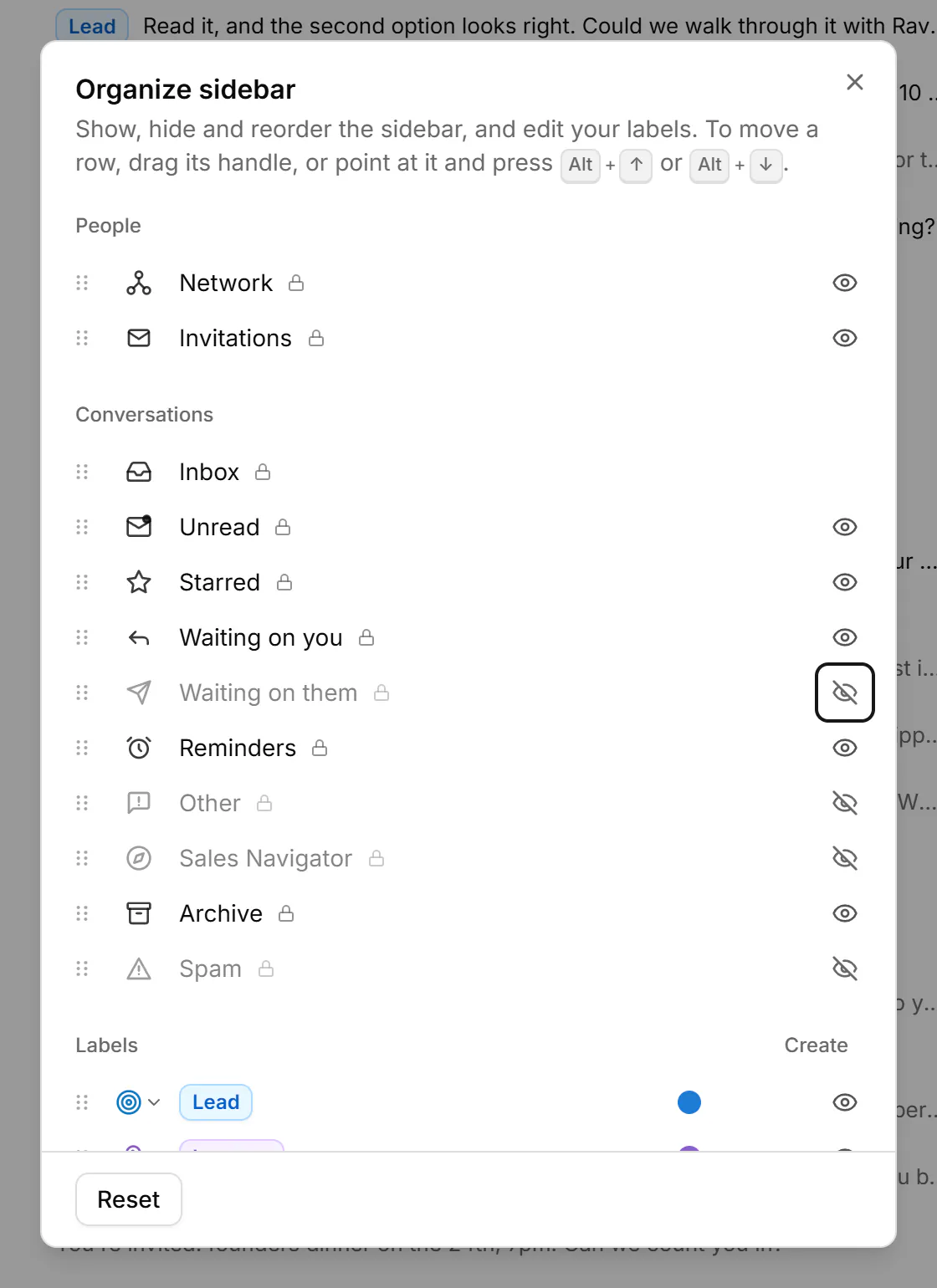
- Click the eye next to a view to show or hide it. In the sidebar itself, point at a view and click its eye to hide it.
- Drag a row to move it, or press Alt+↑ or Alt+↓.
- To go back to the original layout, click Reset sidebar, then Reset.
Inbox always shows. The layout of your views is saved on this device, so another computer keeps its own. A hidden view still opens from its key, from [ and ], from Filter and from the command palette.
Related
- Clear your inboxWork through your inbox from the keyboard: archive what's done, snooze what can wait, and star, mute or mark as read.
- Find a conversationSearch conversations by name, label or message text, search inside one conversation, and narrow the list with filters.
- Label conversationsTag conversations and people with labels, work each label as its own list, and manage your labels in Settings.
- Use your Sales Navigator inboxRead your Sales Navigator conversations in Bokka beside your LinkedIn inbox, in a view of their own.
Still stuck? Email support@gobokka.com and say what you were trying to do.