Organize
Notes and details about a person
Use the contact panel to see who you're talking to, set a reply status, and keep labels and notes on each person.
The contact panel sits to the right of the conversation. Press I to show or hide it, and Shift+I to move to its next tab. Pointing at a row in the list previews that person.
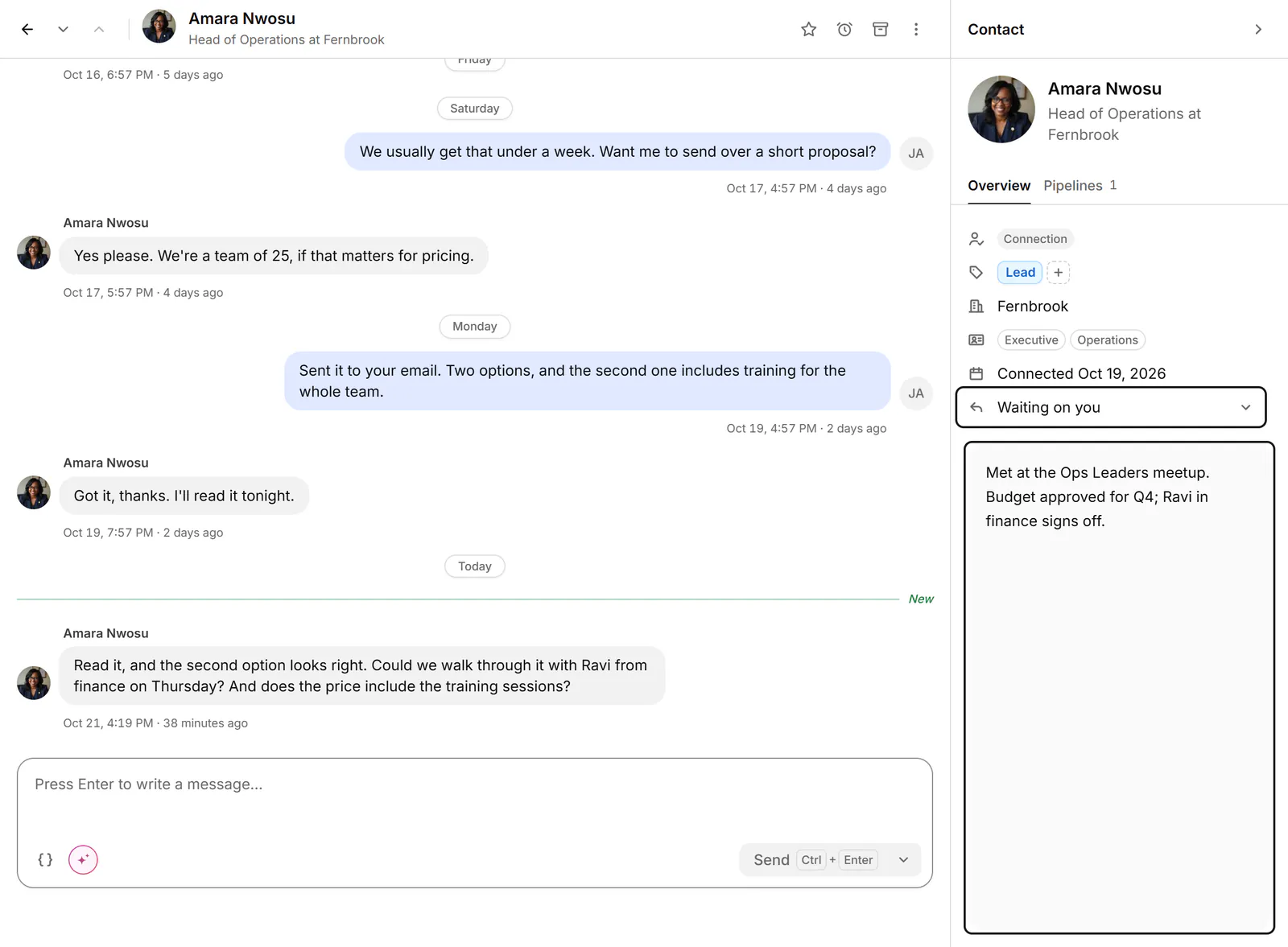
Overview
- Their name and headline, how you're connected on LinkedIn, where they work and when you connected, when available.
- Reply status: Waiting on you, Waiting on them, Follow up or No reply needed. Click it to change it; Shift+N marks it No reply needed.
- Their labels, with Edit labels. See Label conversations.
- Suggestions from AI, under Suggested by AI, if you use Sort with AI.
Write a note
- Press N, or click the note field (“Press N to start writing a note…”).
- Type. The note saves as you go and shows Saved. A note can be up to 10,000 characters.
Notes belong to the person, not to one conversation, and are kept in your Bokka account. You see the same note in the inbox, in People and on the pipeline board. A group conversation has its own note.
Other tabs
- Pipelines: the conversation's stage and fields. See Track deals in a pipeline.
- About: your own fields for the person, and their LinkedIn About when available.
- Media: photos, videos and files from the conversation.
- Members, in a group: everyone in it.
If something goes wrong
- "We couldn't save your note. Check your connection, then retry." Check your internet connection and choose Retry.
- "Who you're talking to shows here once this conversation syncs." Wait a moment for the conversation to load.
Related
- Label conversationsTag conversations and people with labels, work each label as its own list, and manage your labels in Settings.
- Track deals in a pipelineMove conversations through stages on a board to track deals, candidates or job applications, with fields for each.
- Work through connections, followers and followingBrowse your LinkedIn connections, followers and the people you follow, then label them, keep notes and message them.
- Get reminded to follow upSnooze a conversation until later, or set a reminder that comes back only if the other person hasn't replied.
Still stuck? Email support@gobokka.com and say what you were trying to do.