Integrations
Send conversations to Notion, Google Sheets or a webhook
Send the chats you choose to a Notion database, a Google sheet or a webhook, and decide exactly what goes with each.
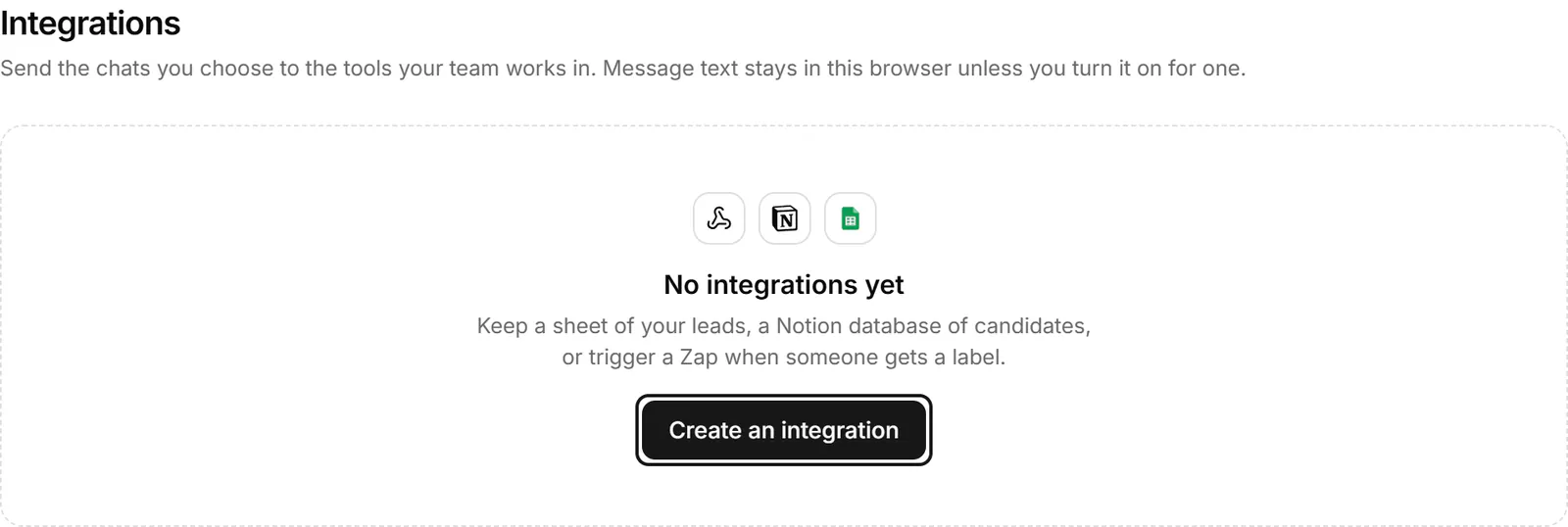
Keep a sheet of your leads, a Notion database of candidates, or trigger a Zap when someone gets a label. Message text stays in this browser unless you turn it on for an integration.
Create an integration
- Go to Settings → Integrations and choose Create an integration.
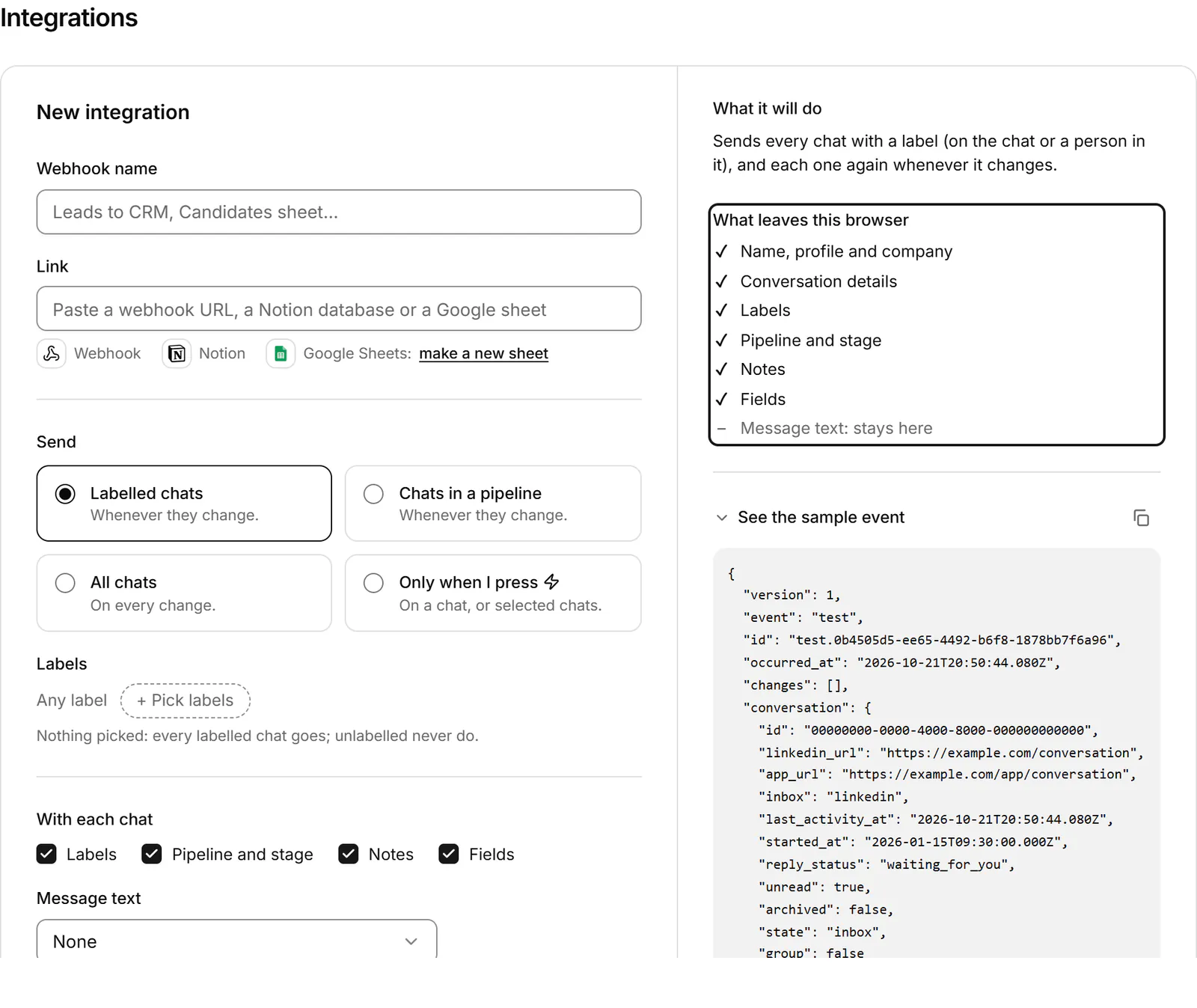
- Under Where to, give it a name and paste a Link: a webhook URL, a Notion database or a Google sheet. For Notion, choose Connect Notion. For Google Sheets, choose make a new sheet, or paste a sheet you have and follow the steps to add our script to it.
- Under What goes, choose what to Send: Labelled chats or Chats in a pipeline whenever they change, All chats on every change, or Only when I press. With labels, + Pick labels narrows it; with none picked, every labelled chat goes and unlabelled ones never do.
- Under With each chat, tick what goes along: Labels, Pipeline and stage, Notes and Fields. Message text is None unless you choose New messages or The whole conversation.
- Check the panel beside the form. What it will do says which chats go and when, and What leaves this browser lists what's sent. See the sample event shows an example with made-up names.
- Choose Test then save. It checks the destination before saving.
What leaves this browser
Every integration sends the person's name, profile and company, and the conversation's details. Labels, pipeline and stage, notes and fields go only if you ticked them. Message text goes only if you set Message text to new messages or the whole conversation.
Webhooks: the signing secret
When you save a webhook, its signing secret shows once. Copy it then: it isn't shown again. Your endpoint uses it to check that a request came from us (Standard Webhooks). New secret makes another; the old one keeps working for 24 hours.
Send by hand
With Only when I press, or any time, select conversations and choose ⚡ Send to… in the toolbar or the command palette, then pick the integration.
If something goes wrong
- "Paused after 10 failed sends": fix the destination, then choose Retry now.
- Reconnect Notion or Reconnect Google Sheets: access was lost. Choose it and sign in again.
- "It didn't answer within 10 seconds." Check that your endpoint is up.
- "It answered with a redirect. Use the final URL." Paste the address it redirects to.
- "Its HTTPS certificate isn't valid, so we didn't send." Fix the certificate on your endpoint.
- "Paused: not on this plan." Integrations need Pro.
- "Pro has up to 5 integrations." Delete one to make another.
Related
- Connect an AI assistantConnect Claude, ChatGPT, Cursor, VS Code or Gemini CLI to Bokka over MCP, to read, organise and draft from your LinkedIn inbox. It never sends a message.
- Label conversationsTag conversations and people with labels, work each label as its own list, and manage your labels in Settings.
- Track deals in a pipelineMove conversations through stages on a board to track deals, candidates or job applications, with fields for each.
- Choose, change or cancel a planWhat the 14-day trial, Starter and Pro include, and how to choose a plan, switch plans, update your card or cancel.
Still stuck? Email support@gobokka.com and say what you were trying to do.