Organize
Track deals in a pipeline
Move conversations through stages on a board to track deals, candidates or job applications, with fields for each.
Open the board
- In the inbox, switch the layout from List to Pipeline, or press V. G then P goes straight to the board, as does Open board in Settings → Pipelines.
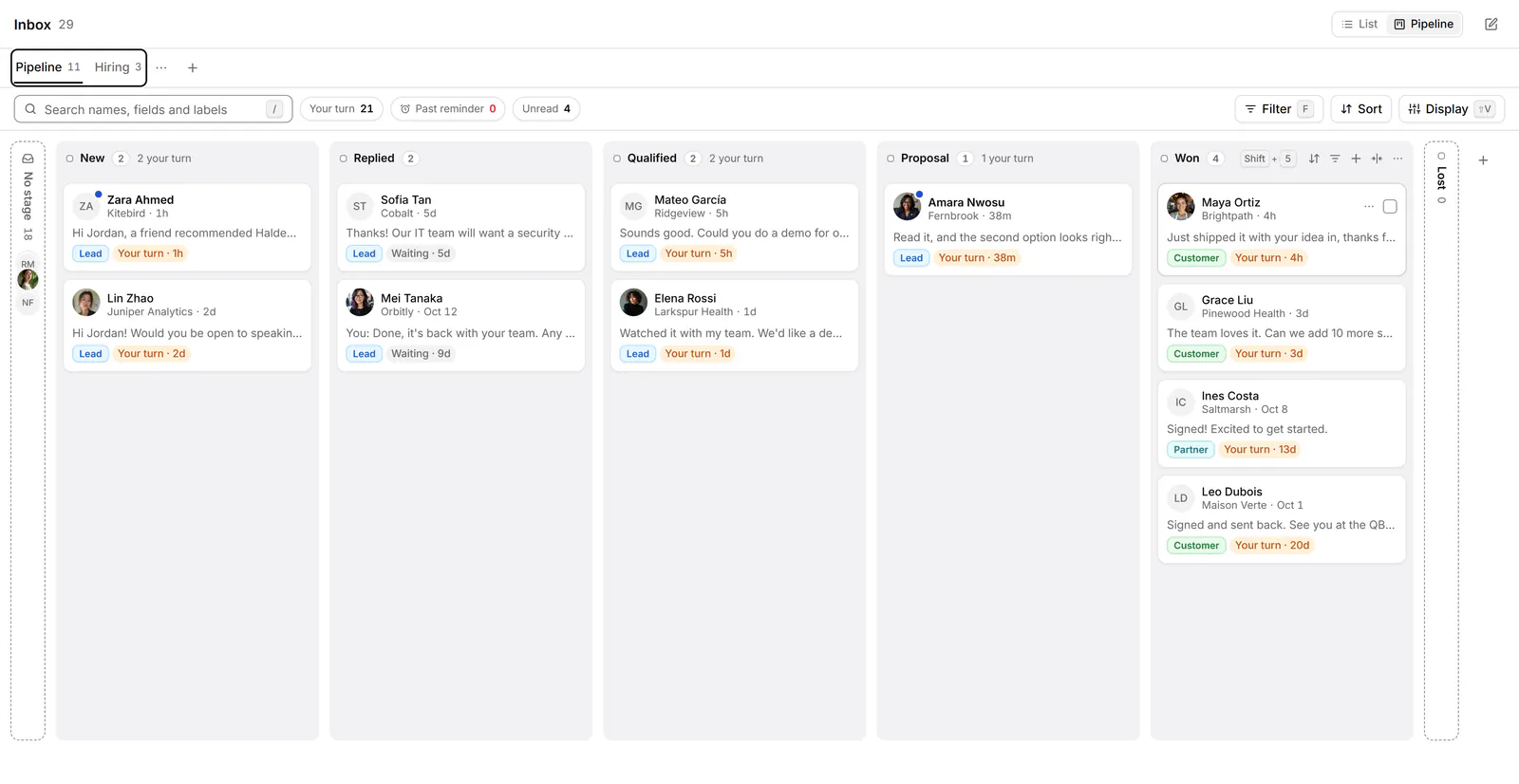
- Each pipeline is a tab along the top. The bar has a search, the quick filters Your turn, Past reminder and Unread, and Filter, Sort and Display.
- Conversations not in this pipeline yet sit in No stage. Show Waiting on you or All of them.
Move a card
- Drag a card to another stage. Or focus it with J and K and press Shift+1 to Shift+9 to move it to that stage.
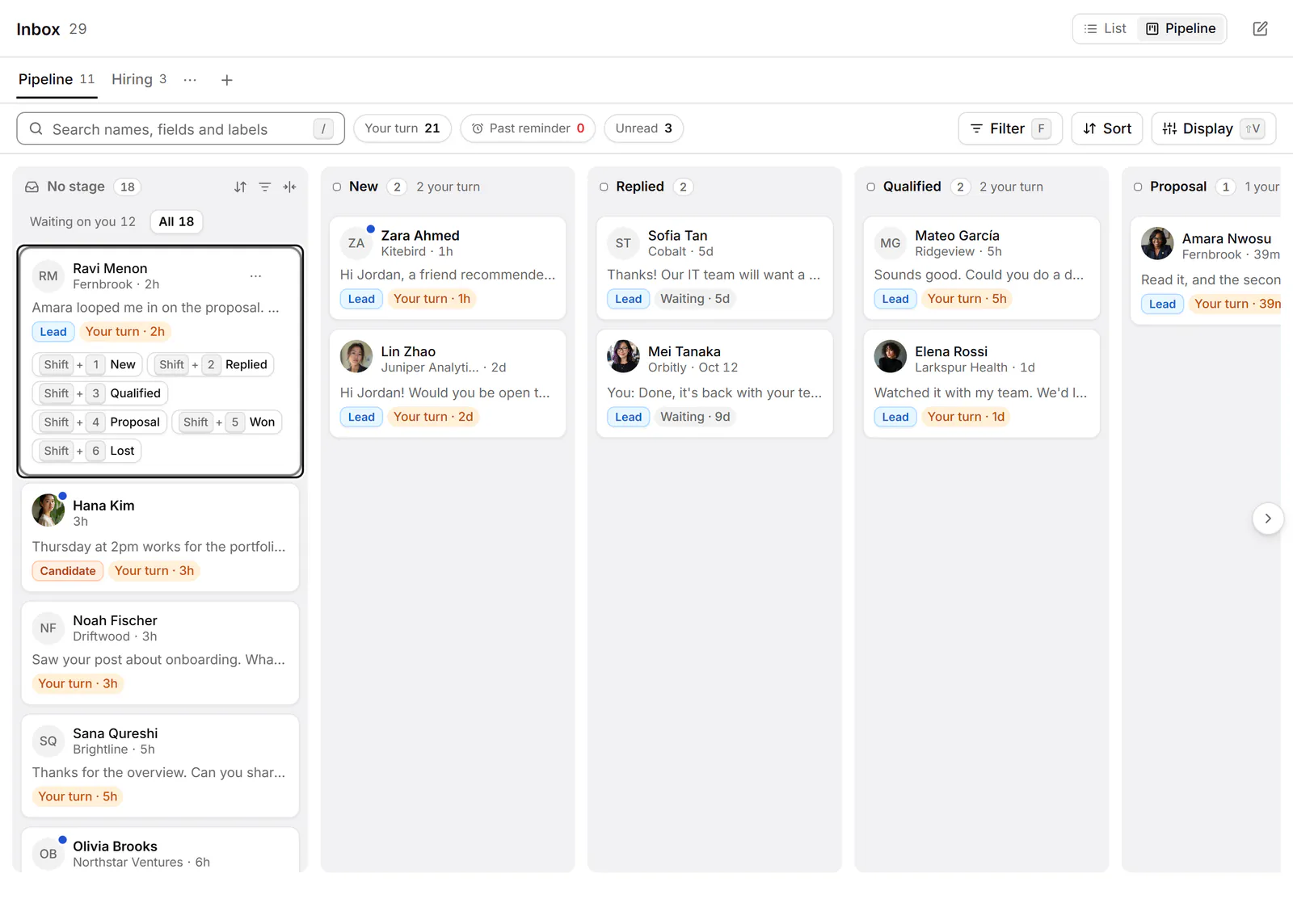
- H and L move between stages. Alt+↑ and Alt+↓ move a card up or down its column.
- Press Enter to open the conversation.
In the list, select conversations and use Set stage… to move several at once. See Act on many conversations at once.
Create a pipeline
- In Settings → Pipelines, choose New, or New pipeline on the board. Give it a name and pick a template: Sales, Recruiting, Job search or Blank.
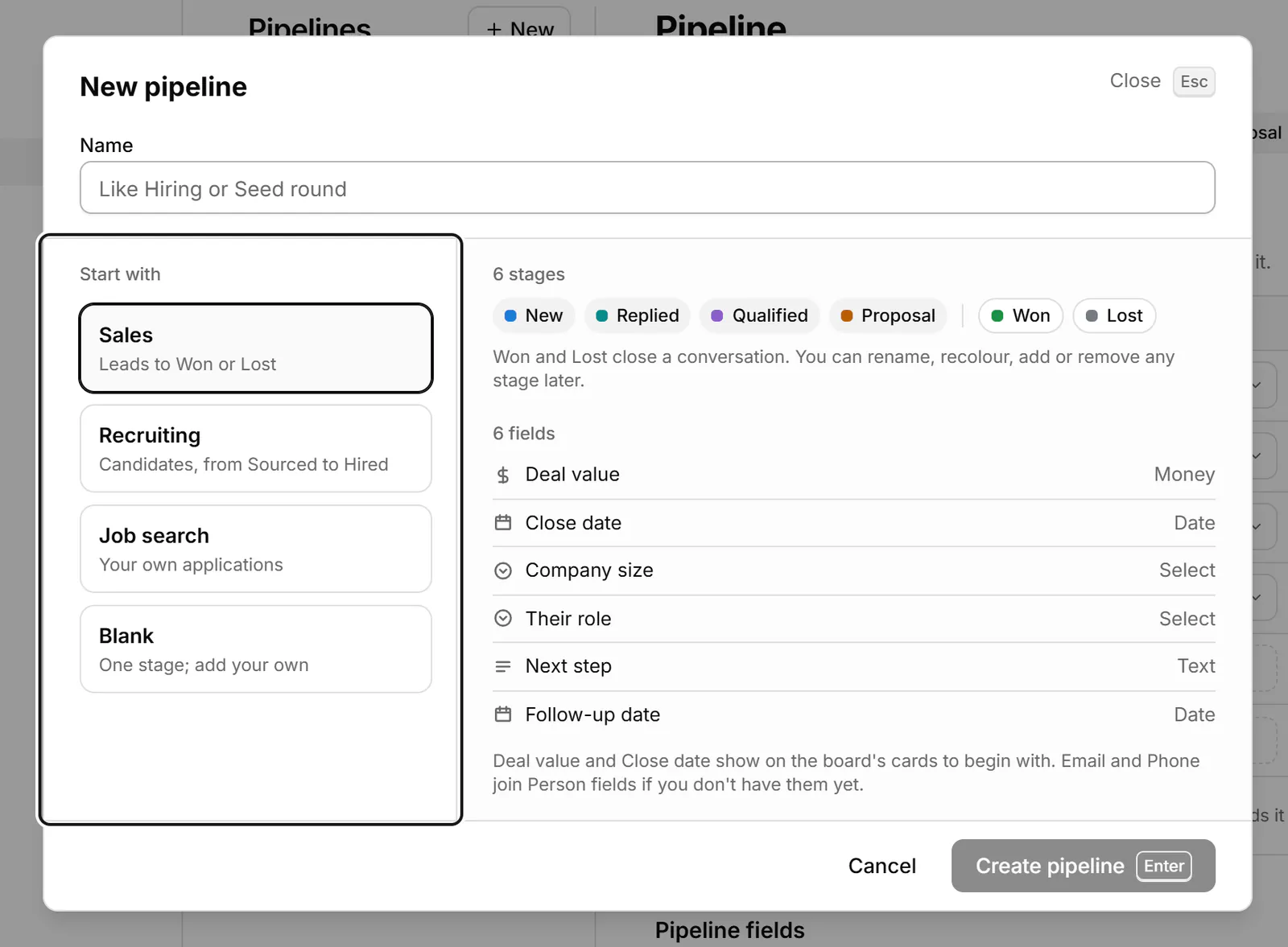
- Sales comes with the stages New, Replied, Qualified, Proposal, Won and Lost, and fields such as Deal value, Close date and Next step. Recruiting runs from Sourced to Hired or Declined, and Job search from Saved to Accepted or Rejected. Blank starts with one stage.
Your first pipeline can be renamed but not deleted.
Set up stages
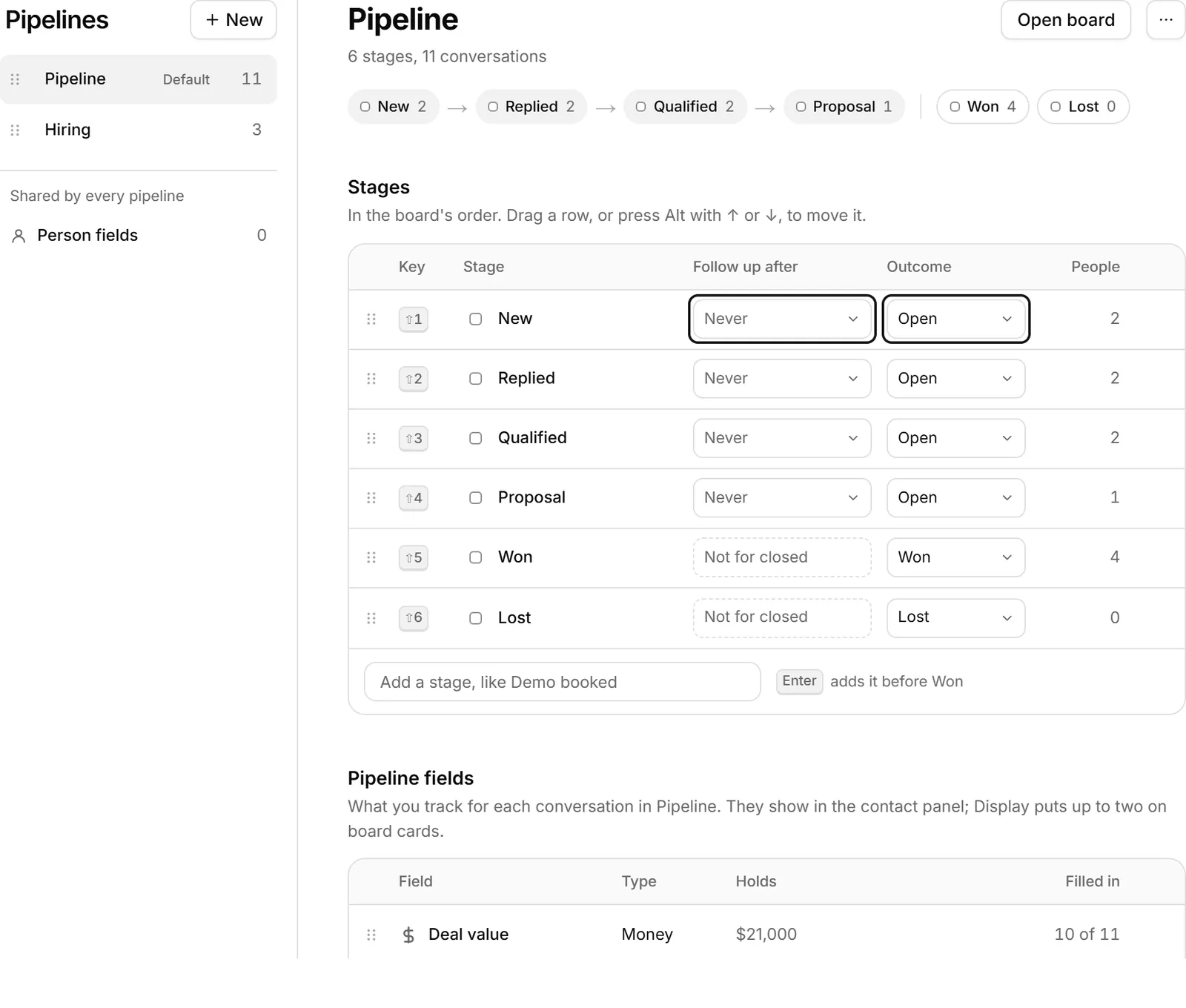
- Change a stage's colour, Rename it, delete it, or add one with the field at the end of the list.
- Follow up after: Never, 3, 7, 14 or 30 days, or a custom number. A conversation that's been quiet in the stage that long is marked for a follow-up.
- Outcome: Open, Won or Lost. Won and Lost close a conversation, so it gets no follow-ups.
Add fields
Under Pipeline fields and Person fields, add what you track: Text, Number, Money, Date, Select, Link, Email or Phone. They show in the contact panel's Pipelines tab, and Display on the board puts up to two of them on each card. A workspace can have up to 60 fields.
If something goes wrong
- "We couldn't move that stage. Check your connection and try again." Your change wasn't saved. Check your internet connection and try again.
- "You already have a pipeline called X. Choose another name." Pipeline names must be different.
- "A workspace has up to 60 fields. Delete one to add another."
Related
- Notes and details about a personUse the contact panel to see who you're talking to, set a reply status, and keep labels and notes on each person.
- Label conversationsTag conversations and people with labels, work each label as its own list, and manage your labels in Settings.
- Act on many conversations at onceSelect several conversations, then label, stage, archive, snooze, star or mute them together, or write to them all.
- Read my analyticsSee how your LinkedIn messaging is going: messages, reply rate and speed, follow-ups, pipeline movement and your network.
Still stuck? Email support@gobokka.com and say what you were trying to do.