Messaging
Reuse a reply with snippets
Save messages you send often, with placeholders for each person's name or company, and drop them into any conversation.
Insert a snippet
- In the message box, type ; at the start of a word, then a few letters of the snippet's name. Or click Insert a snippet beside the box and search.
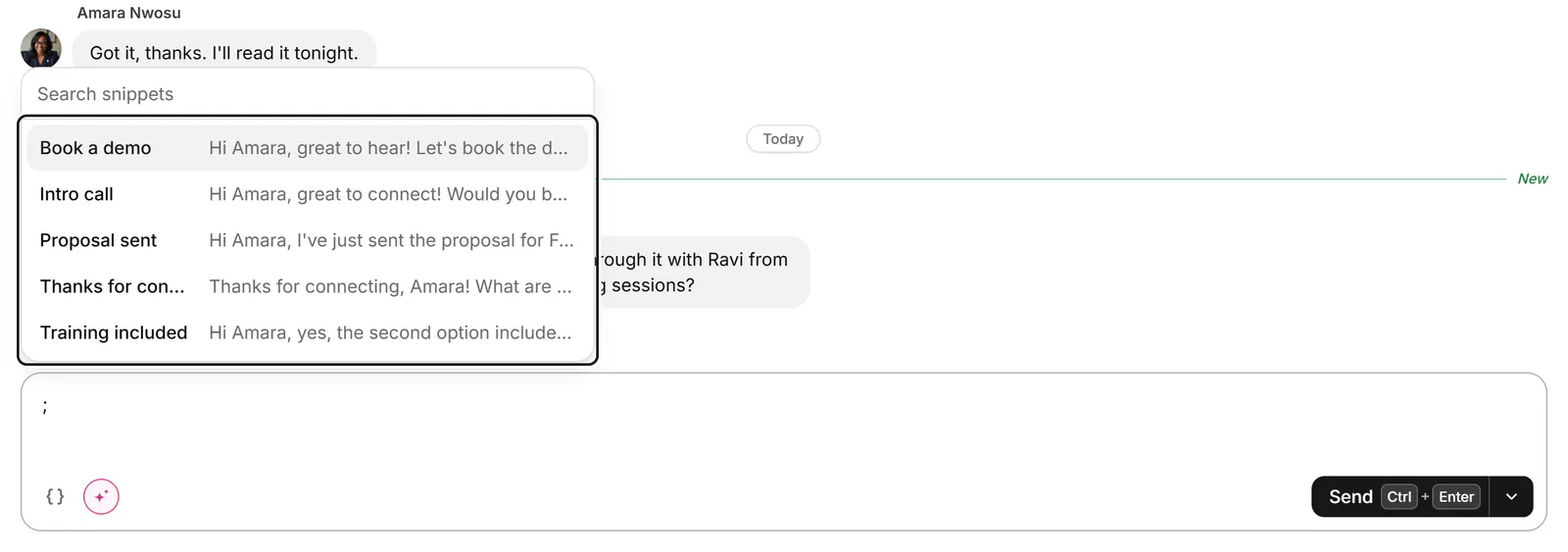
- Pick one with ↑, ↓ and Enter. Placeholders such as
{{first_name}}are filled in for the person you're writing to. - A placeholder that can't be filled stays selected for you to type over, and Tab moves to the next one. Send stays off until each is filled or deleted ("Fill in or delete each {{…}} before sending.").
- Read it through and send it yourself: inserting a snippet only writes text.
Insert a snippet is also in the box's / menu and in the command palette. If someone has more than one current company, the box asks Which company?
Create a snippet
- Go to Settings → Snippets (the sidebar's Snippets goes there) and click New snippet, or press C.
- Give it a Name (up to 40 characters) and write the Message.
- Click a placeholder in the Placeholders panel to add it: first name, nickname, last name, full name, company, headline, your own first name, or one of Your fields. Fallback adds a word for when a value is missing, as in
{{first_name|there}}.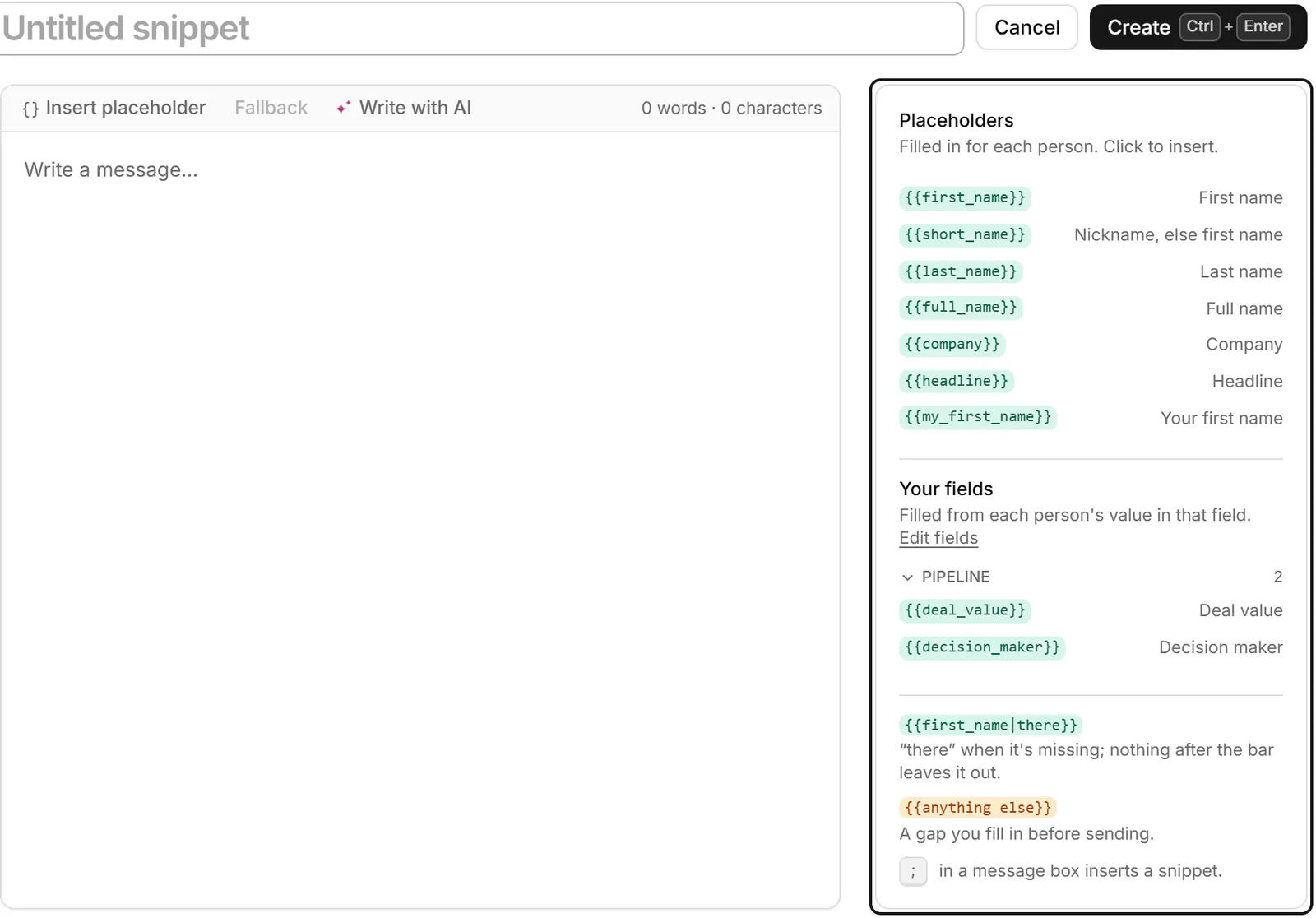
- Click Create, or press Ctrl+Enter. Cancel or Esc closes it without saving.
To keep a message you've just written, use the arrow beside Send, then Save as snippet.
Manage snippets
In Settings → Snippets, press / to search, sort by Name or Updated, and use a snippet's actions menu to Duplicate or Delete it. Snippets are on every plan, with no limit.
Related
- Read and reply to a conversationOpen a conversation, read back through it, and reply from the keyboard, with attachments, quick follow-ups and per-message actions.
- Send one message to several peopleWrite one message, personalised with each person's name or company, and send it to up to 10 conversations, approving each send.
- Draft a reply with AIGet a reply or follow-up drafted in your voice, rework your own text, then edit the draft and send it yourself.
- What's in SettingsWhere to find each setting: your LinkedIn account, sign-in, plan and extension, preferences, labels, AI and more.
Still stuck? Email support@gobokka.com and say what you were trying to do.