Organize
Get reminded to follow up
Snooze a conversation until later, or set a reminder that comes back only if the other person hasn't replied.
There are two kinds of reminder. A snooze hides a conversation until the time you pick. A follow-up leaves it where it is and reminds you if they haven't replied by then.
Set a reminder
- Open or select a conversation and press H. You can also use the clock in the conversation header, Snooze or remind me… on a row or on a selection, or Ctrl+Shift+Enter to send your reply and set a reminder at once. Snooze or remind me opens.
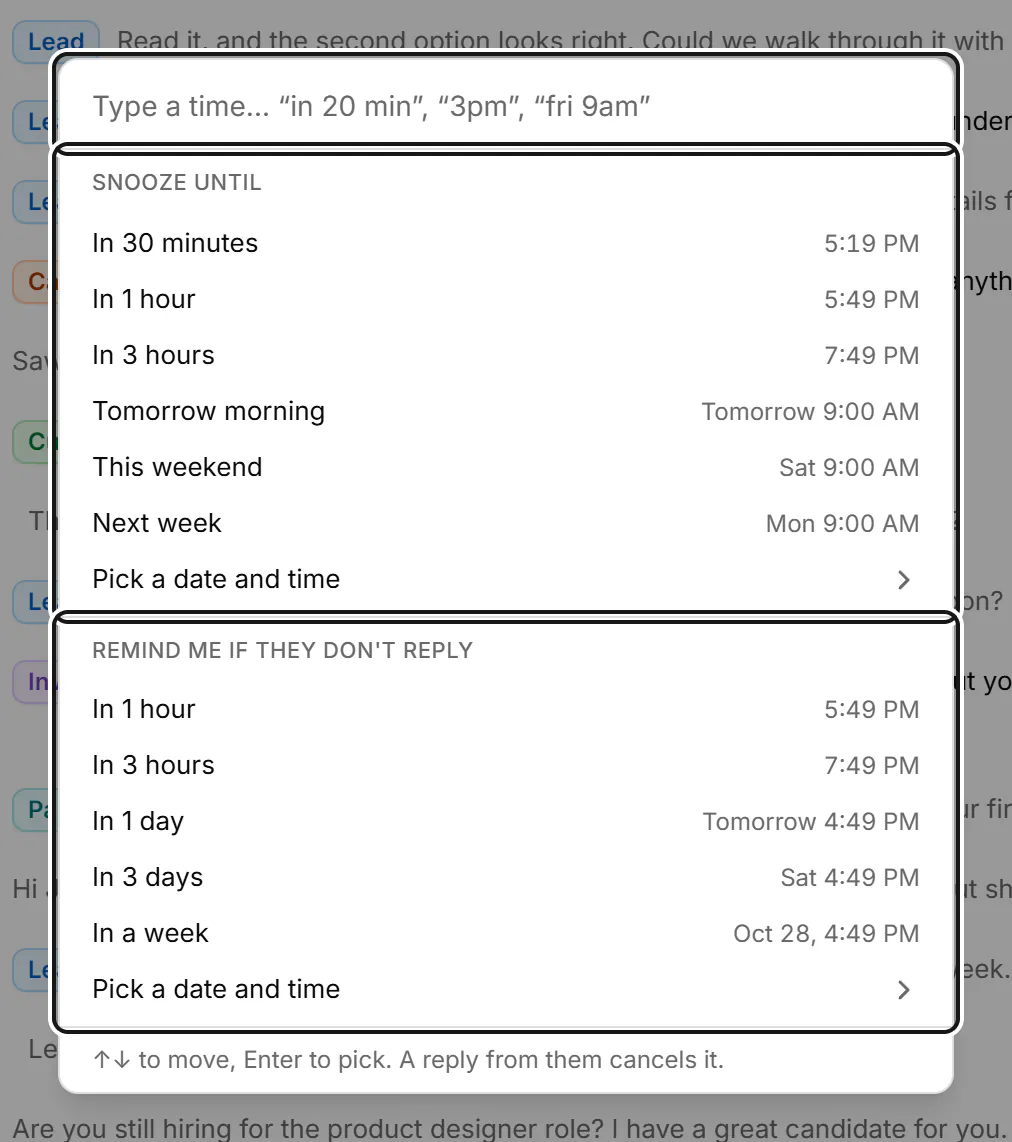
- Type a time, like “in 20 min”, “3pm” or “fri 9am”. It's offered both as a snooze and as a follow-up.
- Or pick one of the choices. Snooze until offers In 30 minutes, In 1 hour, In 3 hours, Tomorrow morning, This weekend, Next week and Pick a date and time. Remind me if they don't reply offers In 1 hour, In 3 hours, In 1 day, In 3 days, In a week and Pick a date and time.
- Move with ↑ and ↓, and press Enter to pick.
What happens next
- A snoozed conversation leaves every list except Reminders. When the time comes, it returns marked Back from snooze.
- A follow-up stays in place. If they haven't replied by then, it shows Time to follow up.
- A new message from them cancels either kind.
- Reminders show in the app only. You get no email or browser notification, and nothing is ever sent for you.
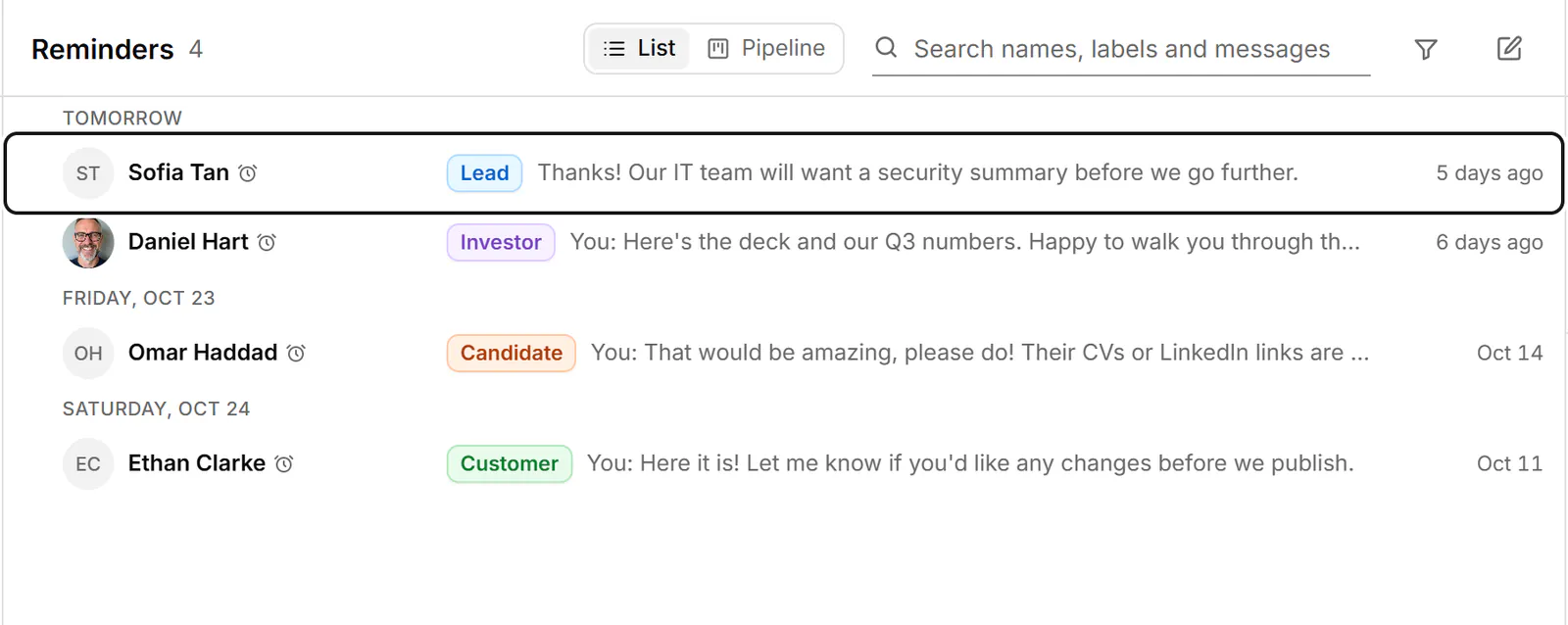
Every snooze and follow-up is in the Reminders view. To clear one, press Shift+H in the conversation: it unsnoozes it, cancels the reminder, or dismisses one that's due.
If something goes wrong
- "That time has passed. Pick a later one." Choose a time in the future.
- "We can't read that as a time." Try a form like “in 20 min”, “3pm” or “fri 9am”, or use Pick a date and time.
Related
- Clear your inboxWork through your inbox from the keyboard: archive what's done, snooze what can wait, and star, mute or mark as read.
- Use the inbox viewsSee what each inbox view holds and which key opens it, and choose the views your sidebar shows.
- Track deals in a pipelineMove conversations through stages on a board to track deals, candidates or job applications, with fields for each.
- Read and reply to a conversationOpen a conversation, read back through it, and reply from the keyboard, with attachments, quick follow-ups and per-message actions.
Still stuck? Email support@gobokka.com and say what you were trying to do.