Getting started
Where is everything?
A tour of Bokka: the sidebar, the conversation list, the conversation, the contact panel, the command palette and the shortcut sheet.
Every action works three ways: click it, press its key, or find it in the command palette.
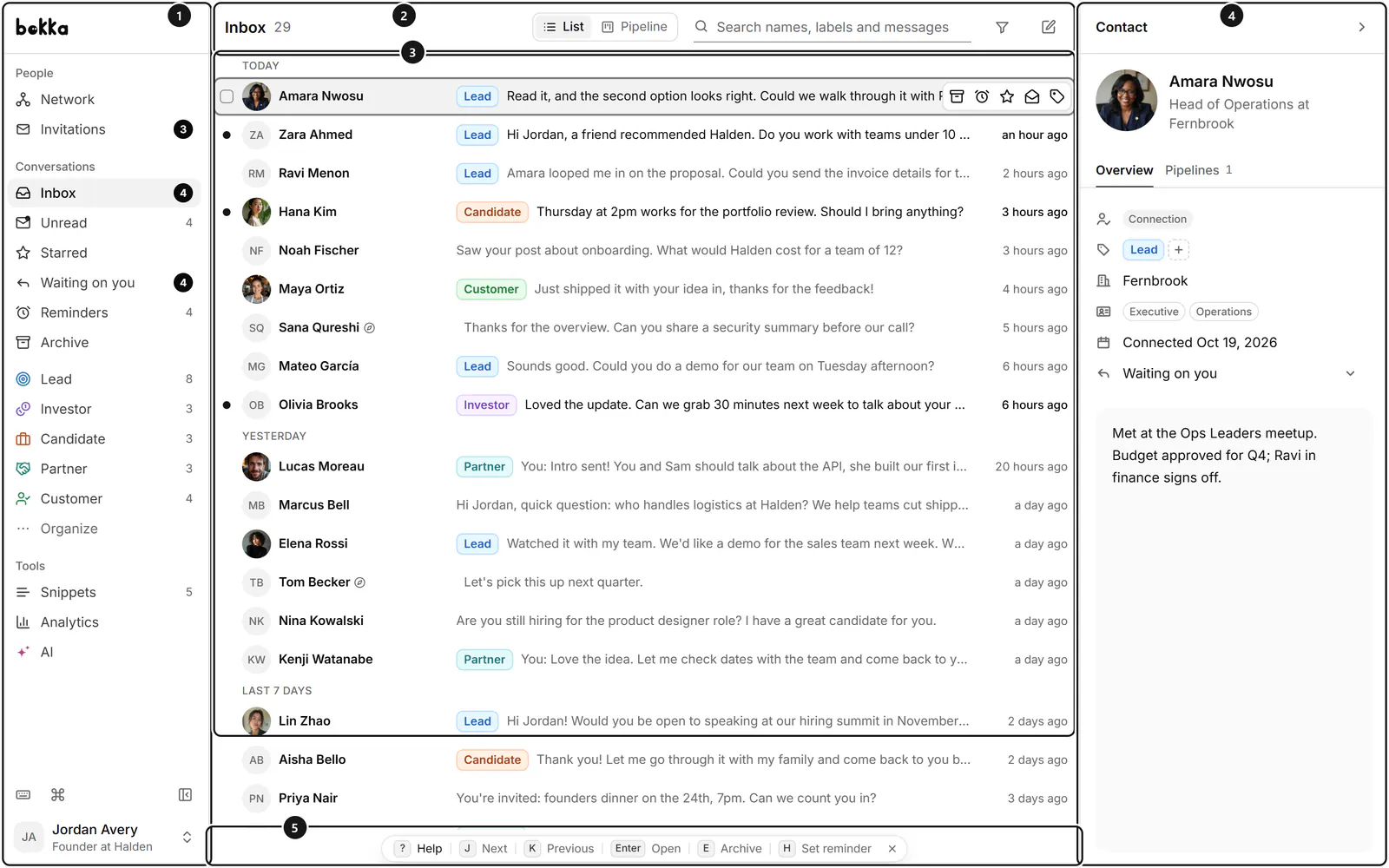
1. The sidebar
- People: Network (G then C) for your connections, followers and following, and Invitations.
- Conversations: your views (Inbox, Unread, Starred, Waiting on you, Reminders and Archive to start with), then your labels. Organize shows or hides views.
- Tools: Snippets, Analytics on Pro, and AI suggestions on the trial and Pro.
- At the bottom: Keyboard shortcuts, Command palette and Collapse the sidebar (Ctrl+B). Ctrl+/ shows or hides the sidebar.
- The account menu, under your name: the theme, Upgrade on the trial, Settings (G then ,), Preferences and Sign out.
2. The conversation list
The header shows the view's name and count, List and Pipeline to switch to a board (V), search (/), Filter (F) and Compose for a new message (C).
3. The conversation
Press Enter to open a conversation. Its actions sit in the header, the messages below, and the reply box at the bottom. Enter puts you in the reply box and Esc leaves it.
4. The contact panel
On the right, the contact panel shows who you're talking to. I shows or hides it, and Shift+I moves to its next tab.
5. The hint bar
The strip at the bottom of the window shows the keys for the page you're on. Hide shortcut hints hides it; turn it back on in Settings → Preferences → Shortcut hints.
The command palette
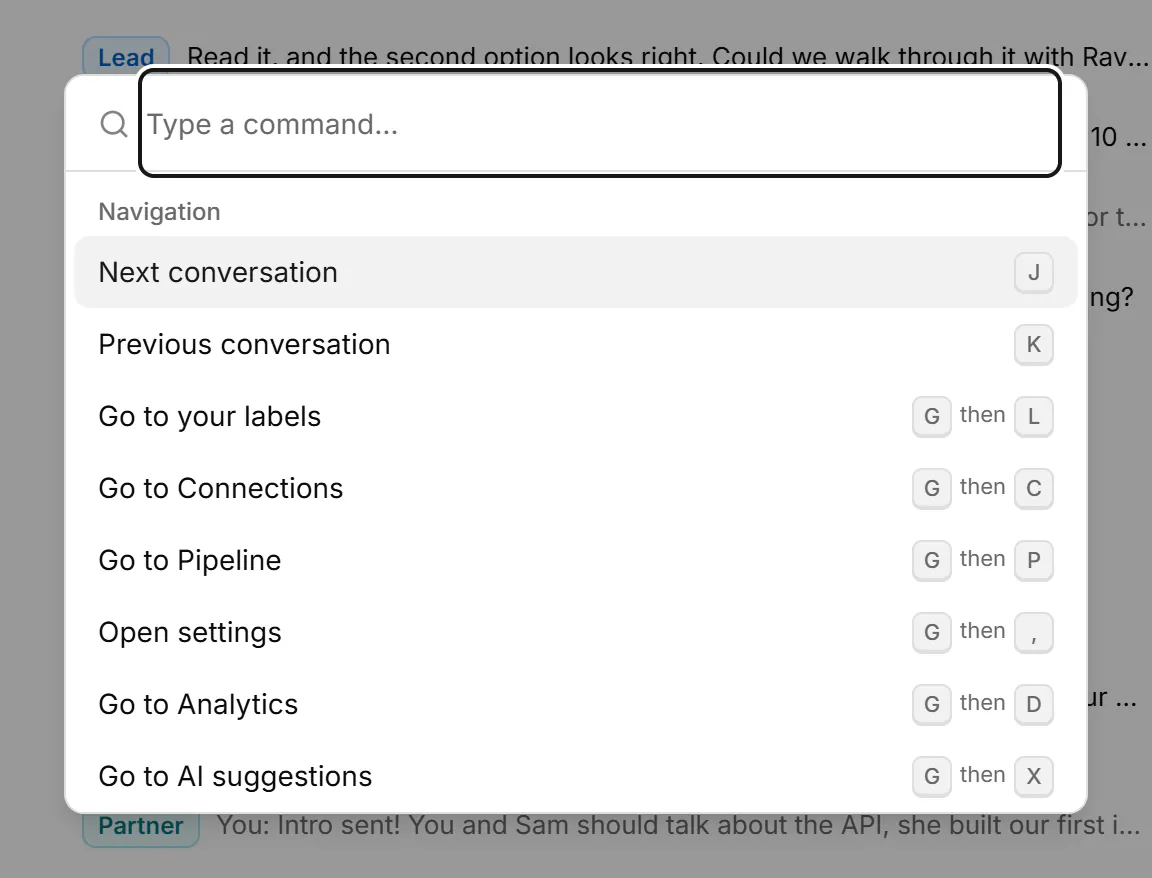
Press Ctrl+K and type what you want to do. The palette lists only the actions you can take right now, each with its key.
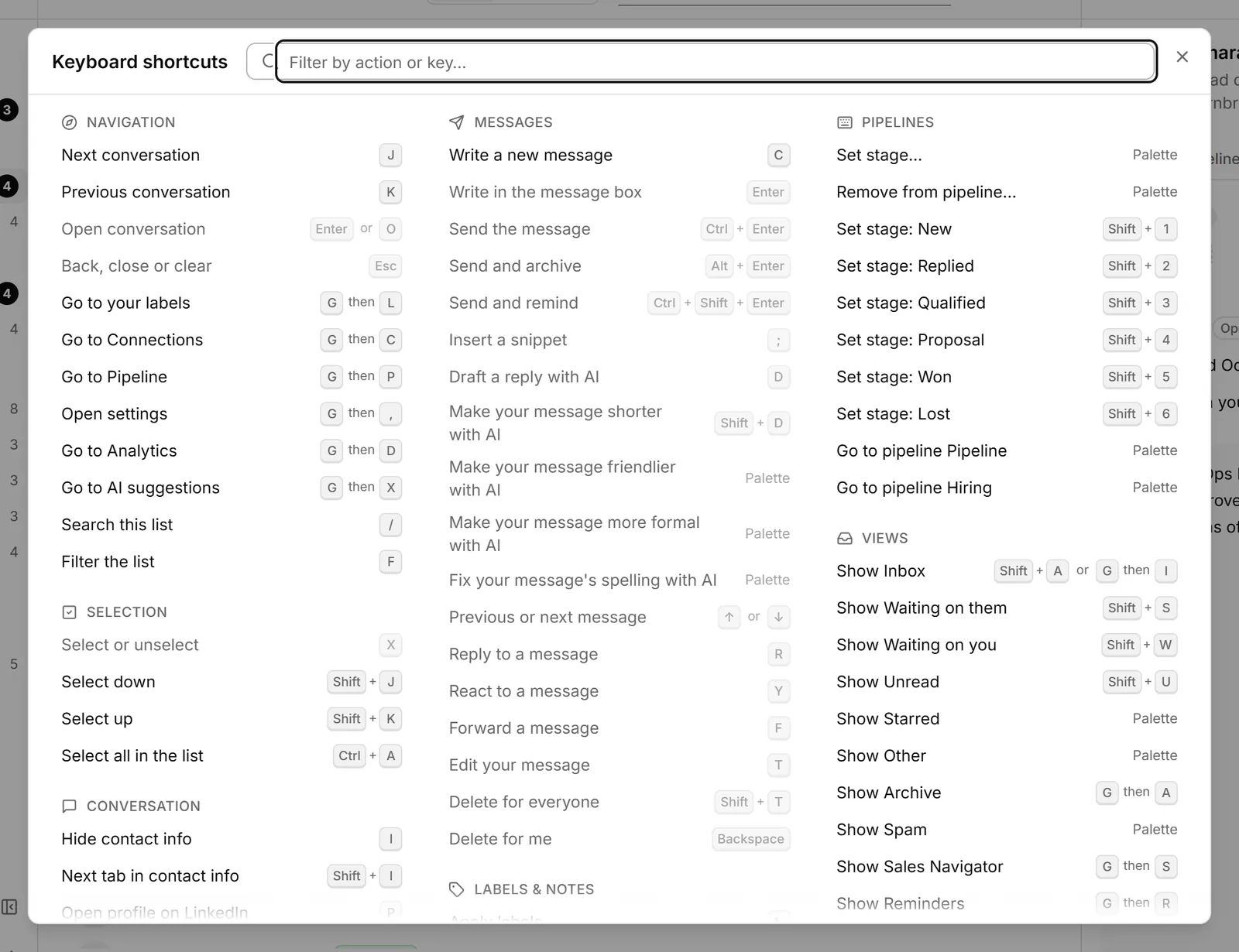
Keyboard shortcuts
Press ? on any page to see its shortcuts. Type in "Filter by action or key…" to find one. Every key is also in Keyboard shortcuts.
Ctrl+. changes the theme anywhere in the app.
Related
- Keyboard shortcutsEvery keyboard shortcut in Bokka: moving through the inbox, acting on conversations, labels, reminders, the pipeline board and more.
- Use the inbox viewsSee what each inbox view holds and which key opens it, and choose the views your sidebar shows.
- Notes and details about a personUse the contact panel to see who you're talking to, set a reply status, and keep labels and notes on each person.
- What's in SettingsWhere to find each setting: your LinkedIn account, sign-in, plan and extension, preferences, labels, AI and more.
Still stuck? Email support@gobokka.com and say what you were trying to do.