Account and billing
What's in Settings
Where to find each setting: your LinkedIn account, sign-in, plan and extension, preferences, labels, AI and more.
Open Settings with G then ,, or from the account menu → Settings. The arrow keys move through the sections.
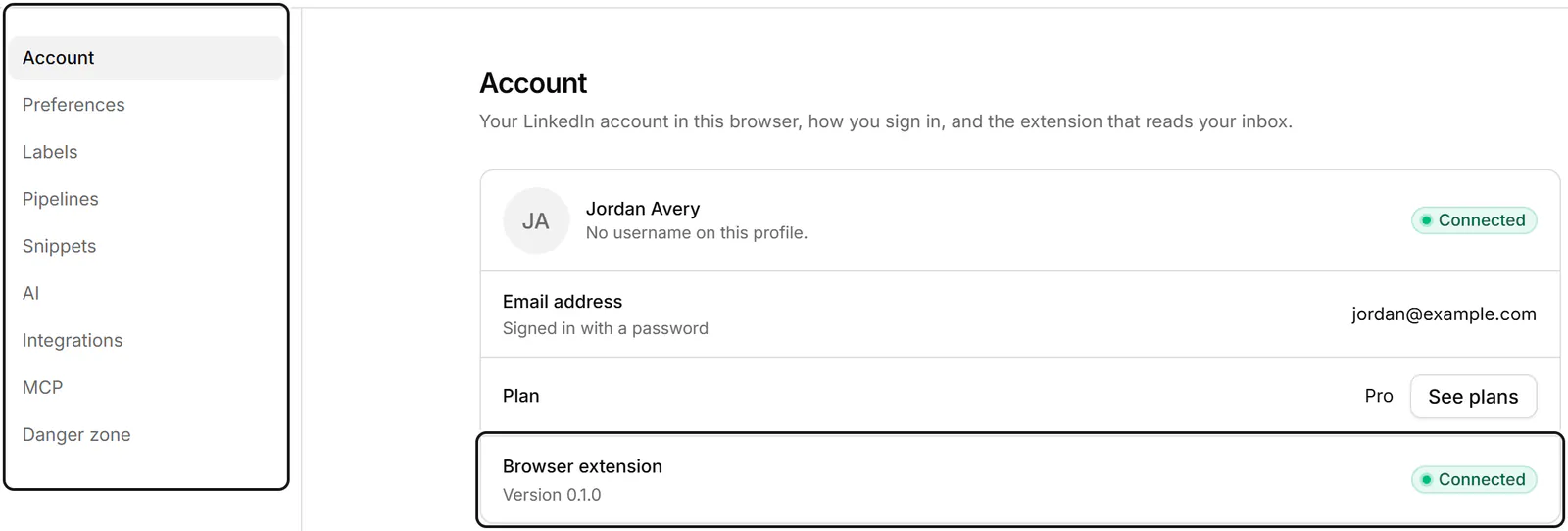
Account
Your LinkedIn account in this browser, how you sign in, and the extension that reads your inbox.
- LinkedIn profile: the LinkedIn account in this browser, and whether it's Connected.
- Email address: the email you sign in with, and whether you sign in with a password or Google. To change your password, use Forgot password? on the sign-in page.
- Plan: See plans and Manage billing. See Choose, change or cancel a plan.
- Browser extension: its version, and Connected or Not connected. See The extension isn't connected.
Preferences
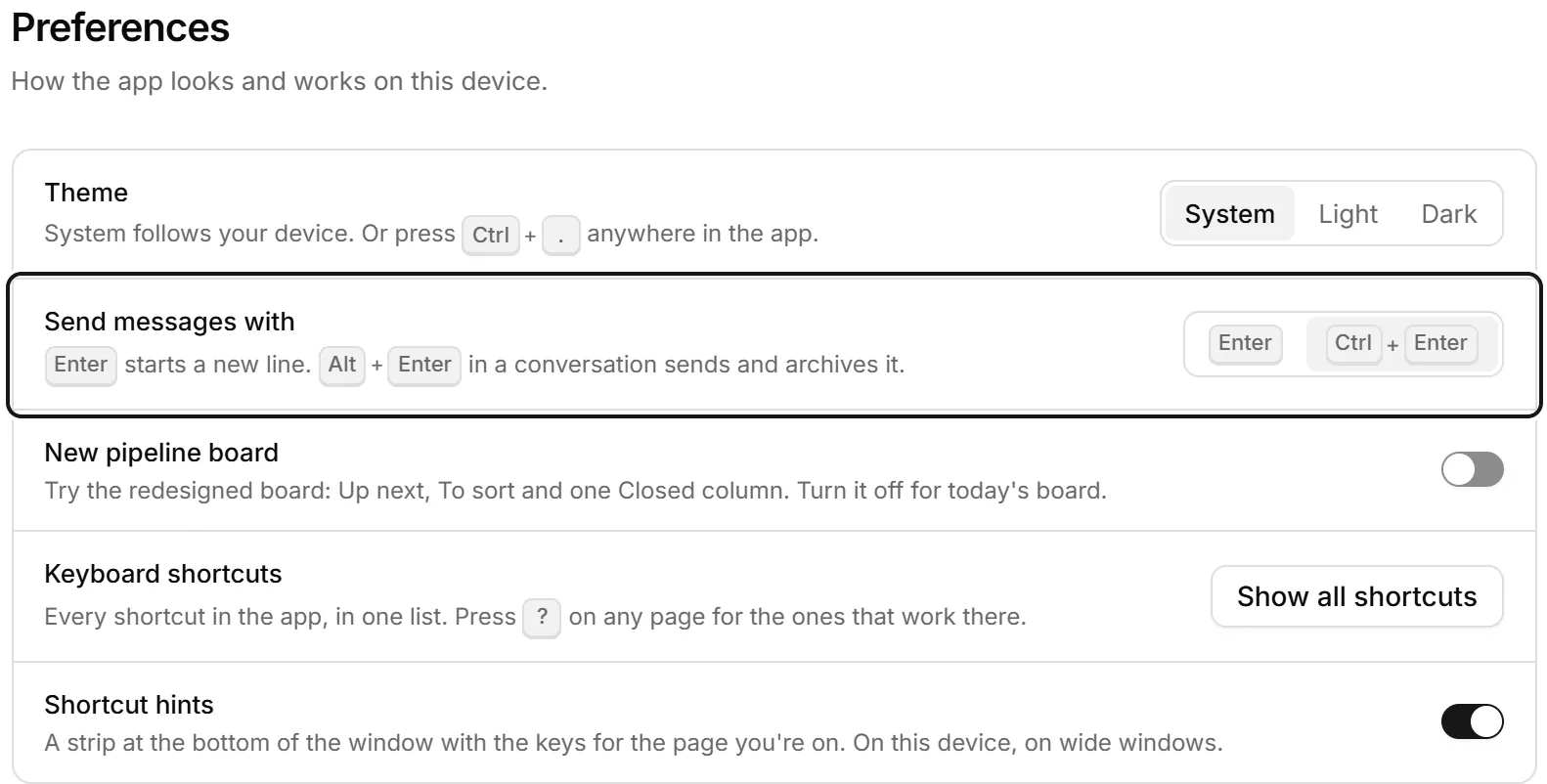
How the app looks and works on this device.
- Theme: System, Light or Dark. Ctrl+. changes it anywhere in the app.
- Send messages with: Enter, or Ctrl+Enter so Enter starts a new line. Alt+Enter in a conversation sends and archives it.
- New pipeline board: try the redesigned board, with Up next, To sort and one Closed column.
- Keyboard shortcuts: Show all shortcuts lists every one.
- Shortcut hints: the strip of keys at the bottom of the window, on wide windows.
Labels, Pipelines and Snippets
- Labels: your labels. See Labels.
- Pipelines: your pipelines and their stages. See Pipelines.
- Snippets: your saved replies. See Snippets.
AI
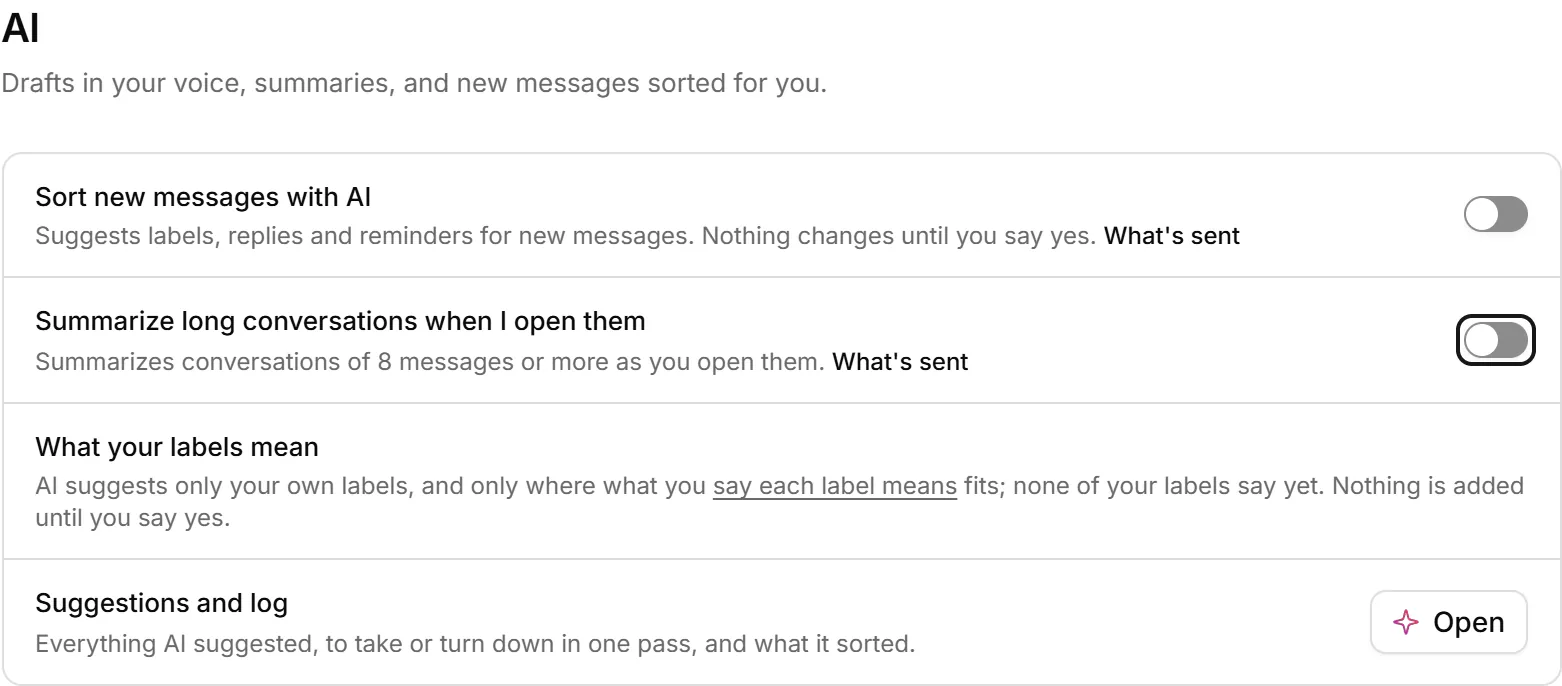
Turn on Sort new messages with AI and Summarize long conversations when I open them, say what your labels mean, and open Suggestions and log. See What AI can do.
Integrations and MCP
Integrations sends chats to Notion, Google Sheets or a webhook: see Send conversations to Notion, Google Sheets or a webhook. MCP connects an AI assistant: see Connect an AI assistant.
Danger zone
Clear the data on this device, or delete your account. See Delete your account or clear this device.
If something goes wrong
"No LinkedIn account is connected in this browser yet." Open your inbox with the extension installed, and it connects the account you're signed in to on LinkedIn.
Related
- Choose, change or cancel a planWhat the 14-day trial, Starter and Pro include, and how to choose a plan, switch plans, update your card or cancel.
- Delete your account or clear this deviceClear the messages stored in this browser to start fresh, or delete your account and everything we keep for it.
- Keyboard shortcutsEvery keyboard shortcut in Bokka: moving through the inbox, acting on conversations, labels, reminders, the pipeline board and more.
- Label conversationsTag conversations and people with labels, work each label as its own list, and manage your labels in Settings.
Still stuck? Email support@gobokka.com and say what you were trying to do.