How to archive LinkedIn messages, one or many at once
Archive a LinkedIn conversation from its More menu, or many at once with Manage conversations. Where archived messages go, and how to bring them back.
By Amardeep Anand, founder of Bokka · Published
To archive a LinkedIn conversation, open it, click the More icon in its top-right corner and choose Archive. To archive several at once, use Manage conversations from the More menu of your messaging inbox. Archived conversations move to the Archived folder and can be restored whenever you like.
Archiving hides a conversation from your inbox without deleting it. Inbox zero is the habit of clearing your inbox to empty by archiving what's done and scheduling what isn't. Bokka is an AI-first CRM for your LinkedIn inbox.
Archive one conversation
From LinkedIn Help (Archive your conversations, retrieved 24 October 2026):
- Click the Messaging icon at the top of LinkedIn, or open the chat window in the lower-right corner.
- Open the conversation.
- Click the More icon in the upper-right corner of the conversation.
- Click Archive.
On the phone app it's the same: open the conversation, tap More in the upper right, and tap Archive.
Archive many conversations at once
LinkedIn's bulk tool also marks conversations read or unread and deletes them (Delete, archive and mark messages in bulk, retrieved 24 October 2026):
- Click the Messaging icon, then the More icon in the upper right of your inbox.
- Choose Manage conversations.
- Tick the conversations you want to archive.
- Click the archive icon.
On the phone app, tap and hold a conversation to start selecting, tick the others, and tap Archive at the bottom of the screen.
Find and restore archived messages
Open the inbox category menu at the top of your messaging inbox (it offers Focused, Other, Archived and Spam) and choose Archived (Filter and search messages, retrieved 24 October 2026). To bring a conversation back, open it, click More, and choose Restore; on the phone app you can also swipe left on it (View and restore archived messages, retrieved 24 October 2026).
Archive or delete?
| Archive | Delete | |
|---|---|---|
| Where it goes | The Archived folder | Gone from your inbox |
| Can you get it back? | Yes, restore it any time | No: LinkedIn says you can't restore deleted messages |
| Does the other person lose it? | No | Deleting a whole conversation removes it from your inbox only, not theirs |
For example, a recruiter clearing Monday's inbox might archive twenty "thanks, will do" replies in one pass with Manage conversations, star the three candidates to call, and leave the rest for after lunch. Nothing is lost: every archived conversation is one click away in Archived.
In short: archive anything you might need again, which is almost everything. (Deleting one of your own messages is different: LinkedIn lets you delete a sent message for everyone only within 60 minutes of sending it, per Edit or delete a sent message, retrieved 24 October 2026.)
Archiving from the keyboard in Bokka
If archiving is how you keep up, the clicks add up. In Bokka the same action is one key, and it changes the conversation on LinkedIn too:
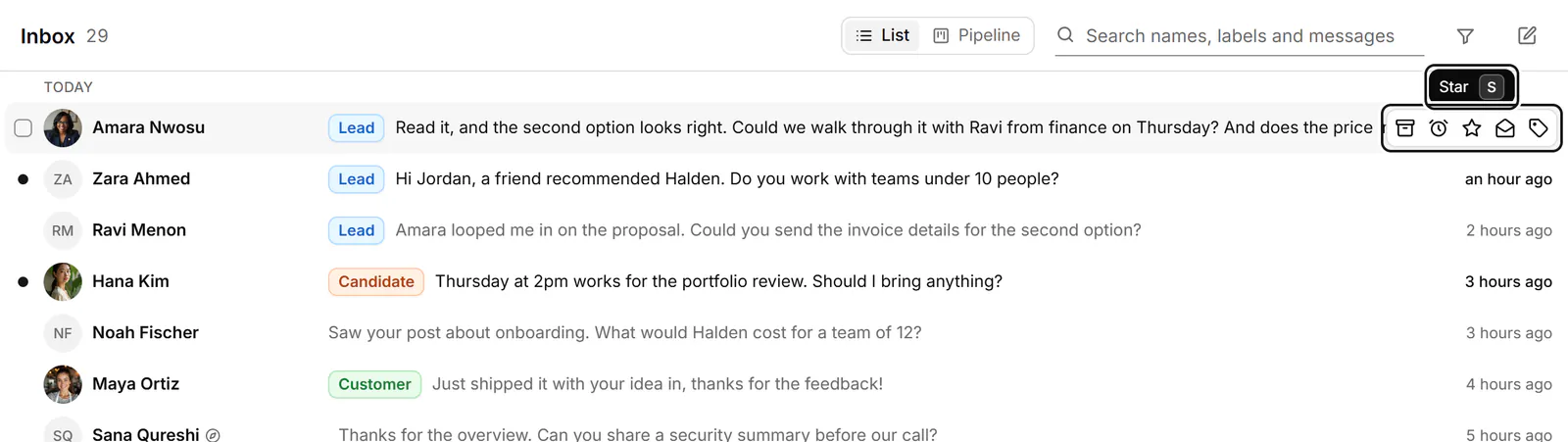
- Press J and K to move through conversations, and E to archive the one you're on. The next one opens, with Undo (or press Z).
- Replying first? Alt+Enter sends and archives in one go.
- In Archive, Shift+E moves a conversation back to the inbox.
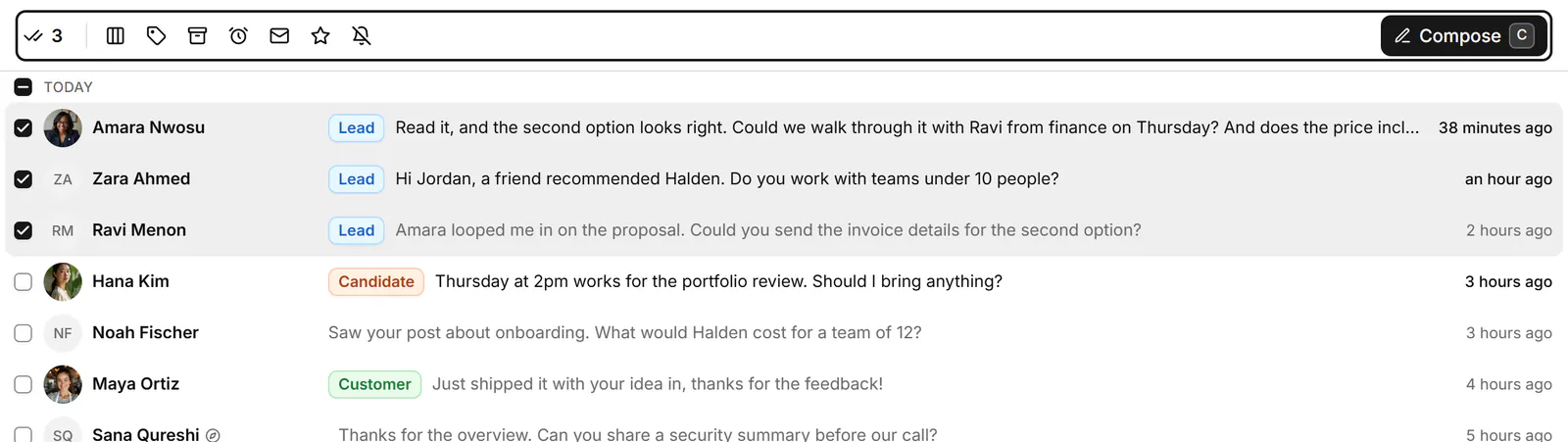
- To archive several, select them and choose Archive in the selection toolbar.
- Not done but not now? Press H to snooze it or set a reminder instead.
See Clear your inbox for every key. Archiving needs Bokka's browser extension connected and Bokka open in a tab, because it changes LinkedIn as well.
About Bokka
Bokka starts with a free 14-day trial, AI included and no credit card. After it, Starter is $25 and Pro is $35 per user a month ($19 and $30 for your first month). Team, at $50, is coming soon.
Frequently asked questions
How do I archive a message on LinkedIn?
Open the conversation, click the More icon in its upper-right corner, and choose Archive. On the phone app, tap More in the upper right and tap Archive.
Where do archived LinkedIn messages go?
To the Archived folder. Open the inbox category menu at the top of your messaging inbox and choose Archived to see them.
How do I unarchive a LinkedIn message?
Open the conversation in the Archived folder, click More, and choose Restore. On the phone app you can also swipe left on it.
Can I archive all my LinkedIn messages at once?
You can archive many at once: click More in your messaging inbox, choose Manage conversations, tick the conversations and click the archive icon.
Sources
Other products' prices and features were read on their own pages on 24 October 2026. They change; check each page before you buy.
Try Bokka free for 14 days, AI included, with no credit card. It runs in Chrome, Edge, Brave and Arc on a desktop or laptop.
Start your free trialAbout the author
Amardeep Anand founded Bokka, the AI-first CRM for your LinkedIn inbox, and runs it from Deoghar, India. Questions or corrections: support@gobokka.com.
Related
- How to set a reminder to follow up on a LinkedIn messageLinkedIn has no reminders for messages. The closest built-in workaround, and how to set a follow-up that returns only if they haven't replied, in Bokka.
- LinkedIn grey check mark meaning: sent, not read (yet)A grey check mark on a LinkedIn message means Sent: it reached their inbox but isn't shown as read. Why it can stay that way, and what to do next.
- Bokka vs LinkedIn messaging and the Sales Navigator inboxWhy use Bokka instead of LinkedIn messaging or the Sales Navigator inbox? Labels, reminders, pipelines, AI drafts and search, compared honestly.