LinkedIn grey check mark meaning: sent, not read (yet)
A grey check mark on a LinkedIn message means Sent: it reached their inbox but isn't shown as read. Why it can stay that way, and what to do next.
By Amardeep Anand, founder of Bokka · Published
The grey check mark next to a LinkedIn message means Sent. Your message reached the other person's inbox, but LinkedIn isn't showing it as read. That's either because they haven't opened it yet, or because read receipts are off for one of you.
Read receipts are LinkedIn's indicators that show when someone has read your message or is typing a reply. LinkedIn calls the setting Delivery and typing indicators. Bokka is an AI-first CRM for your LinkedIn inbox.
What each LinkedIn message status means
LinkedIn shows three statuses on a message you send (LinkedIn Help: message indicators, retrieved 24 October 2026):
| Status | What it means | What you see |
|---|---|---|
| Sending | Your message is on its way. If it fails, you'll see an error asking you to try again. | A sending indicator |
| Sent | Delivered to the recipient's inbox, not shown as read | A small grey check mark |
| Read | They've read it, and read receipts are on for both of you | Their profile photo |
On messages you receive, LinkedIn uses badges instead: a red badge on the Messaging icon counts new messages you haven't seen, and a blue badge on a conversation counts messages you haven't read.
Why a message stays at Sent
- They haven't opened it. The plainest reason, and the most common.
- Read receipts are off. If the other person turns off delivery and typing indicators, you won't see when they've read your message, and the status stays at Sent (LinkedIn Help: message indicators, retrieved 24 October 2026). If you turn it off, nobody in the conversation, including you, can see read status (LinkedIn Help: read receipts and typing indicators, retrieved 24 October 2026).
- It was an InMail. Read receipts and typing indicators don't appear to people who send InMail.
- It's a message request. For a message to someone you aren't connected to, read receipts appear only after they accept the request.
LinkedIn Help doesn't list any other meaning for the grey check mark. It doesn't say you've been blocked or ignored, only that the message was delivered.
How to turn read receipts on or off
You can change the setting yourself (LinkedIn Help: read receipts and typing indicators, retrieved 24 October 2026):
- On a computer, click Me at the top of LinkedIn, then Settings & Privacy.
- Click Data privacy in the left pane.
- Under Messaging experience, click Delivery and typing indicators.
- Use the toggle to turn it on or off.
On the phone app, tap your profile photo, then Settings & Privacy, Data privacy, and Delivery and typing indicators under Messaging experience. The setting works both ways: turning it off hides your read status and typing from others, and theirs from you.
What to do while a message sits at Sent
For example, if you message a prospect on Monday and it still shows Sent on Thursday, you've learned only that LinkedIn delivered it. They may have read it with read receipts off, or seen the preview without opening it. A check mark tells you what LinkedIn delivered, not what the person intends. The useful question is whose turn it is, and when you'll follow up if they don't reply.
- Pick a follow-up time when you send. A few days is common for sales and recruiting; a week for anything less urgent.
- Don't send a second message too soon. A quick nudge after a few hours rarely helps.
- Keep track of who's waiting on whom. With dozens of conversations, it's easy to lose the ones where the next move is theirs.
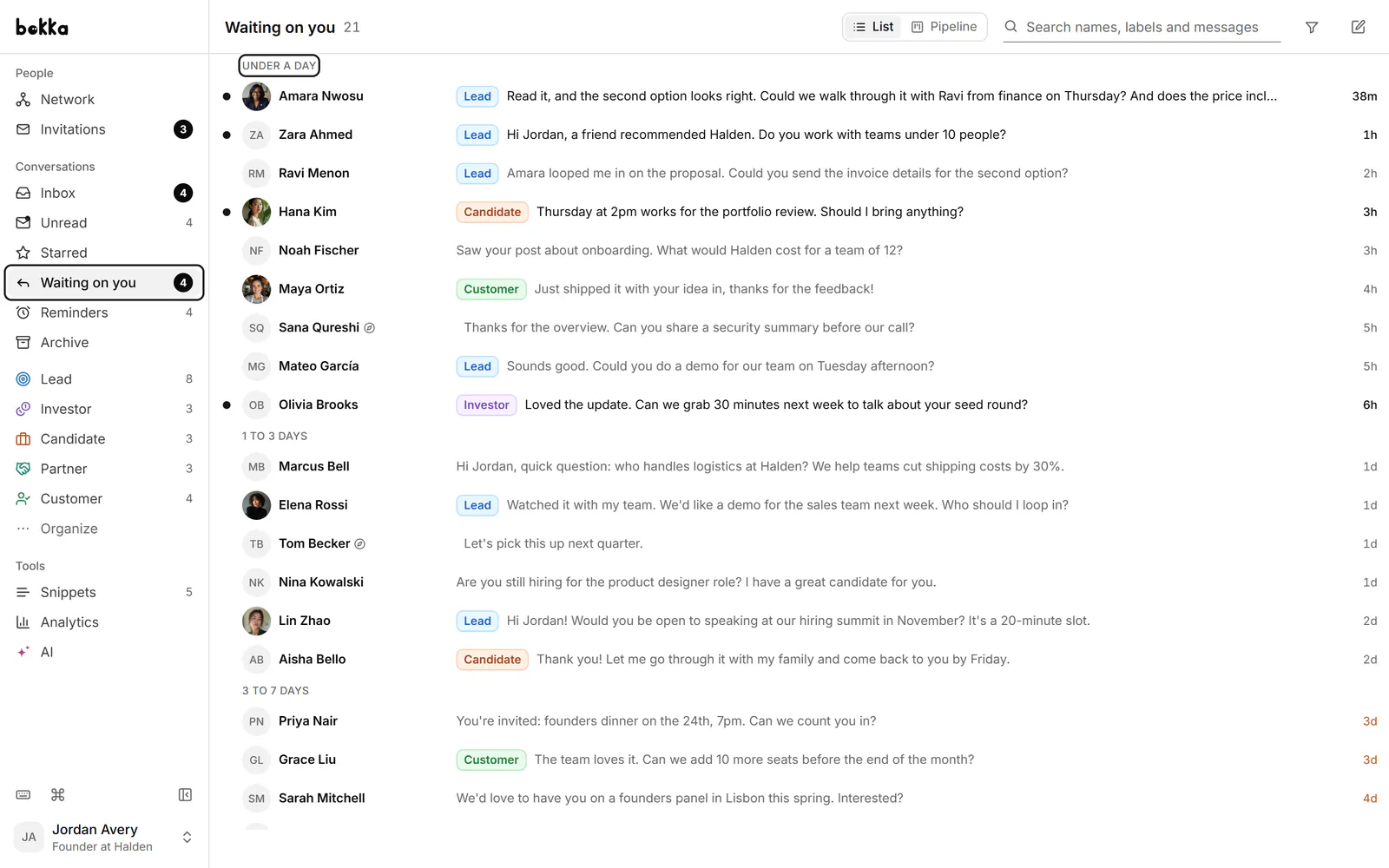
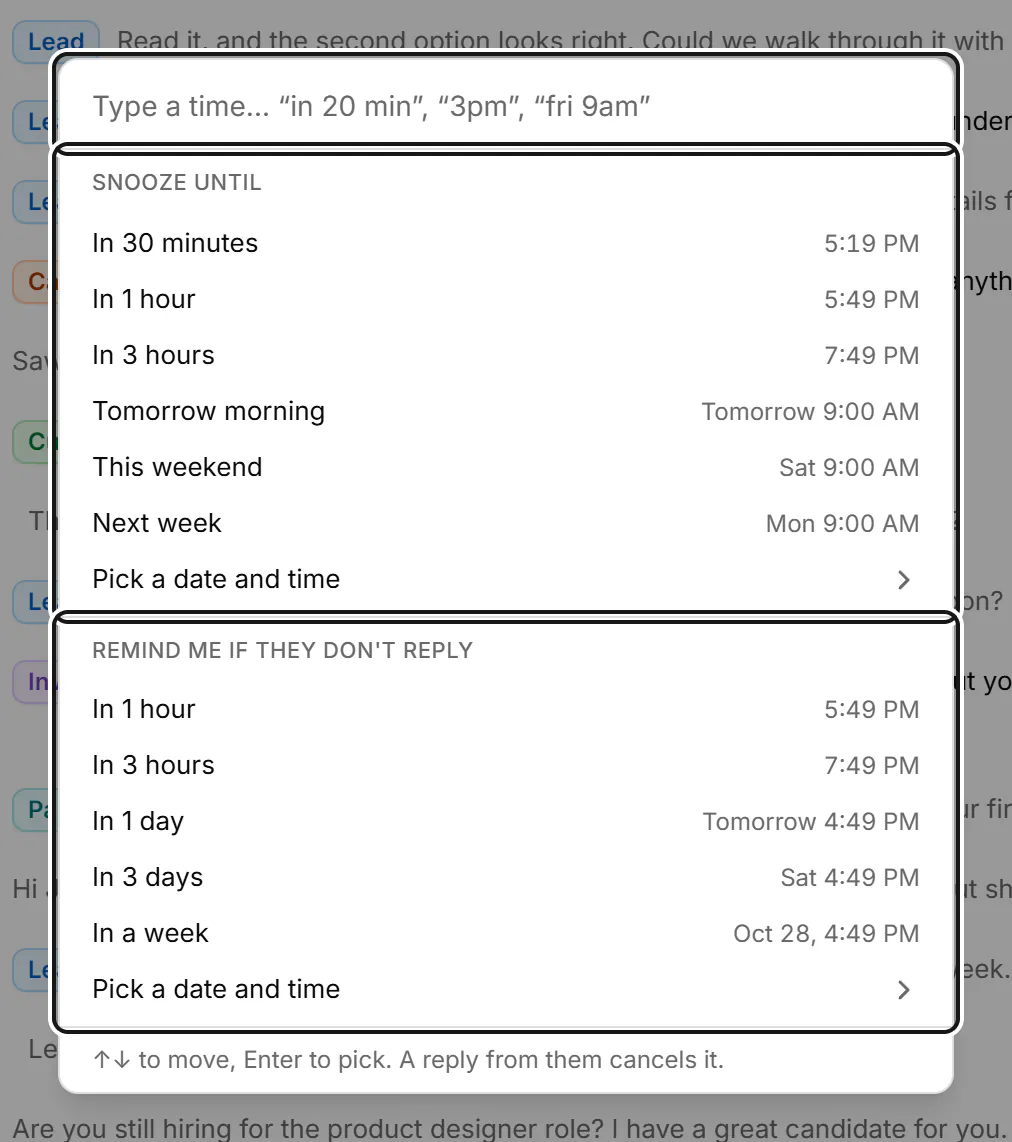
Bokka does the tracking for you. Its Waiting on them view lists every conversation where you wrote last, grouped by how long they've been quiet, and Remind me if they don't reply brings a conversation back only if they haven't answered by the time you pick. A new message from them cancels the reminder. See how to set a reminder on a LinkedIn message.
About Bokka
Bokka starts with a free 14-day trial, AI included and no credit card. After it, Starter is $25 and Pro is $35 per user a month ($19 and $30 for your first month). Team, at $50, is coming soon.
Frequently asked questions
What does the grey check mark mean on LinkedIn?
It means Sent: LinkedIn delivered your message to the other person's inbox, but it isn't shown as read. Either they haven't opened it, or read receipts are off for one of you.
Does a grey check mark mean I've been blocked on LinkedIn?
Not on its own. LinkedIn Help describes the grey check mark only as Sent, meaning delivered. It can stay that way for a long time if the person hasn't opened the message or has read receipts turned off.
Can I see if someone read my InMail?
No. LinkedIn says read receipts and typing indicators don't appear to people who send InMail.
If I turn off read receipts, can I still see when others read my messages?
No. When you turn off delivery and typing indicators, nobody in the conversation, including you, can see whether messages have been read.
Sources
Other products' prices and features were read on their own pages on 24 October 2026. They change; check each page before you buy.
Try Bokka free for 14 days, AI included, with no credit card. It runs in Chrome, Edge, Brave and Arc on a desktop or laptop.
Start your free trialAbout the author
Amardeep Anand founded Bokka, the AI-first CRM for your LinkedIn inbox, and runs it from Deoghar, India. Questions or corrections: support@gobokka.com.
Related
- How to set a reminder to follow up on a LinkedIn messageLinkedIn has no reminders for messages. The closest built-in workaround, and how to set a follow-up that returns only if they haven't replied, in Bokka.
- How to archive LinkedIn messages, one or many at onceArchive a LinkedIn conversation from its More menu, or many at once with Manage conversations. Where archived messages go, and how to bring them back.
- Bokka vs LinkedIn messaging and the Sales Navigator inboxWhy use Bokka instead of LinkedIn messaging or the Sales Navigator inbox? Labels, reminders, pipelines, AI drafts and search, compared honestly.