How to make a QR code for your LinkedIn profile
Find your LinkedIn QR code in the app, or make one you can download as PNG or SVG for slides, badges and business cards, in Bokka.
By Amardeep Anand, founder of Bokka · Published
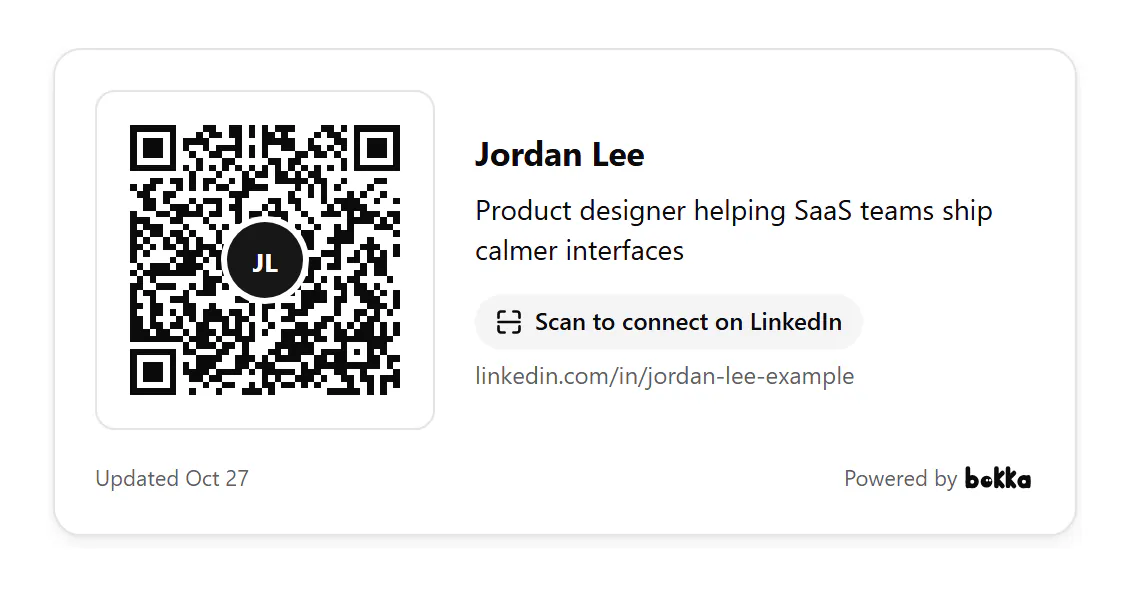
Your LinkedIn profile already has a QR code in the LinkedIn mobile app: tap the QR icon in the search bar and open My code. For a code you can put on a slide, a badge or a printed card at full quality, Bokka's QR code card lets you download it as PNG or SVG.
A LinkedIn QR code is a square code that opens your LinkedIn profile when someone points their phone camera at it. Bokka is an AI-first CRM for your LinkedIn inbox; its QR code card is one of its widgets.
How to find your QR code in the LinkedIn app
- Open the LinkedIn app on your phone.
- Tap the QR code in the search bar at the top of your homepage.
- Tap My code.
- On iPhone, tap Share my code to send it, or Save to photos. On Android, tap Save to gallery.
These steps are from Using a LinkedIn QR code to connect with members, retrieved 27 October 2026, which also says sharing straight from the app is coming soon on Android. The code is in the mobile app only.
How to make a printable QR code in Bokka
- In Bokka, choose Widgets, then New widget, then QR code card.
- On Customize, choose what the card shows beside the code: your headline and a short line such as "Scan to connect on LinkedIn".
- Under Download the code, choose PNG for slides and documents, or SVG for print, where it stays sharp at any size.
- To show the card on your website, choose Publish, then copy its code from Integration.
The code carries your initials in the middle and still scans, because QR codes are built to survive part of them being covered.
Where to use it
- The last slide of a talk, so the room can connect while you take questions.
- Conference badges and stands.
- Business cards and flyers: use the SVG, so it prints crisp.
- A shop counter or a reception desk.
- Your link page, which can show the same code.
Use your custom profile address
Print your profile address under the code, so people without a camera can type it. Set a short custom one first in Public profile & URL: 3 to 100 letters or numbers, and you can change it five times in six months (Manage your public profile URL, retrieved 27 October 2026).
Bokka never connects to LinkedIn from its servers. A widget shows your own profile and totals as your browser last read them, and says when that was. To update it, press Refresh from LinkedIn in the editor, with the Bokka extension on. Nothing about your visitors is stored: Bokka counts views and clicks per day, and that's all.
Widgets come with every Bokka plan: one of each kind on the free trial and on Starter, five of each on Pro, and 20 per member on Team. A small "Powered by Bokka" line sits under each widget; on Pro and Team you can turn it off. Widgets you publish on the trial keep showing after it ends.
See every widget, what each one shows and where people use it: LinkedIn widgets.
About Bokka
Bokka starts with a free 14-day trial, AI included and no credit card. After it, Starter is $25 and Pro is $35 per user a month ($19 and $30 for your first month). Team, at $50, is coming soon.
Frequently asked questions
Where is my LinkedIn QR code?
In the LinkedIn mobile app: tap the QR code in the search bar, then My code. It isn't on the desktop website.
Can I download my LinkedIn QR code in high resolution?
The app saves an image to your photos. Bokka's QR code card downloads it as PNG or as SVG, which stays sharp at any print size.
Does scanning the code connect us automatically?
No. It opens your profile, and the person chooses to connect, follow or message you there.
Sources
Other products' prices and features were read on their own pages on 27 October 2026. They change; check each page before you buy.
Join the waitlist for early access to Bokka. Your first 14 days are free, AI included, with no credit card. It runs in Chrome, Edge, Brave and Arc on a desktop or laptop.
Join the waitlistAbout the author
Amardeep Anand founded Bokka, the AI-first CRM for your LinkedIn inbox, and runs it from Deoghar, India. Questions or corrections: support@gobokka.com.
Related
- A link-in-bio page for your LinkedIn profileLinkedIn shows three website links. How to make one page with your profile, all your links, a status line and a contact form, in Bokka.
- How to add your LinkedIn profile to your websiteLinkedIn's own badge is a View profile button. How to show your name, headline, followers and a Message button on your site instead, with Bokka.