How to show your LinkedIn Featured section on your website
Put the links from your LinkedIn Featured section on your website, each with its picture, as a grid or a list in your own order, with Bokka.
By Amardeep Anand, founder of Bokka · Published
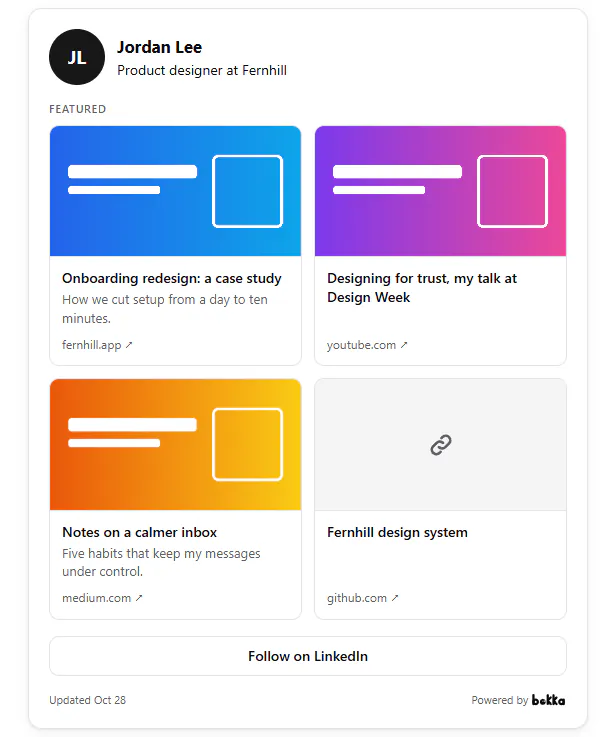
To show your LinkedIn Featured section on your website, embed a Featured widget. With Bokka, refresh your profile, make a Featured widget, choose its layout and the order of its links, publish it and paste its code into your page.
Your LinkedIn Featured section is the part of your profile where you pin samples of your work. Bokka is an AI-first CRM for your LinkedIn inbox, and its widgets put your own profile, and now your Featured links, where people find you.
What LinkedIn's Featured section holds
You can feature posts you've written, articles you've published on LinkedIn, and external media, documents and links. There's no limit on how many items you add, though LinkedIn displays up to 400. New items show first unless you reorder them, and you can remove an item from Featured without deleting it (Featured section on your profile: FAQs, retrieved 28 October 2026).
One thing LinkedIn Help points out: what you put in your Featured section isn't discoverable through search (Featured section on your profile: FAQs, retrieved 28 October 2026). Your best work is only seen by people who already open your profile, which is a good reason to give it a second home on your own site.
Add links to your Featured section first
The widget shows the links in your Featured section, so start there. LinkedIn's own steps on desktop (Manage featured samples of your work, retrieved 28 October 2026):
- Click the Me icon at the top of your LinkedIn homepage, then View Profile.
- Click Add profile section in your introduction section.
- Open the Recommended dropdown and click Add Featured.
- Click the Add icon at the upper right of the Featured page, choose a link, and follow the prompts.
- Click Save or Done.
LinkedIn suggests links to external websites, for example your personal blog or portfolio, and you need at least two items featured before you can reorder them on LinkedIn (Manage featured samples of your work, retrieved 28 October 2026).
LinkedIn's Featured section and the widget, side by side
| Featured on LinkedIn | Bokka's Featured widget | |
|---|---|---|
| Where it shows | Your LinkedIn profile | Your website, link page or blog |
| Who sees it | People who open your profile; it isn't found through LinkedIn search | Anyone who visits the page you put it on |
| What it holds | Posts, articles, media, documents and links | The links from your Featured section, with their pictures |
| How many | No limit; up to 400 displayed | 1 to 6, as you choose |
| Order | Newest first, unless you reorder on LinkedIn | The order you set in the widget |
The two work together: LinkedIn stays where you collect your best work, and the widget puts a short, ordered selection of it in front of people who reach your site first. Facts in the LinkedIn column are from LinkedIn Help (Featured section on your profile: FAQs, retrieved 28 October 2026).
How to add your Featured section to your website with Bokka
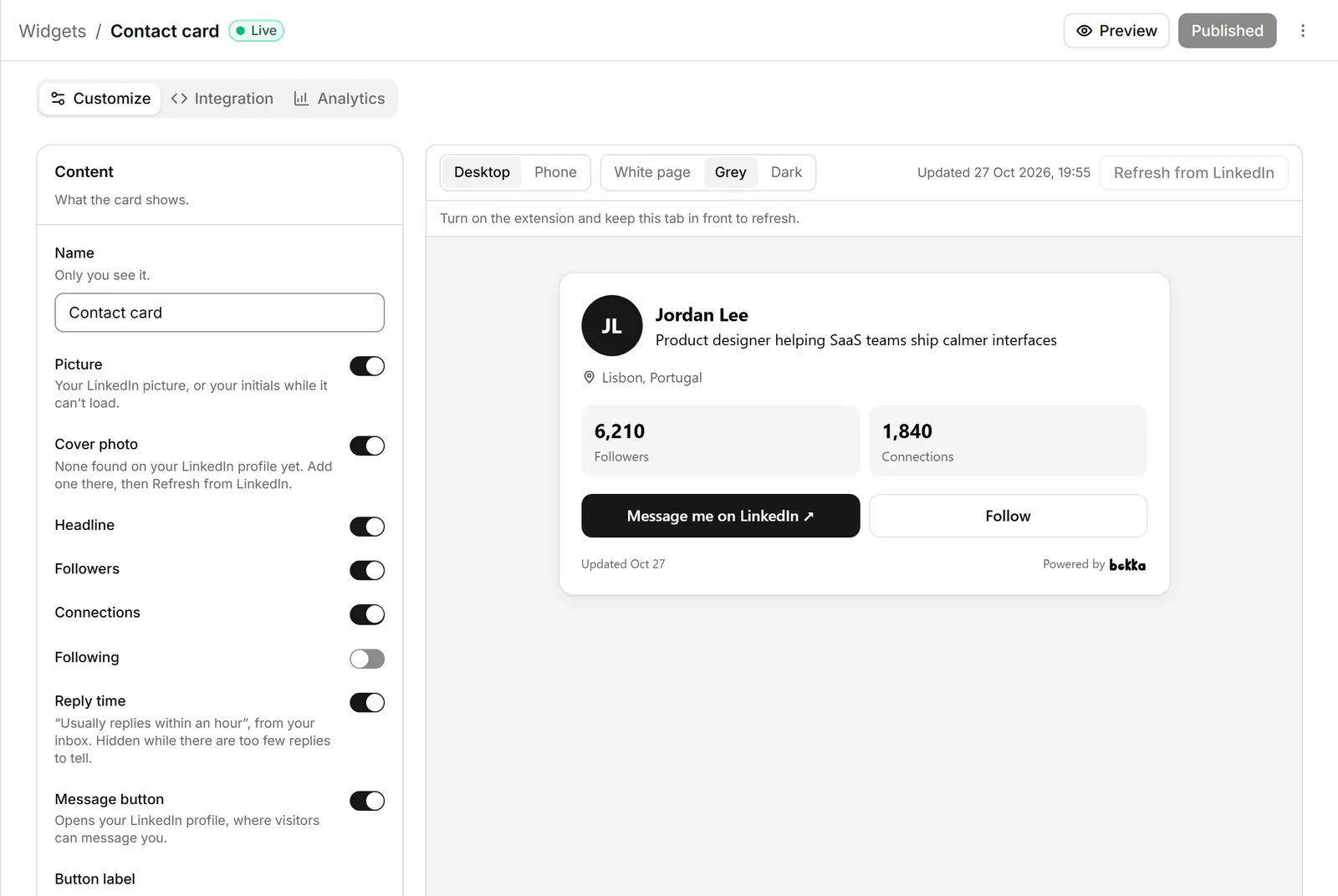
- In Bokka, choose Widgets in the sidebar, then New widget, then Featured.
- Choose Refresh from LinkedIn, with the Bokka extension on, so Bokka reads your Featured links and their pictures.
- On Customize, pick a Layout (grid or list) and how many Links shown, from 1 to 6. Drag your links into the Order you want, or use each link's arrows.
- Turn Thumbnails, your picture, your headline and the Follow button on or off, and give the section a heading of your own.
- Choose Publish, then on Integration pick your site builder, choose Copy, and paste the code where the links should show.
Full steps for each site builder, including an iframe for builders that strip scripts: Add a widget to your website.
What the widget shows
- Your picture, name and headline at the top, each one optional.
- Each link as a card: the picture LinkedIn shows for it, its title and description (two lines each) and the site it opens.
- A grid or a list: the grid uses two columns where your site gives it room, and the list puts a small picture beside each link.
- Follow on LinkedIn, which opens your profile.
The widget reads the links in your Featured section. Posts, images and documents you featured directly aren't read, so to show one of your posts, feature its link. The contact card can show the same links under your name and headline.
Where to put it
- A portfolio or Work page: your case studies, talks and launches in one grid.
- A speaker or press page: recordings, interviews and the articles that quote you.
- The end of a blog post or a sidebar: more of your work, for a reader who liked this piece.
- An About page: proof of what you do, next to who you are.
For example, a product designer can feature five case studies and a recorded talk on LinkedIn, then show the three strongest case studies, in that order, in a grid on their Work page.
Keep it current
Bokka never connects to LinkedIn from its servers. A widget shows your own profile and totals as your browser last read them, and says when that was. To update it, press Refresh from LinkedIn in the editor, with the Bokka extension on. Nothing about your visitors is stored: Bokka counts views and clicks per day, and that's all.
LinkedIn's pictures stop loading after a while. Until your next refresh, a card shows a plain tile in place of its picture, so the grid stays even.
Widgets come with every Bokka plan: one of each kind on the free trial and on Starter, five of each on Pro, and 20 per member on Team. A small "Powered by Bokka" line sits under each widget; on Pro and Team you can turn it off. Widgets you publish on the trial keep showing after it ends.
See every widget, what each one shows and where people use it: LinkedIn widgets.
About Bokka
Bokka starts with a free 14-day trial, AI included and no credit card. After it, Starter is $25 and Pro is $35 per user a month ($19 and $30 for your first month). Team, at $50, is coming soon.
Frequently asked questions
Can I embed my LinkedIn Featured section on my website?
Yes, with a widget. Bokka's Featured widget shows the links from your Featured section, with their pictures, as a grid or a list in the order you choose.
Will new items I feature on LinkedIn show up by themselves?
After your next Refresh from LinkedIn in the widget's editor. New links go after the ones you put in order.
Can I change the order of my featured links?
Yes. Drag them in the widget's Order list, or use each link's arrows. The widget shows the first ones, as many as you choose, up to 6.
Why doesn't a post or image I featured show?
The widget shows links. Posts, images and documents you featured directly aren't read; feature the post's link instead.
Sources
Other products' prices and features were read on their own pages on 28 October 2026. They change; check each page before you buy.
Join the waitlist for early access to Bokka. Your first 14 days are free, AI included, with no credit card. It runs in Chrome, Edge, Brave and Arc on a desktop or laptop.
Join the waitlistAbout the author
Amardeep Anand founded Bokka, the AI-first CRM for your LinkedIn inbox, and runs it from Deoghar, India. Questions or corrections: support@gobokka.com.
Related
- How to add your LinkedIn profile to your websiteLinkedIn's own badge is a View profile button. How to show your name, headline, followers and a Message button on your site instead, with Bokka.
- A link-in-bio page for your LinkedIn profileLinkedIn shows three website links. How to make one page with your profile, all your links, a status line and a contact form, in Bokka.