How to sort your LinkedIn inbox with AI, one yes at a time
LinkedIn sorts messages into Focused and Other on its own. How Bokka's AI suggests labels, replies and reminders that change nothing until you say yes.
By Amardeep Anand, founder of Bokka · Published · 2 min read
On this page
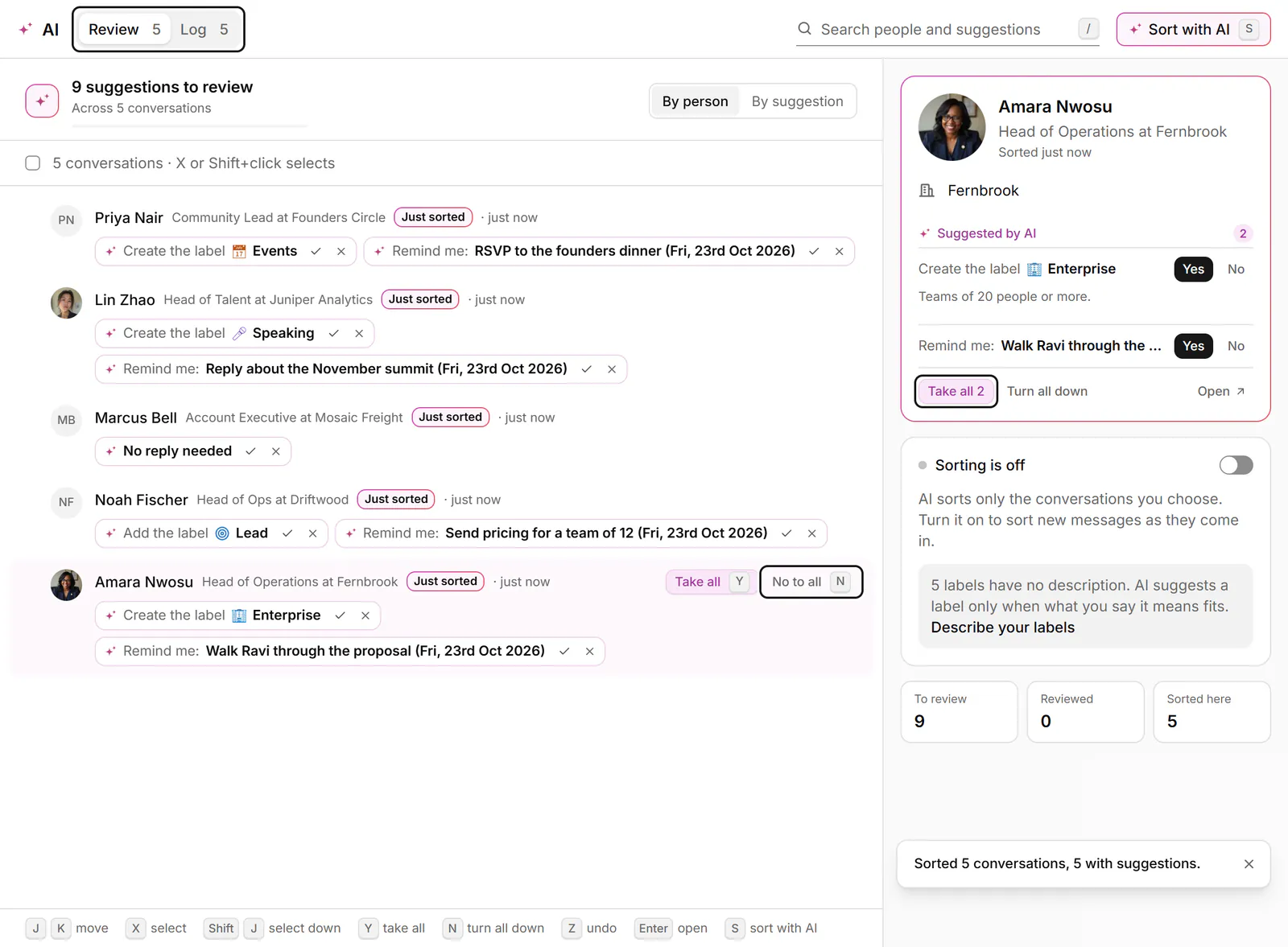
To sort your LinkedIn inbox with AI, have it suggest a label, a reply status or a reminder for each conversation, then approve the ones that are right. In Bokka, Sort with AI does this for up to 20 conversations at a time, and nothing changes until you say yes.
Sorting here means putting each conversation where it belongs: under the right label, with the right reply status, and with a reminder if it needs one. A suggestion is a change AI proposes and you accept or turn down. Bokka is an AI-first CRM for your LinkedIn inbox.
What LinkedIn sorts for you
LinkedIn's Focused Inbox uses automated machine learning to put messages into a Focused or an Other tab by relevance, and you can move a conversation between them (LinkedIn Help: Focused Inbox, retrieved November 1, 2026). That's the extent of it: two tabs, chosen for you, with no labels of your own. See Focused and Other.
Step 1: Describe your labels
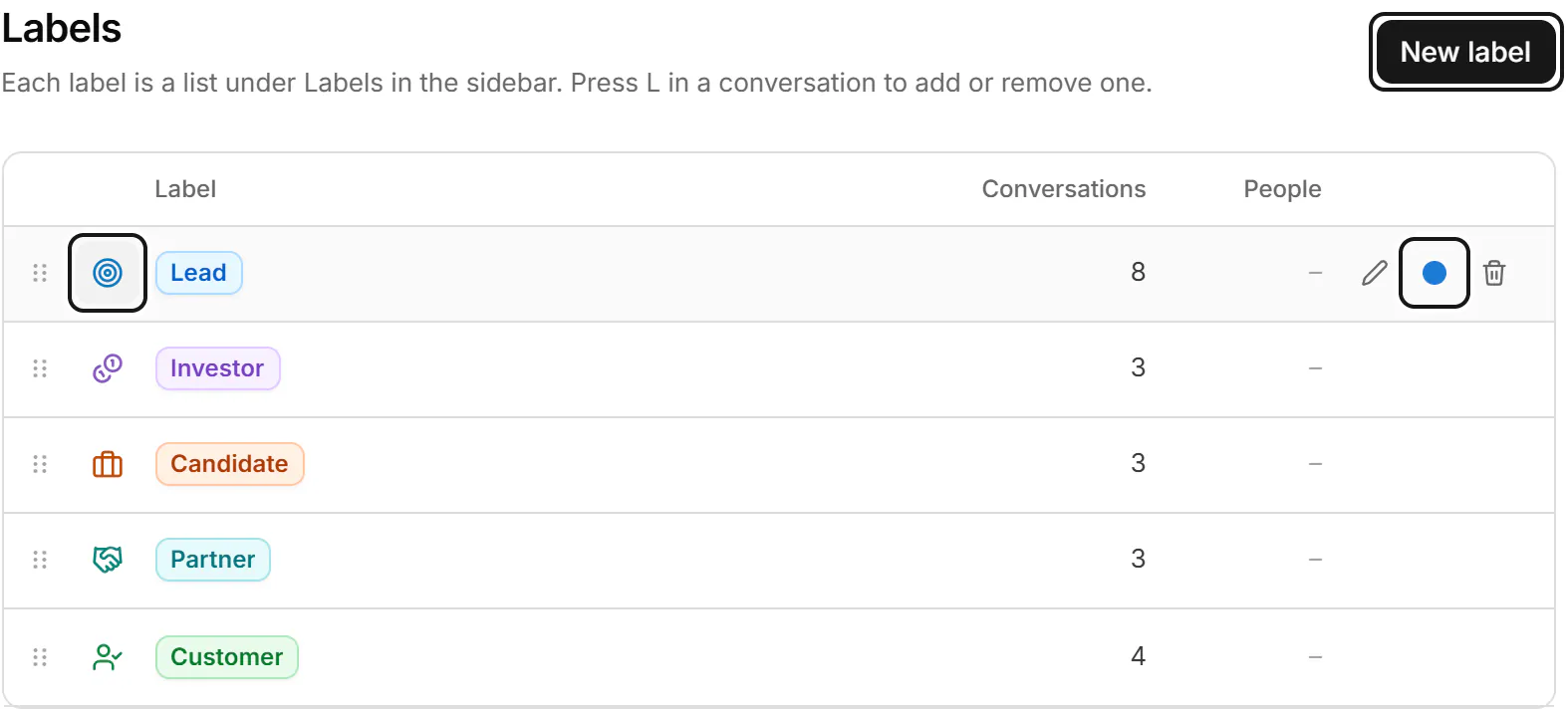
AI suggests one of your labels only when what you say it means fits. Your account starts with six (Lead, Hot lead, Customer, Friend, Investor and Candidate), each with a description. Edit them, or add your own, in Settings → Labels.
For example, "Hot lead: has asked about price, a demo or a start date in the last two weeks" gives AI something to check. "Hot lead: important" doesn't.
Step 2: Sort some conversations
- In the sidebar, open AI suggestions (G then X) and choose Sort with AI, or press S on that page.
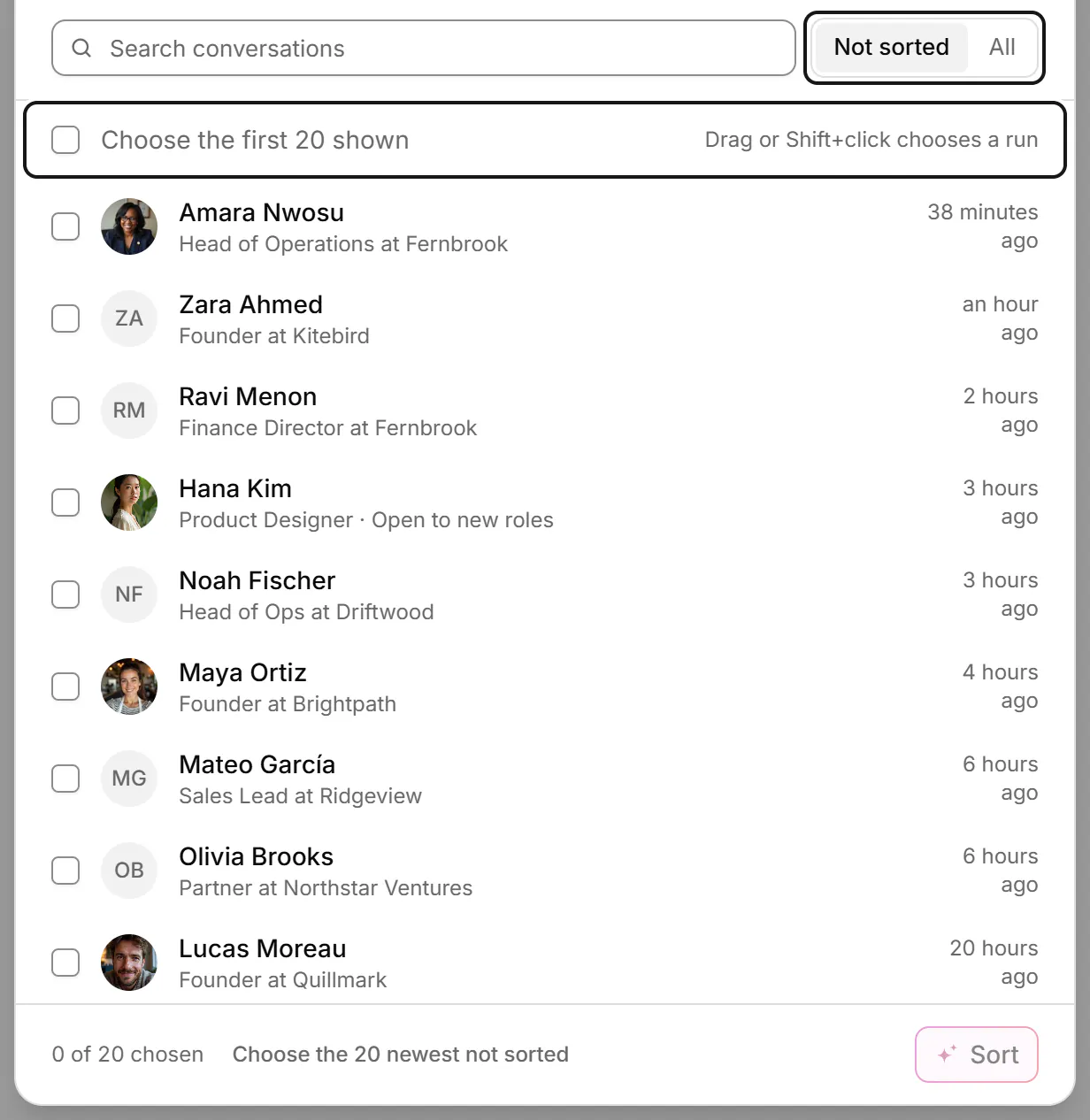
- Show Not sorted or All, then tick up to 20 conversations, or tick Choose the first 20 shown.
- Choose Sort. When it's done, choose Review them.
Step 3: Review the suggestions
- Group the review By person or By suggestion.
- Each suggestion has its own yes and no, such as "Add the label Customer" or "Remind me: RSVP to the founders dinner".
- Take all (Y) or No to all (N) answers a whole group. Z undoes, and Enter opens the conversation.
- The Log tab shows what came of each one, such as Reminder set or Turned down.
In the inbox, press A to take the suggestions for the open or selected conversations, or Q to turn them down. Single suggestions also show in the contact panel under Suggested by AI.
Sort new messages as they arrive
Turn on Sort new messages with AI, on the AI page or in Settings → AI. Read What's sent beside the switch first. Suggestions still wait for your yes.
What AI never does here
- It never adds a label, sets a reminder or changes anything by itself.
- It never sends a message.
- Our AI provider doesn't keep the text or train on it. The review and the log are kept in this browser.
AI is part of the free trial, with daily limits, and of Pro. It isn't on Starter. Full details: Sort your inbox with AI. To label by hand, see how to label LinkedIn conversations.
About Bokka
Bokka starts with a free 14-day trial, AI included and no credit card. After it, Starter is $25 and Pro is $35 per user a month ($19 and $30 for your first month). Team, at $50, is coming soon.
Frequently asked questions
Can AI organize my LinkedIn inbox?
It can suggest how to. In Bokka, Sort with AI proposes labels, reply statuses, reminders and snippets for up to 20 conversations, and you take or turn down each suggestion.
Does AI change my LinkedIn inbox without asking?
Not in Bokka. Every suggestion waits for your yes, even when new messages are sorted as they arrive.
Why didn't AI suggest one of my labels?
AI suggests a label only when your description of it fits. Give each label a clear description in Settings → Labels.
Is this the same as LinkedIn's Focused Inbox?
No. Focused Inbox sorts messages into two tabs by itself. Bokka suggests your own labels, reply statuses and reminders, and you decide.
Sources
Other products' prices and features were read on their own pages on November 1, 2026. They change; check each page before you buy.
Join the waitlist for early access to Bokka. Your first 14 days are free, AI included, with no credit card. It runs in Chrome, Edge, Brave and Arc on a desktop or laptop.
Join the waitlistAbout the author
Amardeep Anand founded Bokka, the AI-first CRM for your LinkedIn inbox, and runs it from Deoghar, India. Questions or corrections: support@gobokka.com.