LinkedIn Focused and Other inbox: what they mean, how to switch
LinkedIn sorts messages into Focused and Other by relevance. How to move a conversation between them, turn Focused Inbox off, and check Other.
By Amardeep Anand, founder of Bokka · Published · 2 min read
On this page
LinkedIn's Focused tab holds the messages it judges most relevant to you, and the Other tab holds everything else. It sorts them automatically, but you can move any conversation between the two, or turn Focused Inbox off and go back to one list.
Focused Inbox is LinkedIn's setting that splits your messages into two tabs, Focused and Other, by relevance. Bokka is an AI-first CRM for your LinkedIn inbox.
How LinkedIn decides what's Focused
LinkedIn says it uses automated machine learning to sort your messages by relevance (LinkedIn Help: Focused Inbox, retrieved November 1, 2026). When it turned the feature on, it ran a one-time cleanup that kept recent, active conversations in Focused and moved older, less relevant ones to Other. Focused Inbox may be turned on automatically for members outside the EU, and it rolls out gradually, so you may not have it yet.
You still get push notifications and badges for every new message, whichever tab it lands in. When there are unread messages in Other, a banner at the top of your inbox says so.
Move a conversation to Focused or Other
- Open the conversation.
- Click the More icon in the upper right of the message window.
- Choose Move to Focused or Move to Other.
Turn Focused Inbox on or off
On a computer (LinkedIn Help: Focused Inbox, retrieved November 1, 2026):
- Click the More icon at the top of your Messaging inbox or a conversation window.
- Select Messaging settings.
- Click Update settings next to Focused Inbox settings.
- Use the Focused Inbox toggle, then refresh the page.
In the app, leave Messaging first, then tap your profile photo, Settings, Data privacy, and Focused Inbox under Messaging experience.
Focused, Other, Archived and Spam
The messaging page offers four inbox categories: Focused, Other, Archived and Spam. Its filters (Jobs, Unread, My Connections, Starred and InMail) work within them (LinkedIn Help: filters and search in Messaging, retrieved November 1, 2026). None of them are folders you create; for that, see does LinkedIn have message folders?.
Should you keep Focused Inbox on?
For example, if you get a few messages a day, mostly from people you know, two tabs add a step and little else: turn it off. If you get a steady stream of pitches, Focused keeps them out of your way. Either way, check Other once a week. A first message from a new prospect or candidate is the kind that can end up there, and nothing reminds you it's waiting except the banner.
Focused, Other and message requests in Bokka
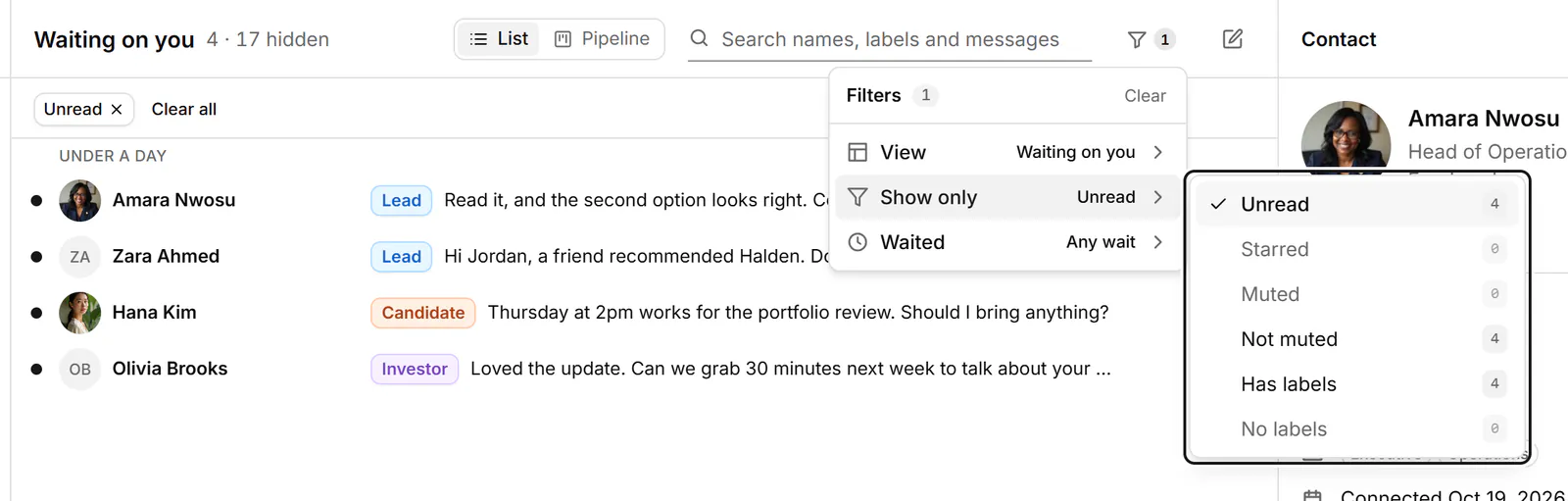
Bokka's Inbox view is your main inbox. Its Other view holds LinkedIn's Other folder and your message requests, under the heading Other and message requests, and Spam holds LinkedIn's spam. Open a view from the command palette (Ctrl+K) or Filter (F), or show it in the sidebar with Organize. Press [ and ] to step through views.
Beyond what LinkedIn sorts, Bokka adds views of its own, such as Waiting on you for conversations where they wrote last. See Use the inbox views and LinkedIn message requests.
About Bokka
Bokka starts with a free 14-day trial, AI included and no credit card. After it, Starter is $25 and Pro is $35 per user a month ($19 and $30 for your first month). Team, at $50, is coming soon.
Frequently asked questions
What is the Other tab on LinkedIn?
It's the second tab of Focused Inbox. LinkedIn puts messages it judges less relevant to you there, and the rest in Focused.
How do I get rid of Focused and Other on LinkedIn?
On a computer, click More in Messaging, then Messaging settings, Update settings next to Focused Inbox settings, and turn the toggle off. Refresh the page afterwards.
Will I miss messages that go to Other?
LinkedIn still sends push notifications and badges for new messages in Other, and shows a banner when unread messages are there. It's still worth checking the tab regularly.
Sources
Other products' prices and features were read on their own pages on November 1, 2026. They change; check each page before you buy.
Join the waitlist for early access to Bokka. Your first 14 days are free, AI included, with no credit card. It runs in Chrome, Edge, Brave and Arc on a desktop or laptop.
Join the waitlistAbout the author
Amardeep Anand founded Bokka, the AI-first CRM for your LinkedIn inbox, and runs it from Deoghar, India. Questions or corrections: support@gobokka.com.