How to block or report someone on LinkedIn from a message
Report a conversation from its More menu; block someone from their profile. What they see, what changes and how to unblock, as LinkedIn Help states it.
By Amardeep Anand, founder of Bokka · Published · 2 min read
On this page
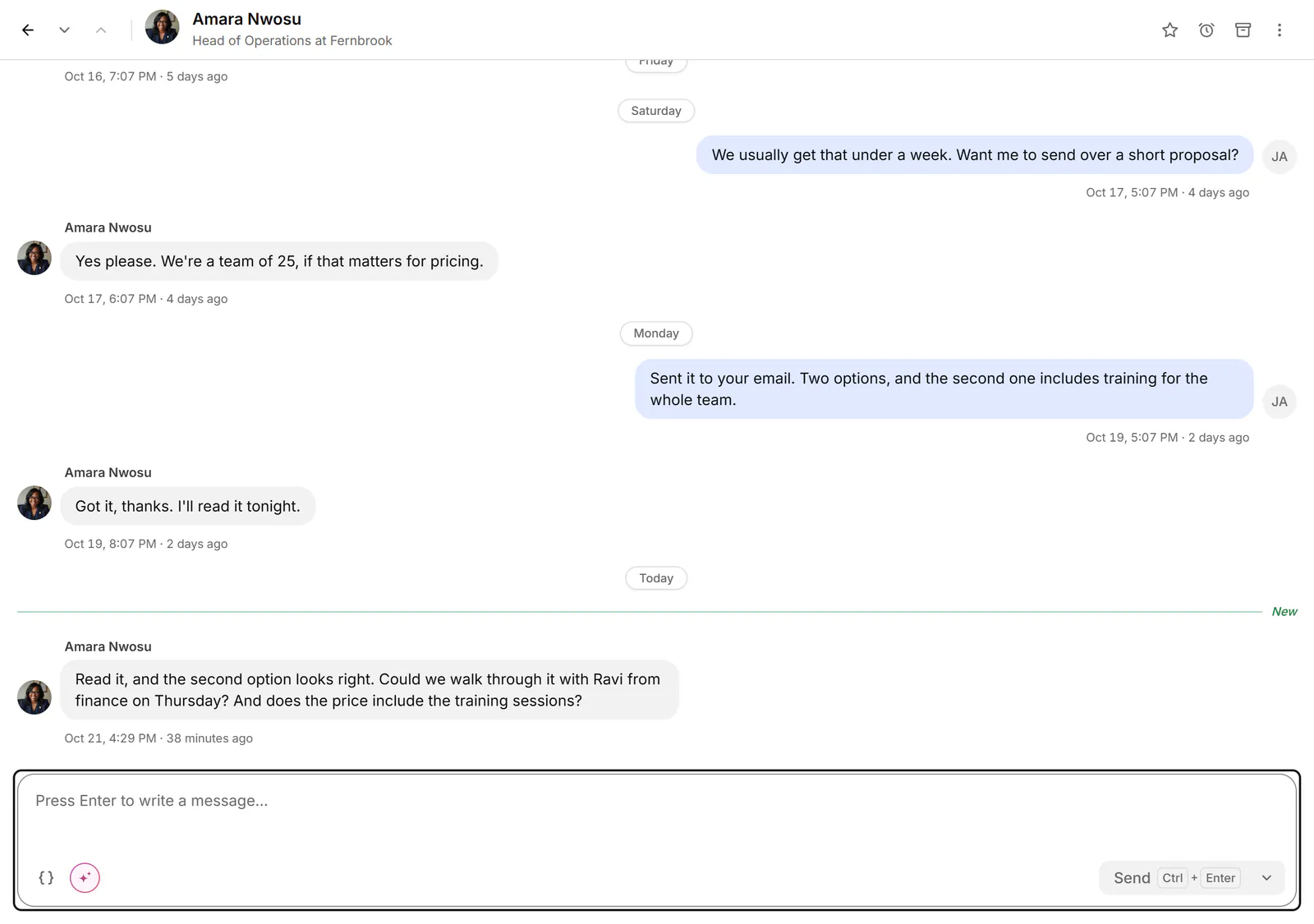
To report someone from a LinkedIn message, open the conversation, click the More icon and choose Report this conversation. To block them, go to their profile, click More, choose Report/Block and then Block (LinkedIn Help: report spam and abusive content, retrieved November 10, 2026; LinkedIn Help: block or unblock a member, retrieved November 10, 2026). LinkedIn's help pages describe blocking from the profile; after a report, LinkedIn may offer to block too.
Reporting tells LinkedIn a message breaks its rules, and LinkedIn may review it. Blocking cuts contact between you and one member. Bokka is an AI-first CRM for your LinkedIn inbox.
How to report a conversation
On a computer
- Click the Messaging icon at the top of your LinkedIn homepage and open the conversation.
- Click the More icon in the top right of the conversation and select Report this conversation.
- Choose a reason from Why are you reporting this? and follow the instructions.
- Click Submit, or Back to review your options.
In a mobile browser
- Tap the Messaging icon in the upper right of your LinkedIn homepage and open the conversation.
- Tap the More icon in the upper right of the conversation.
- Tap Report this conversation, choose a reason from Why are you reporting this?, then tap Submit.
After you report it, the conversation should no longer show in your messaging inbox. LinkedIn may review it and act, such as warning or suspending the author, and the member won't be told who reported them. You may then get the option to block them (LinkedIn Help: report spam and abusive content, retrieved November 10, 2026). For harassment, choose Harassment as the reason; LinkedIn's page on harassment suggests reporting the behaviour and blocking the member (LinkedIn Help: report harassment, retrieved November 10, 2026).
How to block someone on LinkedIn
On a computer
- Go to the profile of the person you want to block.
- Click the More… button below their profile picture and select Report/Block.
- Select Block [their name] in the pop-up.
- Click Block, or Back to review your options.
In the app
- Go to their profile and tap the More icon in the top right.
- Tap Report or Block, then Block [their name].
- Tap Block in the confirmation.
Source: LinkedIn Help: block or unblock a member, retrieved November 10, 2026. LinkedIn lists slightly different wording for some app versions. There's no limit to how many members you can block.
What happens when you block someone
| After a block | |
|---|---|
| Messaging | You can't message each other |
| Profiles | You can't view each other's profiles |
| Your connection | Removed, if you were connected |
| Endorsements and recommendations | Theirs are removed from your profile |
| Suggestions | You stop being suggested to each other, such as in People You May Know |
| Notification | In most cases, they aren't notified |
| Unblocking | Only you can unblock them |
Sources: LinkedIn Help: block a member, overview, retrieved November 10, 2026 and LinkedIn Help: block or unblock a member, retrieved November 10, 2026.
What the other person can still see
A block doesn't hide what you've made public. A blocked member may still see your public profile, your public shares and your posts in open group discussions. And if they viewed your profile before the block, they still count in your viewer total, without their details (LinkedIn Help: block a member, overview, retrieved November 10, 2026).
LinkedIn adds that blocking isn't supported between a group member and that group's manager, and that you can't block someone viewing your profile in private mode (LinkedIn Help: block a member, overview, retrieved November 10, 2026). If you share or have shared a LinkedIn Recruiter account with them, LinkedIn says it reserves the right to tell them about the block (LinkedIn Help: block or unblock a member, retrieved November 10, 2026).
How to unblock someone
- Click the Me icon at the top of your LinkedIn homepage.
- Select Settings & Privacy.
- In the Visibility section, select Blocking, under Visibility of your profile & network.
- Find the person in your blocked list and click Unblock.
In the app, the same list is under Settings & Privacy, Visibility. You'll have to wait 48 hours before blocking the same member again, and recommendations from a member you blocked can't be reinstated when you unblock them. If you've blocked more than 2,000 members, you may not be able to unblock some of them (LinkedIn Help: block or unblock a member, retrieved November 10, 2026).
If you only want fewer messages
Blocking is the only way to stop one connection: LinkedIn says you can't stop receiving messages from your 1st-degree connections. For everyone else, Settings & Privacy, Data privacy, Who can reach you, Messages lets you switch message types on or off (LinkedIn Help: manage the messages you receive, retrieved November 10, 2026). You can also decline a message request privately, and the sender isn't told (LinkedIn Help: message requests, retrieved November 10, 2026). See LinkedIn message requests and how to delete a LinkedIn conversation.
Blocking and Bokka
Blocking and reporting happen on LinkedIn: Bokka's docs list no block or report action. Bokka's Mark as spam moves a conversation to its Spam view on that device only, and nothing changes on LinkedIn: it doesn't report or block anyone. See Clear your inbox.
About Bokka
Bokka starts with a free 14-day trial, AI included and no credit card. After it, Starter is $25 and Pro is $35 per user a month ($19 and $30 for your first month). Team, at $50, is coming soon.
Frequently asked questions
Can you block someone on LinkedIn from a message?
LinkedIn Help describes blocking from the person's profile: More, then Report/Block, then Block. From the conversation you can report it, and LinkedIn may offer to block them after the report.
Does someone know if you block them on LinkedIn?
In most cases, no: LinkedIn says the blocked member won't be notified. They will find they can't view your profile or message you.
What happens to messages when you block someone on LinkedIn?
You can't message each other any more. LinkedIn's blocking pages don't say what happens to your existing conversation history.
How do I unblock someone on LinkedIn?
Go to Settings & Privacy, then Visibility, then Blocking, find their name and click Unblock. You'll have to wait 48 hours before you can block them again.
Does LinkedIn tell someone you reported them?
No. LinkedIn says the member won't be notified who reported them.
Sources
Other products' prices and features were read on their own pages on November 10, 2026. They change; check each page before you buy.
- LinkedIn Help: recognize and report spam, inappropriate and abusive content
- LinkedIn Help: block or unblock a member
- LinkedIn Help: block a member, overview
- LinkedIn Help: report harassment
- LinkedIn Help: manage the types of messages you receive
- LinkedIn Help: message requests
- Bokka docs: clear your inbox
Join the waitlist for early access to Bokka. Your first 14 days are free, AI included, with no credit card. It runs in Chrome, Edge, Brave and Arc on a desktop or laptop.
Join the waitlistAbout the author
Amardeep Anand founded Bokka, the AI-first CRM for your LinkedIn inbox, and runs it from Deoghar, India. Questions or corrections: support@gobokka.com.
Related
LinkedIn message requests: what they are and how to answer
2 min read
LinkedIn Focused and Other inbox: what they mean, how to switch
2 min read

How to delete a LinkedIn conversation, and what they still see
2 min read
How to archive LinkedIn messages, one or many at once
2 min read