LinkedIn inbox zero: a daily routine for a busy inbox
LinkedIn inbox zero means every conversation is answered, archived or set to come back. A daily routine with archive, reminders, labels and a steady place.
By Amardeep Anand, founder of Bokka · Published · 3 min read
On this page
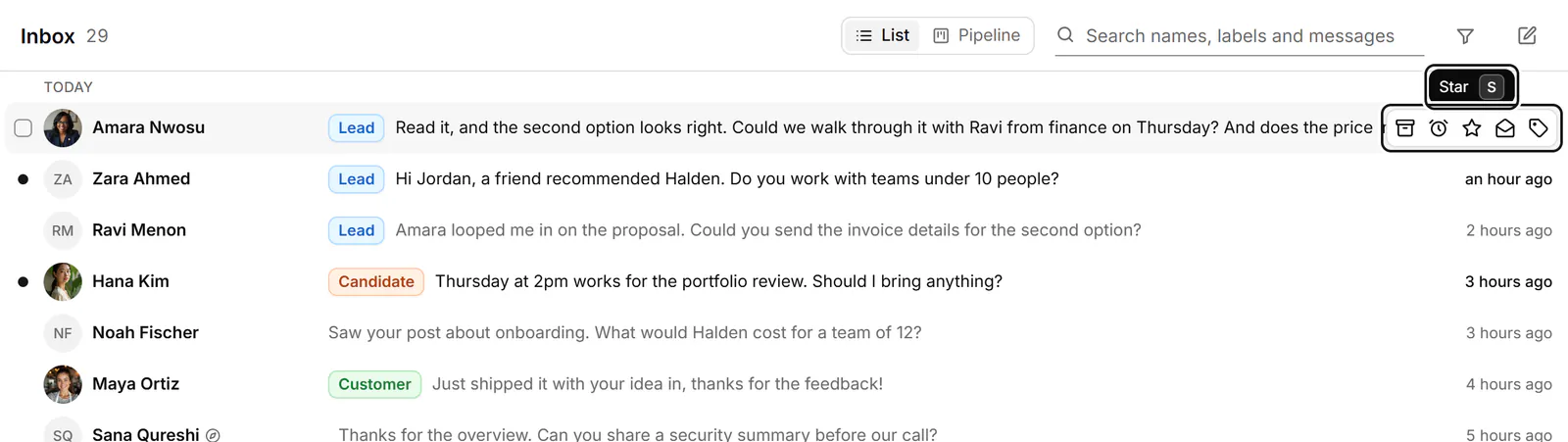
LinkedIn inbox zero means no conversation in your inbox is waiting for a decision from you. Each one is answered, archived or set to come back later. You get there with one pass a day, making one of four decisions on each conversation, and it matters most once LinkedIn is where your deals or hires happen.
Inbox zero is the habit of clearing an inbox by deciding on every item, not by reading everything. Archiving hides a conversation without deleting it. Bokka is an AI-first CRM for your LinkedIn inbox.
The four decisions
Every conversation gets one of these, and none of them is "leave it for now". That's the whole method.
| What it is | Decision | On LinkedIn | In Bokka |
|---|---|---|---|
| Finished | Archive | More, then Archive | E |
| Needs an answer | Reply, then archive | Reply, then Archive | Alt+Enter |
| Not now | Set it to come back | No reminder: star it | H |
| Waiting on them | Follow up if they go quiet | No reminder: note it elsewhere | Ctrl+Shift+Enter |
The routine on LinkedIn alone
You can do most of this free. Where it's available, Focused Inbox sorts messages into Focused and Other by relevance, using machine learning (LinkedIn Help: Focused Inbox, retrieved October 30, 2026), so start with Focused:
- Open Messaging and filter by Unread (LinkedIn Help: filters and search in Messaging, retrieved October 30, 2026).
- Reply to what needs a reply. Then click More in the conversation and choose Archive (LinkedIn Help: archive conversations, retrieved October 30, 2026).
- For what's left in one go, click More in your inbox, choose Manage conversations, tick the ones that are finished and click the archive icon (LinkedIn Help: manage conversations in bulk, retrieved October 30, 2026).
- Star anything you need to come back to, and look at the Starred filter once a day.
- Check Other for message requests you'd miss.
The gap is timing. LinkedIn has no reminders, so a star is only a pile. If you need something back on Thursday, it goes in your calendar. Archived conversations can be restored at any time (LinkedIn Help: restore archived conversations, retrieved October 30, 2026), and archive or delete covers the difference.
The daily routine in Bokka
- Start with Waiting on you. Press Shift+W. It lists one-to-one conversations where they wrote last, grouped by how long they've waited. Work from the oldest group up.
- Move and decide. Enter opens a conversation, and J and K step to the next or previous one. On the trial and Pro, Shift+Y summarises a long thread first.
- Answer. Enter puts you in the box. Alt+Enter sends and archives, Ctrl+Shift+Enter sends and opens the reminder picker, and Ctrl+Enter just sends.
- Not answering? Press E if it's finished, H if it can wait, or Shift+N for Mark as no reply needed, which clears it from both Waiting views until a new message arrives.
- Then your Inbox. Press Shift+A. Group chats aren't in the Waiting views, so this is where you catch them.
- Then Waiting on them. Press Shift+S. Press F and choose Waited 3+ days to see who's gone quiet. Decide whether to write again. On the trial and Pro, D drafts a follow-up for you to edit.
- Finish with Reminders. Press G then R to see what's due next, so nothing there catches you out tomorrow.
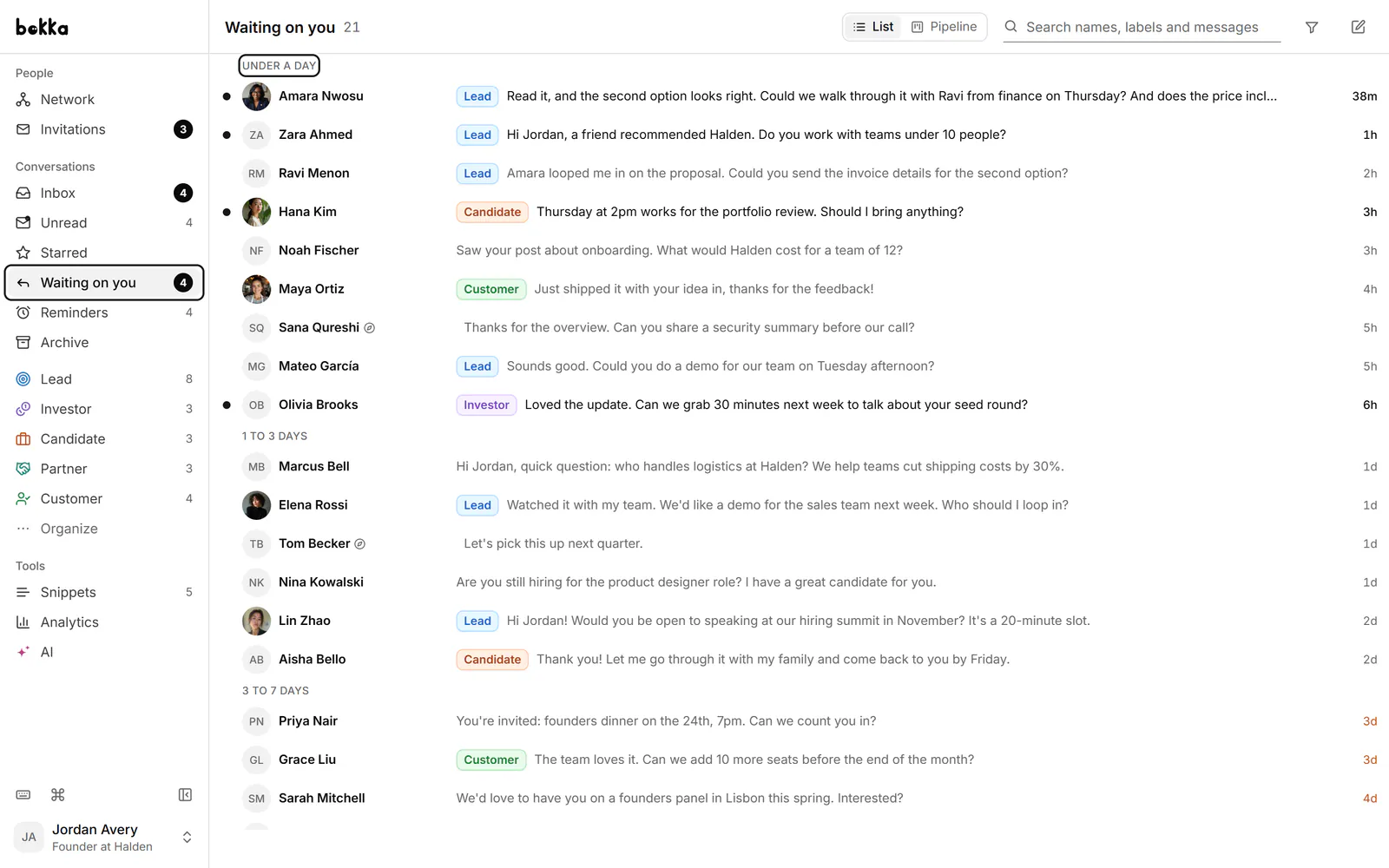
A reply doesn't lose your place
A list sorted newest first has a catch: when you reply, that conversation jumps to the top, and your place goes with it. In Bokka your place stays where it was. J, K and going back to the list carry on from where you opened the conversation, and Alt+Enter moves to the next one below, however the send has moved it. Rows arriving at the top don't shift it either.
That matters for a daily pass. You can reply to ten conversations in a row and never scroll back to find where you were.
A morning pass, step by step
Here's how one pass might go, as an illustration rather than anyone's real numbers. A founder opens Waiting on you to eight conversations. Two investor updates need only a thank-you: Alt+Enter sends each one and archives it. A customer asks for a call next week, so Ctrl+Shift+Enter sends a reply with two times and sets Remind me for Thursday in case they go quiet. A candidate's long thread gets Shift+Y for a summary before the reply (on the trial or Pro). Three congratulations messages need nothing back: E on each. One question needs a number from a colleague, so H snoozes it until 2pm. Waiting on you is now empty, and every conversation that left it has a place it will come back from.
The point of the example is the shape, not the speed: every conversation got exactly one decision, and none of them was "later, somehow".
Use reminders so the inbox can stay empty
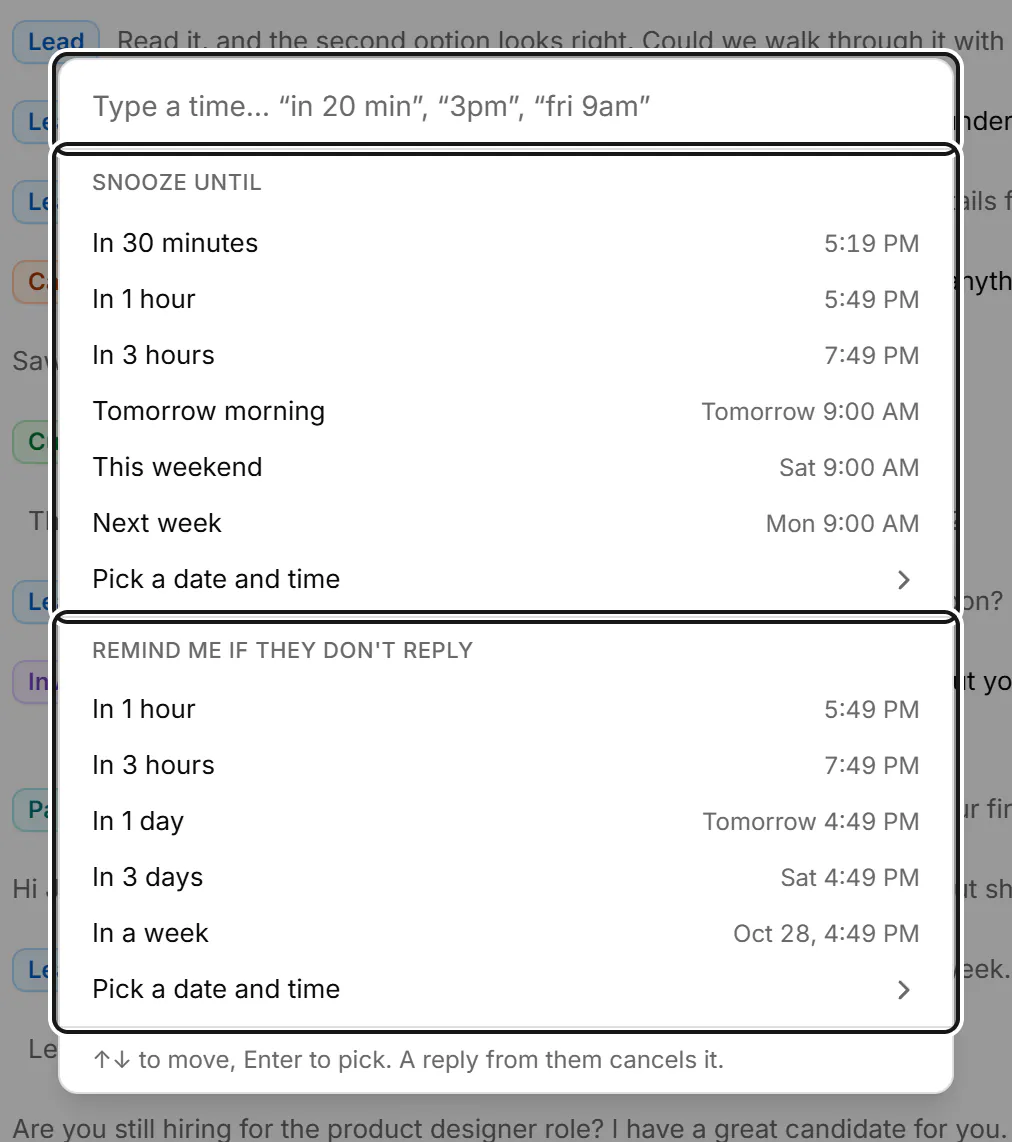
Press H and type a time, like "fri 9am", or pick a choice. There are two kinds:
| Snooze | Remind me | |
|---|---|---|
| Use it when | You'll deal with it later | It's their turn and you may need to chase |
| What happens now | It leaves every list except Reminders | It leaves your Inbox and stays in your other views |
| When the time comes | It returns marked Back from snooze | It shows Time to follow up |
| If they write first | The snooze is cancelled | The reminder is cancelled |
Reminders show in the app only: no email or browser notification, and nothing is ever sent for you. More in how to set a reminder on a LinkedIn message.
Use labels to work in batches
Inbox zero goes faster when like sits with like. Press L to label a conversation, and every label becomes its own list in the sidebar, so you can answer all your candidates in one sitting. On the trial and Pro, Sort with AI suggests labels and reminders; press A to take them or Q to turn them down. See how to label LinkedIn conversations.
To clear many at once, press X on each, then E to archive them together. Up to 50 conversations go to LinkedIn per click. See Act on many conversations at once.
What changes on LinkedIn
| Action | Key | On LinkedIn |
|---|---|---|
| Archive, or Move to inbox | E, Shift+E | Changes too |
| Star | S | Changes too |
| Mute | M | Changes too |
| Mark as read or unread | U | Changes too |
| Snooze or remind me | H | In Bokka only |
| Mark as no reply needed | Shift+N | In Bokka only |
Changes that reach LinkedIn need the extension connected and Bokka open in a tab. Z undoes the last one while its message shows.
When inbox zero isn't worth it
- A few messages a week. Answer them when they come. A routine is more work than the inbox.
- You use LinkedIn mostly on your phone. LinkedIn's own app can archive conversations too, and that may be all you need.
- You want it done for you. Nothing here archives or replies by itself, and that's on purpose. AI suggests and you decide.
About Bokka
Bokka starts with a free 14-day trial, AI included and no credit card. After it, Starter is $25 and Pro is $35 per user a month ($19 and $30 for your first month). Team, at $50, is coming soon.
Frequently asked questions
What is LinkedIn inbox zero?
It's keeping your LinkedIn inbox clear of undecided conversations. Each one is answered, archived or set to come back later, so what's left is only what needs you today.
Does archiving a LinkedIn message delete it?
No. Archived conversations move to the Archived folder and can be restored at any time.
Can I archive all my LinkedIn messages at once?
You can archive many at once: click More in your inbox, choose Manage conversations, tick the conversations and click the archive icon.
Can LinkedIn remind me to follow up on a message?
Not in LinkedIn itself. In Bokka, press H on a conversation to snooze it or to be reminded if they don't reply.
Does replying in Bokka move me back to the top of the list?
No. The conversation moves up, but J, K and going back carry on from where you opened it.
Sources
Other products' prices and features were read on their own pages on October 30, 2026. They change; check each page before you buy.
Join the waitlist for early access to Bokka. Your first 14 days are free, AI included, with no credit card. It runs in Chrome, Edge, Brave and Arc on a desktop or laptop.
Join the waitlistAbout the author
Amardeep Anand founded Bokka, the AI-first CRM for your LinkedIn inbox, and runs it from Deoghar, India. Questions or corrections: support@gobokka.com.
Related
How to archive LinkedIn messages, one or many at once
2 min read
How to set a reminder to follow up on a LinkedIn message
2 min read

How to label LinkedIn conversations (leads, candidates, investors)
2 min read

How to mute a LinkedIn conversation, and what muting does
2 min read