How to mark a LinkedIn message as unread (computer and app)
On a computer, point at the conversation, click More and choose Mark as unread. In the app, swipe it and tap Unread. Plus how to do many at once.
By Amardeep Anand, founder of Bokka · Published · 1 min read
On this page
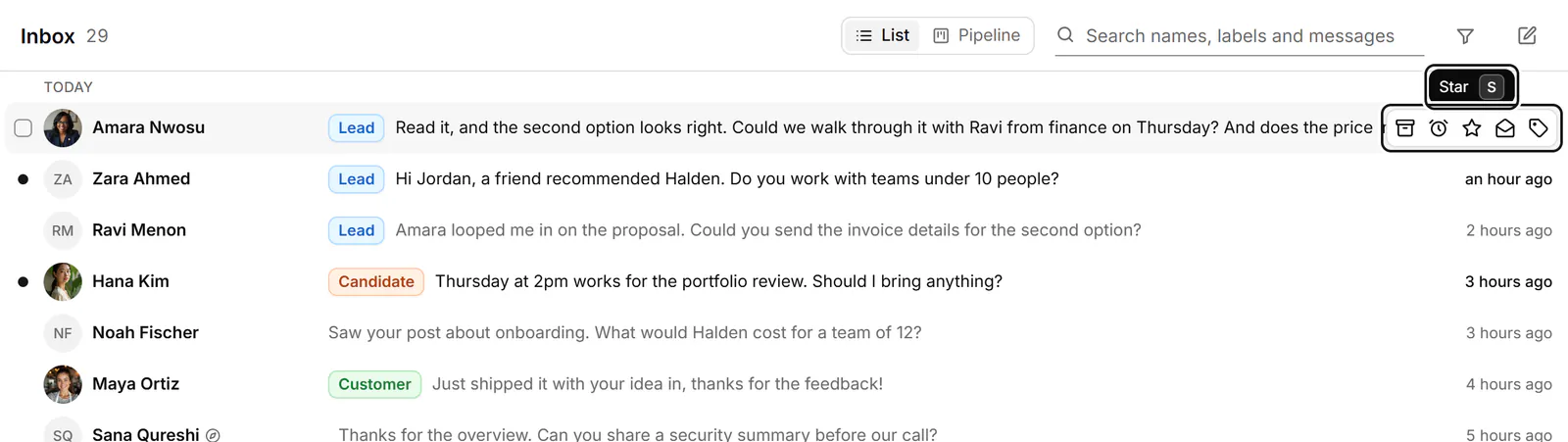
To mark a LinkedIn message as unread on a computer, open Messaging, point at the conversation, click the More icon and choose Mark as unread. In the LinkedIn app, swipe the conversation and tap Unread. The conversation then shows a blue badge until you open it again.
Marking as unread puts a conversation back into the unread state, so it counts and looks like a new message. An unread badge is the blue dot LinkedIn shows on a conversation you haven't read. Bokka is an AI-first CRM for your LinkedIn inbox.
Mark one conversation unread on a computer
- Click the Messaging icon at the top of your LinkedIn homepage. (You can also use the messaging window in the lower right.)
- Point at the conversation and click the More icon.
- Click Mark as unread. To undo it, do the same and click Mark as read.
Source: LinkedIn Help: mark a conversation read or unread, retrieved November 1, 2026. Unread conversations show a blue badge until you open them.
Mark one conversation unread in the app
- Tap Messaging in the upper right.
- Swipe the conversation: right on an iPhone, left on Android.
- Tap Unread, or Read to switch it back.
Mark many conversations at once
LinkedIn's bulk tool marks conversations read or unread, and also archives or deletes them (LinkedIn Help: manage conversations in bulk, retrieved November 1, 2026):
- On a computer, open Messaging, click the More icon in the upper right and select Manage conversations. In the app, tap and hold a conversation, or tap More and Manage conversations.
- Tick the conversations you want.
- Choose the read or unread action. In the app it's Mark read or unread at the bottom of the screen.
Find your unread conversations again
The messaging page has an Unread filter, alongside Jobs, My Connections, Starred and InMail (LinkedIn Help: filters and search in Messaging, retrieved November 1, 2026). Open it whenever you want to see what you've left unread.
When unread isn't enough
For example, you read a candidate's message on your phone at 8pm, mark it unread so you'll answer from your desk, and by the next afternoon it's one of nine unread conversations that all look the same. The unread mark doesn't say when you meant to reply, and it never comes back on its own.
If you want a conversation back at a set time, use a reminder instead. See how to set a reminder on a LinkedIn message.
Mark as unread from the keyboard in Bokka
- One conversation: press U to mark it read or unread. Pointing at a row also shows Mark as unread without opening it.
- Many: select them with X, then press U or choose Mark as unread in the toolbar.
- See them all: press Shift+U for the Unread view.
- Want it back later instead? Press H and pick a time. A follow-up comes back only if they haven't replied.
Read and unread changes in Bokka change on LinkedIn too, so they need the extension connected and Bokka open in a tab. Reminders stay in Bokka. Full details: Clear your inbox.
About Bokka
Bokka starts with a free 14-day trial, AI included and no credit card. After it, Starter is $25 and Pro is $35 per user a month ($19 and $30 for your first month). Team, at $50, is coming soon.
Frequently asked questions
How do I mark a LinkedIn message as unread?
On a computer, open Messaging, point at the conversation, click More and choose Mark as unread. In the app, swipe the conversation (right on iPhone, left on Android) and tap Unread.
Can I mark several LinkedIn messages unread at once?
Yes. Open More, then Manage conversations, tick the ones you want and choose the read or unread action.
Does the other person know if I mark their message unread?
LinkedIn Help doesn't say that marking as unread changes anything the other person sees. Read receipts are about when you read a message, which you've already done.
Sources
Other products' prices and features were read on their own pages on November 1, 2026. They change; check each page before you buy.
Join the waitlist for early access to Bokka. Your first 14 days are free, AI included, with no credit card. It runs in Chrome, Edge, Brave and Arc on a desktop or laptop.
Join the waitlistAbout the author
Amardeep Anand founded Bokka, the AI-first CRM for your LinkedIn inbox, and runs it from Deoghar, India. Questions or corrections: support@gobokka.com.