How to search LinkedIn messages when you can't spell the name
Search LinkedIn messages by keyword or name in the Search messages bar. What LinkedIn offers, and how to find a chat when you can't remember the spelling.
By Amardeep Anand, founder of Bokka · Published · 3 min read
On this page

To search your LinkedIn messages, open Messaging and type a keyword or a person's name in the Search messages bar. Filters such as Unread and InMail narrow the list, and the category menu switches to Other, Archived or Spam. LinkedIn Help doesn't describe any spelling correction. If you can't remember how a name is spelt, try another word from the conversation, or use a tool that suggests the right spelling.
Message search finds conversations by a word in them or by who they're with. A filter narrows the list without typing. Bokka is an AI-first CRM for your LinkedIn inbox.
How to search messages on LinkedIn
From LinkedIn Help (LinkedIn Help: filters and search in Messaging, retrieved October 30, 2026):
- Click the Messaging icon at the top of LinkedIn.
- Type a keyword or a person's name in the Search messages bar.
- To look elsewhere, click the inbox category menu and choose Focused, Other, Archived or Spam.
- To narrow the list, choose a filter.
| Where | Filters |
|---|---|
| Desktop | Jobs, Unread, My Connections, Starred, InMail |
| Phone app | Jobs, Drafts, Unread, Starred, InMail, My Connections |
In the small chat window at the lower right of LinkedIn, the Filter icon sits inside the Search messages bar. Opening a message clears its unread badge, but you can still filter and search for it (LinkedIn Help: unread messages, retrieved October 30, 2026).
What to try when LinkedIn doesn't find it
LinkedIn Help doesn't say whether search allows for typos or matches part of a word, or whether one search covers every category. So work around it:
- Search for something else you remember. Their company, a project, or a word one of you used.
- Try one name. The first name alone, then the last name alone, in case you've got one of them wrong.
- Change category. Search again in Archived and Other. Message requests sit in Other.
- Clear your filters. A filter you forgot about hides conversations.
- Check it wasn't deleted. Archived conversations can be restored (LinkedIn Help: restore archived conversations, retrieved October 30, 2026), and archive or delete covers what's gone for good.
How search works in Bokka
Press /, or click Search names, labels and messages above the list, and type.
- What it looks through: names, headlines, labels, and the text of the messages on this device. So the company in someone's headline finds them, and so does a word from last spring.
- Every word has to match, in any order. Case and accents don't matter, so "jose" finds José.
- Part of a word is enough. "Sar" finds Sarah, which helps when you only remember how a name starts.
- A conversation found through a message shows that message in the list, so you can see why it matched.
Two limits to know. Search covers the list you're on, so to look through archived conversations, press G then A first; Sales Navigator conversations are in their own view, on Pro. And it covers what's on this device: if the conversation may be older, scroll to the end of the list or click Load more conversations, then search again.
When you can't remember the spelling: Did you mean …?
When a search finds two conversations or fewer and a word looks misspelt, Bokka shows Did you mean …? under the header, with a corrected search. Say you type "Kristopher", and the person in your chats is Christopher. Bokka offers "christopher". Click it, or press Tab and then Enter, to search for that instead.
The correction comes from the words in your own conversations, so it knows the unusual names a general spell-checker wouldn't. A wrong guess is worse than none, so it holds back when it isn't clear:
- It looks only at plain words of three letters or more, never numbers or handles.
- A suggested word can be one letter away from a word of four letters or fewer, and two from a longer one. A swap of two neighbouring letters counts as one.
- A word already in two or more chats is left alone, and so is a short word in even one: Tim isn't a typo for Tom.
- If two words are equally close, it suggests nothing.
- The corrected search has to find more than yours did, or it doesn't appear.
It runs on your device, and the words stay there. If nothing appears, it had nothing it was sure of, so go back to searching by another word. It shows in the list, not on the pipeline board.
Move from the search box with the arrows
You don't need the mouse to get from the box to a result:
| Key | What it does |
|---|---|
| / | Go to the search box |
| ↓ or Enter | Move to the first result |
| ↑ | Move to the last result |
| Tab, then Enter | Take the Did you mean …? suggestion |
| Esc | Clear the search; press again to leave the box |
Once you're in the results, J and K move and Enter opens. More in keyboard shortcuts for LinkedIn messages.
Search inside one conversation
With a conversation open, press /. The bar counts the matches, such as "1 of 5", starting from the newest. Enter or ↑ goes to an older match, Shift+Enter or ↓ to a newer one, and Esc closes the bar. See Find a conversation.
Narrow it with filters
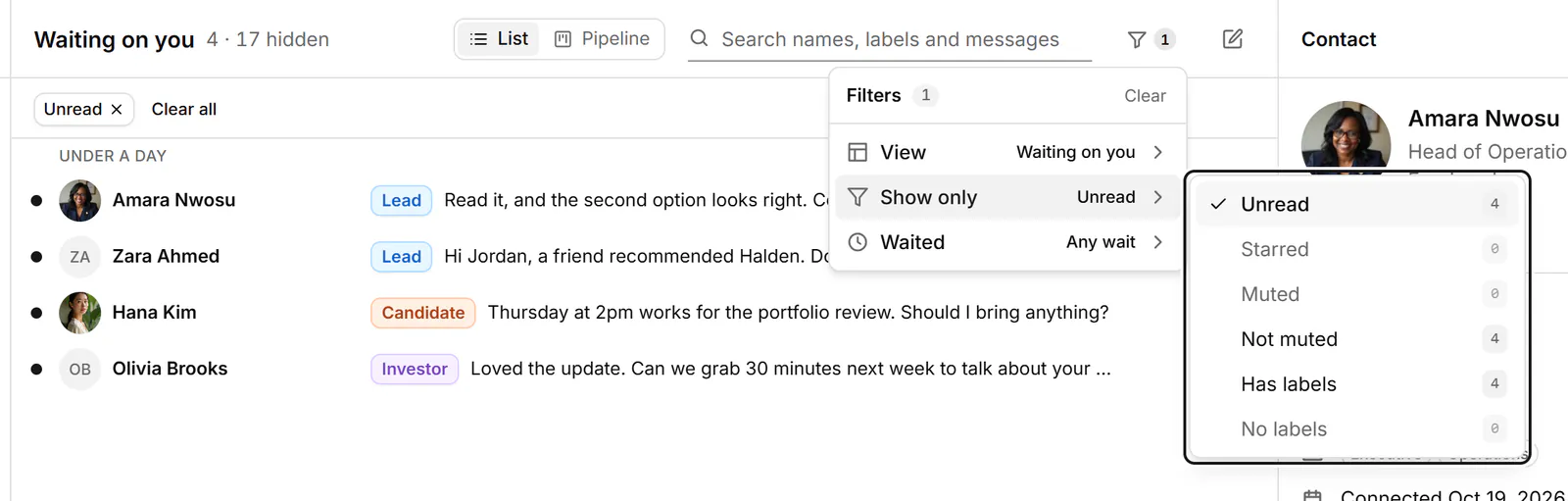
Press F for the Filter menu. Under Show only, turn on Unread, Starred, Has labels, Follow up and others. Each shows how many conversations it matches, and each one you turn on appears as a chip above the list. To search your connections instead, see Find the right people.
Search only helps once a conversation's there to find. If your problem is losing track of people before you need to search, LinkedIn inbox zero is the better place to start.
About Bokka
Bokka starts with a free 14-day trial, AI included and no credit card. After it, Starter is $25 and Pro is $35 per user a month ($19 and $30 for your first month). Team, at $50, is coming soon.
Frequently asked questions
How do I search my LinkedIn messages?
Open Messaging and type a keyword or a person's name in the Search messages bar at the top of your inbox. Use the category menu and filters to narrow it.
Can you search LinkedIn messages by keyword?
Yes. LinkedIn Help says you can search by keyword or by recipient in the Search messages bar.
Does LinkedIn search fix misspelt names?
LinkedIn Help doesn't describe any spelling correction. If a name finds nothing, try another word from the conversation, a single name, or another category.
Can I search archived LinkedIn messages?
Choose Archived in the category menu and search there. In Bokka, press G then A to open Archive, then search, because search covers the list you're on.
Why can't Bokka find an old message?
Search covers the list you're on and what's on this device. Open the right view, scroll to the end of the list or click Load more conversations, then search again.
Sources
Other products' prices and features were read on their own pages on October 30, 2026. They change; check each page before you buy.
Join the waitlist for early access to Bokka. Your first 14 days are free, AI included, with no credit card. It runs in Chrome, Edge, Brave and Arc on a desktop or laptop.
Join the waitlistAbout the author
Amardeep Anand founded Bokka, the AI-first CRM for your LinkedIn inbox, and runs it from Deoghar, India. Questions or corrections: support@gobokka.com.