LinkedIn keyboard shortcuts and hotkeys: the full list (2026)
Every LinkedIn keyboard shortcut on LinkedIn Help's list, in one table. G then M opens Messaging; no key works inside it. Plus Bokka's keys for messages.
By Amardeep Anand, founder of Bokka · Published · Updated · 3 min read
On this page
- Which LinkedIn keyboard shortcuts work in messages?
- Where do LinkedIn's hotkeys work, and how do you turn them on?
- The keys to learn first in Bokka
- Move around
- Jump to a view
- Act on a conversation
- Write and send
- Act on one message
- AI keys
- Select many, and work the pipeline
- Other tools with shortcuts
- About Bokka
| LinkedIn key | What it does | Where it works |
|---|---|---|
| G then M | Open Messaging | Top navigation |
| G then H | Go to Home | Top navigation |
| G then W | Go to My Network | Top navigation |
| G then J | Go to Jobs | Top navigation |
| G then N | Go to Notifications | Top navigation |
| G then P | Go to Me | Top navigation |
| / | Search | Top navigation |
| N | Start a new post | The main feed |
| J | Next post | The main feed |
| K | Previous post | The main feed |
| L | Like | A feed post you reached with J or K |
| C | Comment | A feed post you reached with J or K |
| R | Repost | A feed post you reached with J or K |
| S | Send | A feed post you reached with J or K |
| J | Next notification | Notifications |
| K | Previous notification | Notifications |
| Shift+? | Show the hotkey cheat sheet | Anywhere hotkeys work |
| Tab | Open the menu that turns hotkeys on or off | Anywhere hotkeys work |
That is every key on LinkedIn's own list (LinkedIn Help: keyboard shortcuts FAQ, retrieved October 30, 2026). One is for messages, and it only opens them.
LinkedIn's help page lists one keyboard shortcut for messages: press G, then M, to open Messaging. It lists no keys for moving between conversations, replying or archiving, though it does have hotkeys for the feed, notifications and top navigation. For the rest you need a tool built around the keyboard, such as Bokka or Kondo.
A hotkey, also called a keyboard shortcut or keybind, is a key or short sequence that runs an action without the mouse. A command palette is a search box for actions. Bokka is an AI-first CRM for your LinkedIn inbox, and the keyboard is how you get through it quickly.
Which LinkedIn keyboard shortcuts work in messages?
Only G then M, which opens Messaging. LinkedIn's list has nothing for inside it: no key for the next conversation, for reply, or for archive. Archiving there is More, then Archive (LinkedIn Help: archive conversations, retrieved October 30, 2026), or Manage conversations for several (LinkedIn Help: manage conversations in bulk, retrieved October 30, 2026).
Where do LinkedIn's hotkeys work, and how do you turn them on?
LinkedIn says its hotkeys are for desktop only, not iOS or Android, and that all members should have them (LinkedIn Help: keyboard shortcuts FAQ, retrieved October 30, 2026). A highlight shows where your keyboard focus is. Press Shift+? for a cheat sheet, and Tab to open the menu where you turn hotkeys on or off.
The keys to learn first in Bokka
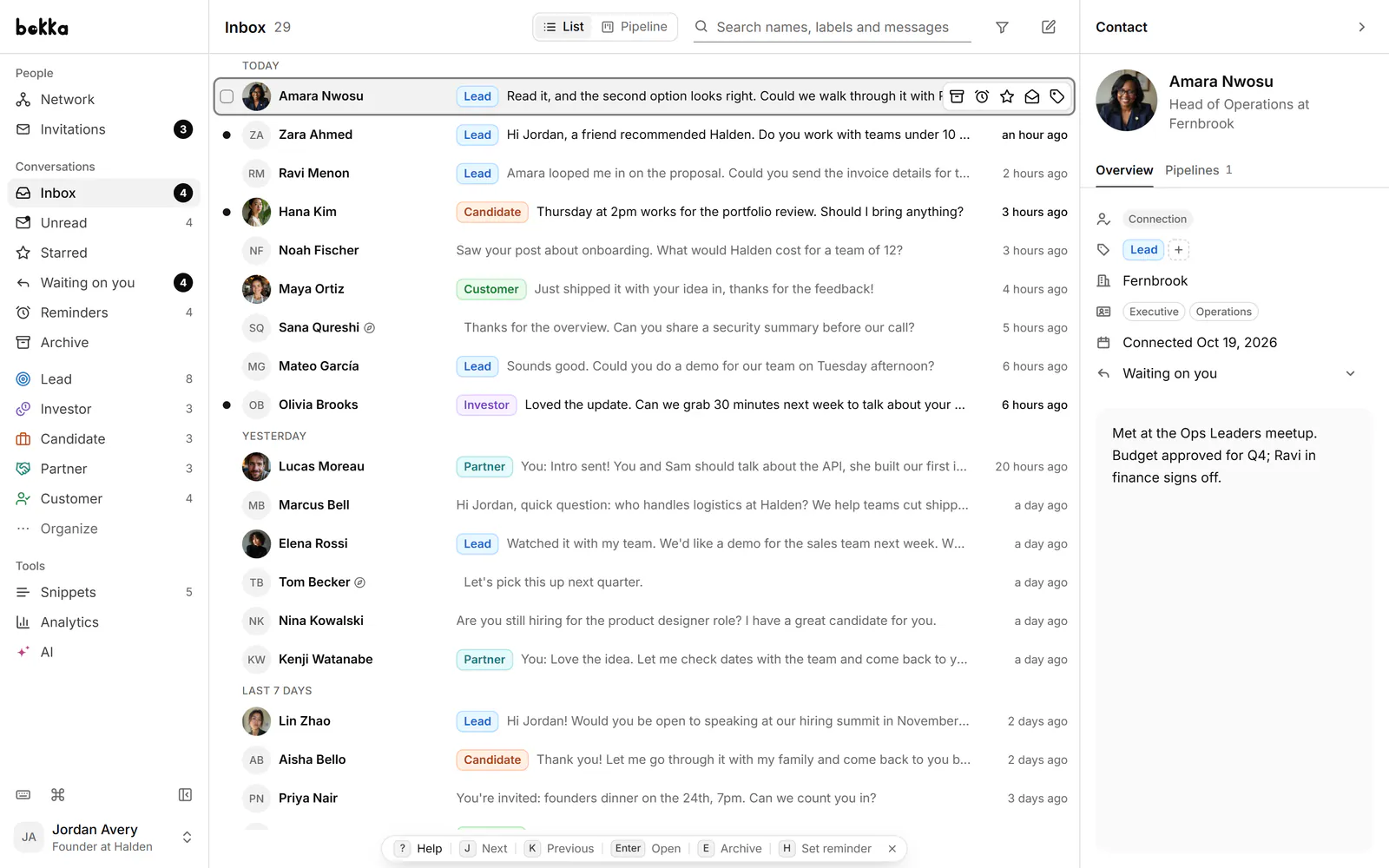
You don't need the whole list. These cover most of a working day:
- J and K: next and previous conversation. With one open, they open the next or previous one.
- Enter: open a conversation, then again to start writing.
- E: archive and move to the next one. Z undoes it.
- H: snooze, or be reminded if they don't reply.
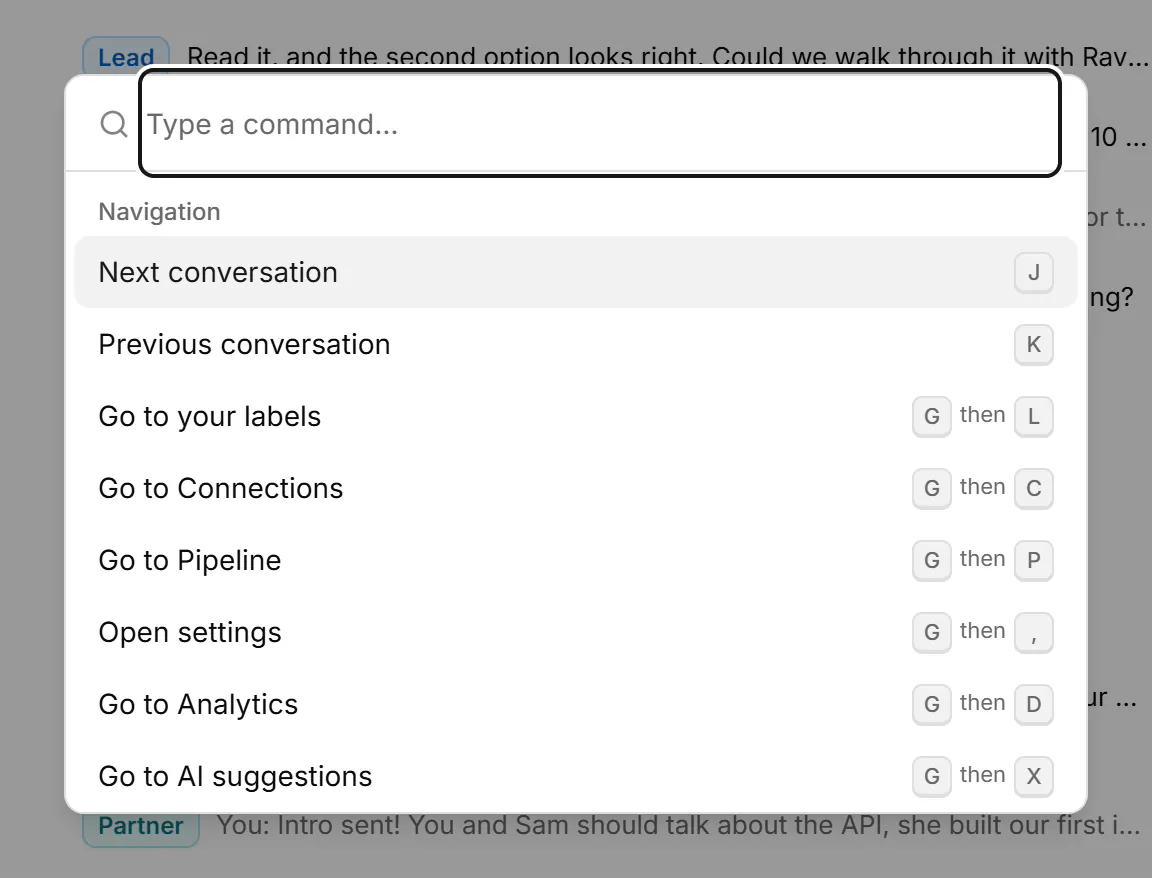
- Ctrl+K: find any action by name, so you never have to remember a key.
- ?: see every key for the page you're on.
Move around
| Key | What it does |
|---|---|
| J, K | Next or previous conversation |
| Enter or O | Open conversation |
| Esc | Leave the message box, close the conversation or clear the selection |
| / | Search the list or this conversation |
| F | Filter the list |
[ and ] | Previous or next view |
| Ctrl+K | Open the command palette |
| ? | Show keyboard shortcuts |
Jump to a view
Keys with a space, like G then R, are pressed one after the other.
| Key | View |
|---|---|
| Shift+A or G then I | Inbox |
| Shift+W | Waiting on you |
| Shift+S | Waiting on them |
| Shift+U | Unread |
| G then R | Reminders |
| G then E | Drafts |
| G then A | Archive |
| G then S | Sales Navigator, on Pro |
| G then L | Your labels |
| G then P | Pipeline |
| G then C | Connections |
| G then D | Analytics, on Pro |
| G then X | AI suggestions |
Act on a conversation
| Key | What it does |
|---|---|
| E | Archive |
| Shift+E | Move to inbox |
| S | Star or unstar |
| M | Mute or unmute |
| U | Mark as read or unread |
| H | Snooze or remind me |
| Shift+H | Unsnooze |
| Shift+N | Mark as no reply needed |
| L | Apply labels |
| Shift+L | Remove all labels |
| N | Write a note |
| I | Show or hide contact info |
| P | Open profile on LinkedIn |
| Z | Undo, while the message offers it |
Write and send
| Key | What it does |
|---|---|
| C | Write a new message |
| Enter | Write in the message box |
| Ctrl+Enter | Send the message |
| Alt+Enter | Send and archive |
| Ctrl+Shift+Enter | Send and set a reminder |
| ; | Insert a snippet |
Sending is always your own key press. To send with Enter alone, choose it under Send messages with in Settings → Preferences. Single-letter keys type as usual while you're in a message box; press Esc to leave it, and your draft stays.
Act on one message
Select a message with ↑ and ↓, then:
| Key | What it does |
|---|---|
| R | Reply to a message |
| Y | React to a message |
| F | Forward a message |
| T | Edit your message, within an hour of sending |
| Shift+T | Delete your message for everyone, within an hour of sending |
| Backspace | Delete a message for me |
AI keys
AI is part of the free trial, with daily limits, and of Pro. It isn't on Starter. These keys draft or suggest; nothing is sent or changed until you say so.
| Key | What it does |
|---|---|
| D | Draft a reply with AI |
| Shift+D | Make your message shorter with AI |
| Shift+Y | Summarize this conversation |
| A | Take the AI's suggestions |
| Q | Turn down the AI's suggestions |
Select many, and work the pipeline
| Key | What it does |
|---|---|
| X | Select or unselect the conversation |
| Shift+J, Shift+K | Select down or up |
| Ctrl+A | Select all in the list |
| V | Switch between list and pipeline |
| Shift+1 to Shift+9 | Set the stage in your default pipeline |
With rows selected, L, E, H, U, S and M act on all of them. The board has its own keys, and Keyboard shortcuts lists every one.
Other tools with shortcuts
Bokka isn't the only keyboard inbox for LinkedIn. Kondo says to press ? to see its list (Kondo's shortcuts page, retrieved October 30, 2026), and it's the better fit if you also need WhatsApp, which it includes on every plan (Kondo's pricing page, retrieved October 30, 2026). See Bokka vs Kondo.
If you only want quicker navigation and get few messages, LinkedIn's own hotkeys cost nothing. Start with G then M.
About Bokka
Bokka starts with a free 14-day trial, AI included and no credit card. After it, Starter is $25 and Pro is $35 per user a month ($19 and $30 for your first month). Team, at $50, is coming soon.
Frequently asked questions
Does LinkedIn have keyboard shortcuts?
Yes, on desktop. LinkedIn Help lists hotkeys for the feed, notifications and top navigation, and Shift+? shows a cheat sheet for the page you're on. They aren't on iOS or Android.
What is the keyboard shortcut for LinkedIn messages?
Press G, then M, to open Messaging. LinkedIn Help lists no keys for moving, replying or archiving inside it.
How do I turn LinkedIn hotkeys on or off?
LinkedIn Help says to press Tab to open a menu where you can turn hotkeys on or off.
Can I archive LinkedIn messages with a keyboard shortcut?
LinkedIn Help lists no key for it. In Bokka, press E to archive the conversation you're on and move to the next one. It changes on LinkedIn too.
Do I have to use the keyboard in Bokka?
No. Everything has a button too. J, K and E are enough to start.
Sources
Other products' prices and features were read on their own pages on October 30, 2026. They change; check each page before you buy.
Join the waitlist for early access to Bokka. Your first 14 days are free, AI included, with no credit card. It runs in Chrome, Edge, Brave and Arc on a desktop or laptop.
Join the waitlistAbout the author
Amardeep Anand founded Bokka, the AI-first CRM for your LinkedIn inbox, and runs it from Deoghar, India. Questions or corrections: support@gobokka.com.