How to mute a LinkedIn conversation, and what muting does
Open the conversation, click More, then Mute. It stops notifications for new messages, mentions and reactions in that chat. Unmute the same way.
By Amardeep Anand, founder of Bokka · Published · 2 min read
On this page
To mute a LinkedIn conversation, open it, click the More icon in the upper right and choose Mute. It stops notifications for new messages, mentions and reactions in that conversation, and you unmute it from the same menu.
Muting turns off a conversation's notifications without removing it. Archiving moves a conversation out of your inbox. Bokka is an AI-first CRM for your LinkedIn inbox.
Mute a conversation on a computer
- Click the Messaging icon at the top of your LinkedIn homepage, or use the messaging window in the lower right.
- Open the conversation.
- Click the More icon in the upper right of the conversation.
- Click Mute.
A Muted icon then shows next to the conversation in your message list (LinkedIn Help: mute or unmute a conversation, retrieved November 10, 2026).
Mute a conversation in the app
- Tap the Messaging icon in the upper right.
- Swipe left on the conversation.
- Tap More.
- Tap Mute.
Source: LinkedIn Help: mute or unmute a conversation, retrieved November 10, 2026.
What muting does, and what it doesn't
| After you mute | |
|---|---|
| Notifications for new messages | Stopped |
| Notifications for mentions and reactions | Stopped |
| The conversation in your list | Stays, with a Muted icon |
| The messages | Still there to read and reply to |
Source: LinkedIn Help: mute or unmute a conversation, retrieved November 10, 2026. LinkedIn's page doesn't say whether the other person is told you muted the conversation, so this post doesn't guess. If you want a conversation out of sight rather than quiet, archive it: see how to archive LinkedIn messages. If you never want it back, deleting a LinkedIn conversation compares archive, mute and delete.
How to unmute a conversation
- On a computer: select the muted conversation, click More and click Unmute (LinkedIn Help: mute or unmute a conversation, retrieved November 10, 2026).
- In the app: swipe left on the muted conversation, tap More, then tap Unmute.
Group chats: mute or only mentions
In a group chat, the LinkedIn app gives you three notification choices (LinkedIn Help: conversation notification settings, retrieved November 10, 2026):
- All activity, the default: a notification for every message.
- Only mentions: a notification only when someone mentions you.
- Mute notifications: no notifications from the chat.
To choose, open the group chat in the app, tap the More icon in the upper right, tap Notification settings and pick one. LinkedIn says this setting is only in the mobile app.
Muting in Bokka
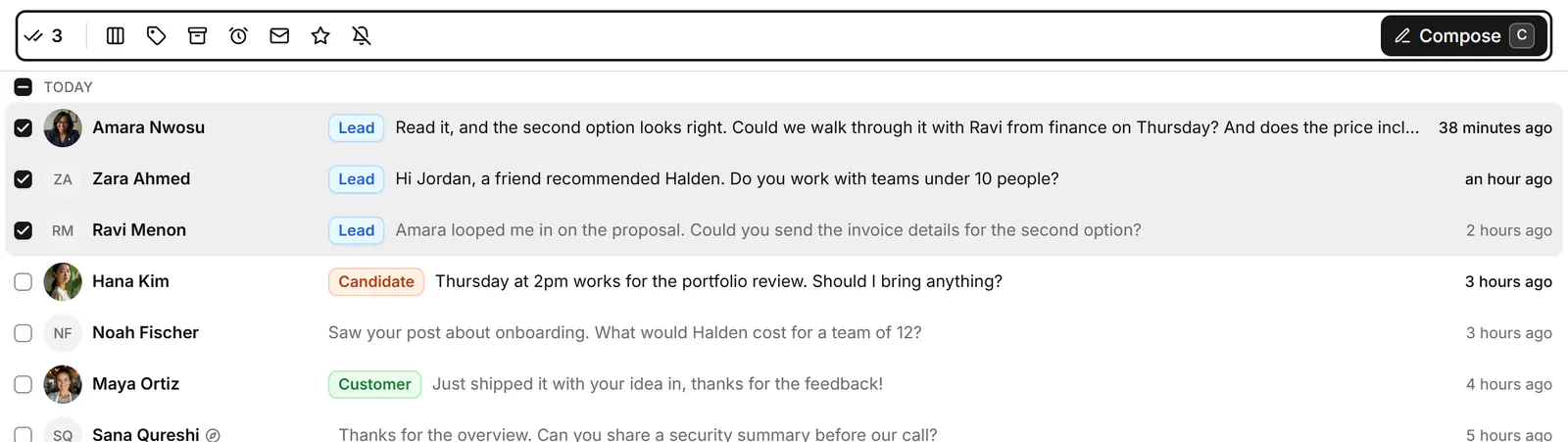
In Bokka, press M on a conversation to mute it. Mute changes the conversation on LinkedIn too, so it needs the extension connected and Bokka open in a tab, and it happens only when you press the key. See Clear your inbox.
- Many at once: select conversations with X and choose Mute in the selection toolbar, or press M. Up to 50 go to LinkedIn per click, and the action offers Undo (Z). See Act on many conversations at once.
- Sales Navigator: Sales Navigator conversations can't be muted.
- If LinkedIn didn't take it: a message says the change was made in Bokka only, not on LinkedIn, and Retry the rest sends the ones LinkedIn didn't take.
A noisy thread you still owe a reply can wait for later instead: press H to snooze it or set a reminder, which stays in Bokka only. More in LinkedIn inbox zero.
About Bokka
Bokka starts with a free 14-day trial, AI included and no credit card. After it, Starter is $25 and Pro is $35 per user a month ($19 and $30 for your first month). Team, at $50, is coming soon.
Frequently asked questions
How do I mute a conversation on LinkedIn?
On a computer, open the conversation, click the More icon in the upper right and click Mute. In the app, swipe left on the conversation, tap More, then tap Mute.
What happens when you mute a conversation on LinkedIn?
LinkedIn stops notifications for new messages, mentions and reactions in it. The conversation stays in your list with a Muted icon, and you can still read and reply.
Does the other person know if I mute them on LinkedIn?
LinkedIn's help page on muting doesn't say that the other person is told. It describes muting only as stopping your notifications for that conversation.
How do I unmute a LinkedIn conversation?
Select the muted conversation, open the More menu and choose Unmute. In the app, swipe left on it, tap More, then Unmute.
Can I mute a LinkedIn group chat but still see mentions?
Yes, in the app. Open the group chat, tap More, then Notification settings, and choose Only mentions.
Sources
Other products' prices and features were read on their own pages on November 10, 2026. They change; check each page before you buy.
Join the waitlist for early access to Bokka. Your first 14 days are free, AI included, with no credit card. It runs in Chrome, Edge, Brave and Arc on a desktop or laptop.
Join the waitlistAbout the author
Amardeep Anand founded Bokka, the AI-first CRM for your LinkedIn inbox, and runs it from Deoghar, India. Questions or corrections: support@gobokka.com.