LinkedIn smart replies: what they are and how to turn them off
Smart replies are LinkedIn's one-tap suggested responses, sent as soon as you tap one. How to turn them off, and what Premium's AI writing help does.
By Amardeep Anand, founder of Bokka · Published · 3 min read
On this page
LinkedIn's smart replies are short, ready-made responses, such as Thanks, Not sure or a thumbs up, that appear under a message you've received; tapping one sends it immediately. You can turn them off in Settings & Privacy, under Data privacy, Messaging experience, Messaging suggestions.
Smart replies are LinkedIn's suggested responses, personalised with machine learning. Quick Replies are standard templates that aren't. LinkedIn's AI Writing Assistant is a Premium feature that drafts a first message. Bokka is an AI-first CRM for your LinkedIn inbox.
What LinkedIn's smart replies are
LinkedIn describes smart replies as "short, pre-populated responses you can select to quickly reply to a message". They're generated from the message you received, so the choices vary, and the most common are Thanks, Not sure and the thumbs up. They only appear when one member messages another (LinkedIn Help: smart replies, retrieved November 10, 2026).
They're one of several messaging suggestions. When you reply, LinkedIn may offer three suggested responses, and may also suggest a GIF for a birthday or a video meeting when you say you'd like a video chat. The suggestions come from machine learning that looks for patterns in messages and gets better as members use them (LinkedIn Help: messaging suggestions, retrieved November 10, 2026).
One tap sends. LinkedIn says clicking one of the three suggested replies sends it automatically; the video meeting and GIF suggestions don't send by themselves (LinkedIn Help: messaging suggestions, retrieved November 10, 2026). There's no step to edit the reply first.
How to turn off smart replies on LinkedIn
LinkedIn gives these steps for a computer and for the app (LinkedIn Help: messaging suggestions, retrieved November 10, 2026).
On a computer
- Click the Me icon at the top of your LinkedIn homepage.
- Select Settings & Privacy.
- Click Data privacy in the left pane.
- Under Messaging experience, click Messaging suggestions.
- Switch the toggle off.
In the mobile app
- Tap your profile photo, then Settings & Privacy.
- Tap Data privacy.
- Scroll to Messaging experience and tap Messaging suggestions.
- Switch the toggle off.
Another LinkedIn Help page lists Smart replies by name among the smart features under Messaging experience, beside Focused Inbox and message nudges, each with its own toggle (LinkedIn Help: smart features in messaging, retrieved November 10, 2026). If your menu shows Smart replies rather than Messaging suggestions, that's the one to switch off. LinkedIn's pages don't say whether suggestions start on or off.
LinkedIn's other smart features
| Feature | What it does | Where to turn it off |
|---|---|---|
| Smart replies | Short suggested responses, sent when you tap one | Messaging experience, Messaging suggestions |
| Focused Inbox | Ranks your messages by how relevant they seem | Messaging experience, Focused Inbox |
| Message nudges | Reminds you to reply to messages that seem important | Messaging experience, message nudges |
Source: LinkedIn Help: smart features in messaging, retrieved November 10, 2026. How Focused and Other split your messages is in LinkedIn's Focused and Other inbox.
Does LinkedIn Premium write messages with AI?
For first messages, for some members. LinkedIn's AI Writing Assistant is available in English to select Premium subscribers in the United States. You open a new message or InMail, choose Write with AI and pick a prompt, such as an introduction or a question about a job; LinkedIn recommends editing the draft before you send it. Once the conversation has started, the option no longer appears on the toolbar (LinkedIn Help: AI Writing Assistant, as shown in LinkedIn's search snippet on November 10, 2026).
- Premium Career lists a message proofreader to "Proofread and refine messages to new connections or recruiters" (LinkedIn's Premium Career plans, retrieved November 10, 2026).
- Sales Navigator has Message Assist, in public beta, which can "Generate tailored first-touch InMail" and polish messages you've drafted (LinkedIn's AI for sales page, retrieved November 10, 2026).
So LinkedIn's AI helps you start a conversation, and smart replies help you acknowledge one. Neither writes the considered reply in the middle of a thread, where most of the work is.
How Bokka's AI drafting differs
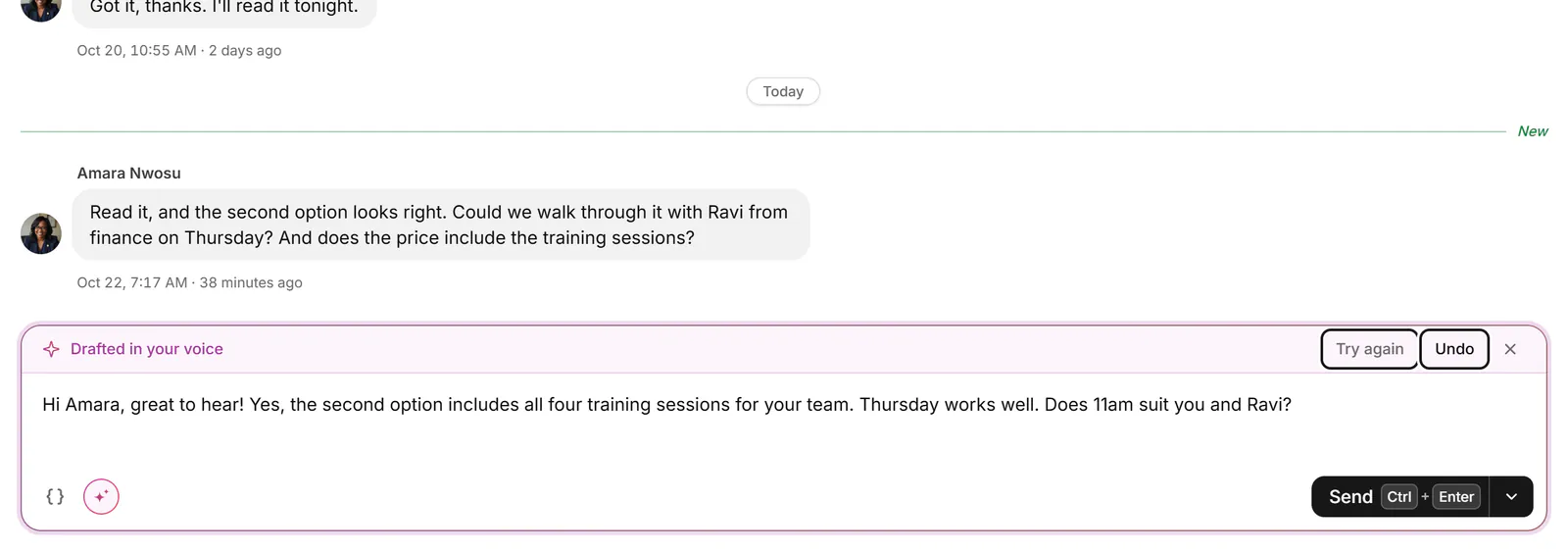
Bokka's AI drafts the reply itself, for any conversation, when you ask. Open a conversation, choose Write with AI in the reply box or press D, then Draft a reply, or Draft a follow-up if you wrote last. The draft appears in the box under Drafted in your voice, for you to edit or try again, and you send it yourself with Ctrl+Enter (see Draft a reply with AI).
| LinkedIn smart replies | Bokka's AI drafts | |
|---|---|---|
| What you get | A word or a short phrase | A full reply or follow-up |
| What it works from | The message you received | The conversation you're in |
| Sounds like | Common replies | You: your length, greetings, sign-offs and emoji |
| When it appears | Under messages, as you reply | Only when you ask |
| Sending | Sent the moment you tap | Waits in the box until you send it |
It matches how you already write in that conversation, writes in the language of their last message, and leaves a gap such as [price] for anything only you can answer instead of guessing. It never drafts just because you opened a conversation, and it never sends. More in AI replies in your own voice and What can AI do.
Text goes to our AI provider only when you use an AI feature or turn one on, and our AI provider doesn't keep it or train on it. AI is on Pro, and on the free trial with daily limits; it isn't on Starter.
About Bokka
Bokka starts with a free 14-day trial, AI included and no credit card. After it, Starter is $25 and Pro is $35 per user a month ($19 and $30 for your first month). Team, at $50, is coming soon.
Frequently asked questions
What are smart replies on LinkedIn?
Short, ready-made responses, such as Thanks, Not sure or a thumbs up, that LinkedIn suggests under a message you received. They're generated from that message, and tapping one sends it straight away.
How do I turn off LinkedIn smart replies?
Go to Settings & Privacy, then Data privacy. Under Messaging experience, open Messaging suggestions and switch the toggle off. On some versions the item is called Smart replies.
Does LinkedIn have AI to write messages?
Yes, for first messages. Premium's AI Writing Assistant drafts a new message or InMail for select Premium members in the US, in English, and Sales Navigator has Message Assist for first-touch InMail. Smart replies suggest short answers.
Can I edit a LinkedIn smart reply before it's sent?
No. LinkedIn says that clicking one of the suggested replies sends it automatically. To change the wording, type your own reply instead.
Does Bokka's AI send replies for me?
No. Bokka's AI puts a draft in your reply box only when you ask, and you send it yourself. There's no setting that sends for you.
Sources
Other products' prices and features were read on their own pages on November 10, 2026. They change; check each page before you buy.
Join the waitlist for early access to Bokka. Your first 14 days are free, AI included, with no credit card. It runs in Chrome, Edge, Brave and Arc on a desktop or laptop.
Join the waitlistAbout the author
Amardeep Anand founded Bokka, the AI-first CRM for your LinkedIn inbox, and runs it from Deoghar, India. Questions or corrections: support@gobokka.com.
Related

AI replies in your own voice on LinkedIn, drafted not sent
2 min read

LinkedIn Focused and Other inbox: what they mean, how to switch
2 min read

What an AI assistant should and shouldn't do on your LinkedIn
3 min read

Why Bokka doesn't automate LinkedIn, and what it does instead
2 min read