How to connect Claude to your LinkedIn inbox with MCP
Connect Claude to your LinkedIn messages through Bokka over MCP, step by step: what you need, the sign-in, first requests, and what Claude can't do.
By Amardeep Anand, founder of Bokka · Published
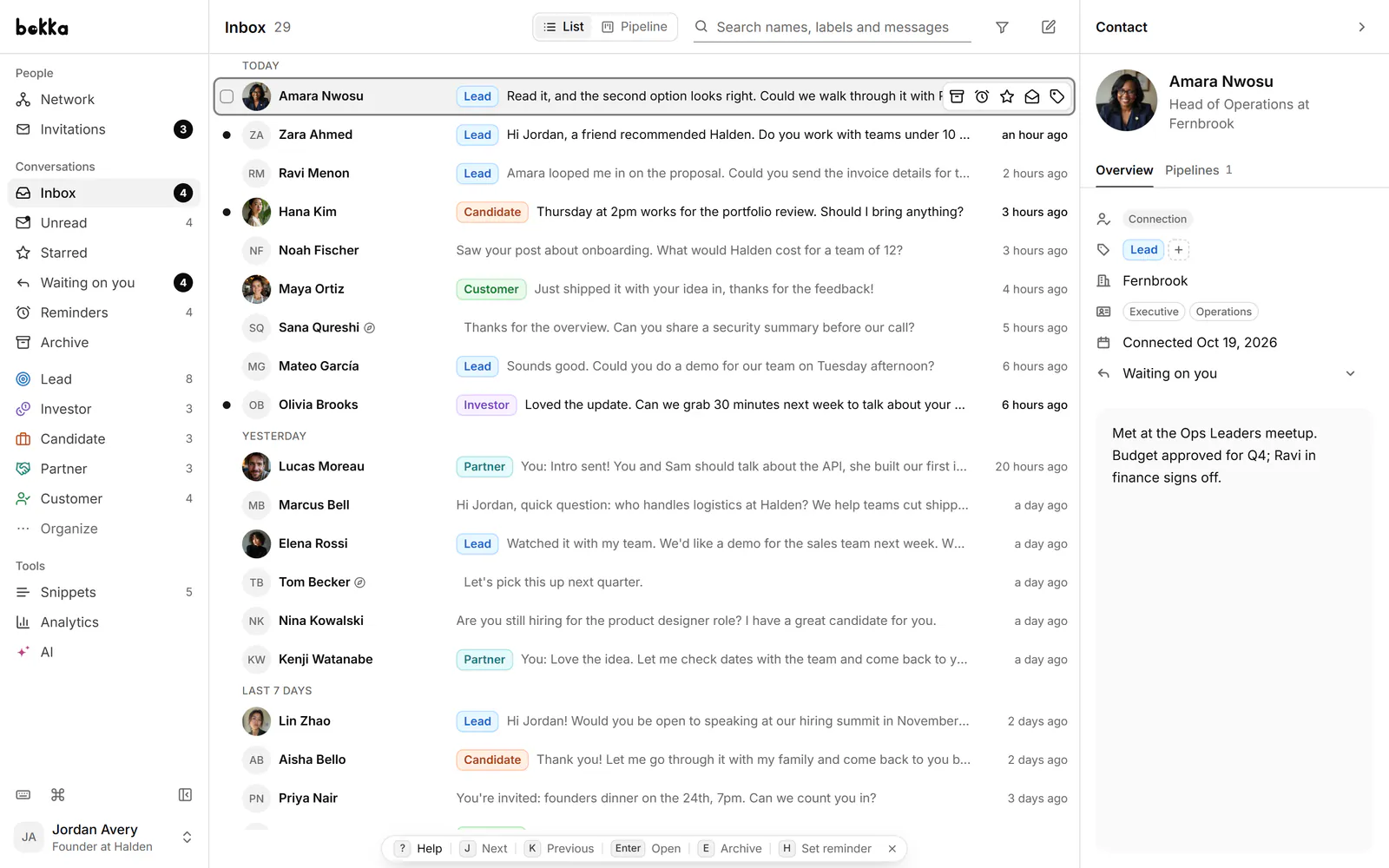
To connect Claude to your LinkedIn inbox, add Bokka's server URL to Claude as a custom connector, sign in to Bokka, and choose Allow. Claude can then read the messages Bokka has stored in your browser, organise them, and save drafts in your reply box. It can't send anything: you read each draft and send it yourself.
MCP (Model Context Protocol) is an open-source standard for connecting AI applications to external systems (the MCP docs, retrieved 30 October 2026). A custom connector is Claude's name for a remote MCP server you add yourself. Bokka is an AI-first CRM for your LinkedIn inbox.
What you need
- Bokka Pro. Assistants are part of Pro, at $35 per user a month, and of Team when it opens. Starter and the free trial don't include them.
- Bokka open in a browser tab, with the extension installed, on a desktop or laptop. Your chats, people and drafts are stored in your browser, so Claude reaches them through that tab.
- A Claude plan with custom connectors. Claude's help page lists Free, Pro, Max, Ultra, Team and Enterprise, with Free limited to one custom connector (Claude Help, retrieved 30 October 2026).
Connect Claude on the web or in the desktop app
This is the server URL. You'll also find it in Bokka under Settings → MCP:
https://relay.gobokka.com/mcp
Then, on Claude Pro or Max (Claude Help, retrieved 30 October 2026):
- In Claude, go to Customize > Connectors.
- Click + Add, then Add custom connector.
- Enter a name, such as Bokka, paste the server URL and click Continue.
- Review the sign-in settings Claude detected, and click Continue.
- Under Authentication, choose Sign in now. Bokka gives out no client ID or secret, because assistants register themselves when they connect, and Request headers can stay empty.
- Click Add.
- On the Bokka page that opens, sign in and choose Allow.
- Start a new chat, click + in the lower left, choose Connectors, and turn Bokka on.
On Claude Team and Enterprise, an owner adds the connector under Organization settings > Connectors. Each member then finds it under Customize > Connectors, clicks Connect, and signs in to their own Bokka account.
Connect Claude Code
Claude Code adds the server from your terminal (Claude Code docs, retrieved 30 October 2026):
claude mcp add --transport http bokka https://relay.gobokka.com/mcp
Then run /mcp inside Claude Code and sign in through your browser.
Check that it works
- Ask: "Use Bokka to list my views and labels." This one works even with Bokka closed, so it proves the connection.
- Open Bokka in a tab and ask: "Show my unread LinkedIn messages." This one reads your stored chats, so it proves the tab is answering.
What Claude can do once connected
| You ask for | What happens | Needs the Bokka tab? |
|---|---|---|
| Reading and searching chats | Reads stored messages: up to 5 chats at a time | Yes |
| A reply | Saves a draft in that chat's reply box. Nothing is sent | Yes |
| People, connections, followers, invitations | Reads what's stored | Yes |
| Archiving or starring | Changes Bokka on that device only, not LinkedIn | Yes |
| Labels, stages, CRM fields, reminders | Saves them in Bokka | No |
| Notes on a person, snippets | Saves them in Bokka | No |
| An activity review | Reads counts: sent, received, reply times, who's waiting | No |
One detail for reminders: Claude can list them with the tab closed, but it needs the tab to say who each chat is with. The full tool list is in Connect an AI assistant.
What Claude can't do
- Send a message. There's no send tool. A draft waits in the reply box until you send it in Bokka.
- Do anything on LinkedIn. No tool makes a LinkedIn request. If Claude archives a chat, it's archived in Bokka on that device, and it stays open on LinkedIn until you archive it from Bokka yourself.
- Start a conversation. Drafts go only into chats you already have. Sales Navigator chats and chats where replies are closed have no box to draft into, so Claude can read those but not draft there.
- Accept, ignore or withdraw invitations. It can list them, nothing more.
- See what Bokka hasn't stored. If older messages are missing, open that chat in Bokka to load them, then ask again.
If something's wrong
| What you see | What to do |
|---|---|
| "Bokka isn't open" | Open Bokka in a tab, keep it open, and ask again |
| The tab took too long | Check the tab isn't asleep, reload it, and ask again |
| No tools, or sign-in fails | Disconnect in Settings → MCP, then connect again |
| A plan message | Assistants need Pro |
| A message about 60 requests a minute | That's the limit for assistants. Wait a minute |
Approvals, privacy and disconnecting
A connection has one permission level: it can read, and it can change what the tools expose. Bokka can't make a connection read-only, so use Claude's approvals. Claude's help page says to choose Allow always only for tools you trust to run unsupervised, and warns that Research can use connector tools without asking again, so turn off tools that write before you use it (Claude Help, retrieved 30 October 2026).
Message text travels in memory from your tab, through Bokka's server, to the assistant you connected. Bokka doesn't store it, and its log of assistant calls keeps which tool ran, whether it worked, and how long it took, never what was asked or answered. Once text reaches the assistant, that assistant's own data rules apply.
To stop, open Settings → MCP in Bokka, which lists each connected assistant and when it was last used, and click Disconnect. Its next call is refused. Connecting again asks you to Allow again.
About Bokka
Bokka starts with a free 14-day trial, AI included and no credit card. After it, Starter is $25 and Pro is $35 per user a month ($19 and $30 for your first month). Team, at $50, is coming soon. The free trial includes Bokka's own AI, but connecting an assistant takes Pro.
Frequently asked questions
Can Claude read my LinkedIn messages?
Yes, through a tool that has them, such as Bokka. Claude reads what Bokka has stored in your browser, while Bokka is open in a tab. It doesn't read LinkedIn directly.
Can Claude send LinkedIn messages through this connection?
No. Bokka has no send tool. Claude saves a draft in the reply box, and you send it yourself.
Does Claude need Bokka open?
For chats, people and drafts, yes, in one browser tab. Labels, stages, fields, notes on a person, reminders, snippets and activity counts work with the tab closed.
Do I need a paid Claude plan?
Claude's help page lists custom connectors on its Free plan too, limited to one. On Team and Enterprise, an owner adds the connector first.
Sources
Other products' prices and features were read on their own pages on 30 October 2026. They change; check each page before you buy.
Join the waitlist for early access to Bokka. Your first 14 days are free, AI included, with no credit card. It runs in Chrome, Edge, Brave and Arc on a desktop or laptop.
Join the waitlistAbout the author
Amardeep Anand founded Bokka, the AI-first CRM for your LinkedIn inbox, and runs it from Deoghar, India. Questions or corrections: support@gobokka.com.
Related
- What is a LinkedIn MCP server, and what can an AI do with it?A LinkedIn MCP server gives an AI assistant tools for your LinkedIn data. The three kinds, what each can do, and what to ask before you connect one.
- Why Bokka doesn't automate LinkedIn, and what it does insteadBokka sends nothing on its own: no sequences, auto-replies, scheduled or bulk messages. What that means, why we chose it, and how you still move fast.
- Where your LinkedIn messages go when you use BokkaBokka's privacy and security in plain words: what stays on your device, what our servers keep, what the extension can do, and what AI sees.