Sales Navigator and LinkedIn messages in one place: how
Sales Navigator and LinkedIn keep separate inboxes. Where replies land, how to switch, and how to read both in one app with the same labels and notes.
By Amardeep Anand, founder of Bokka · Published
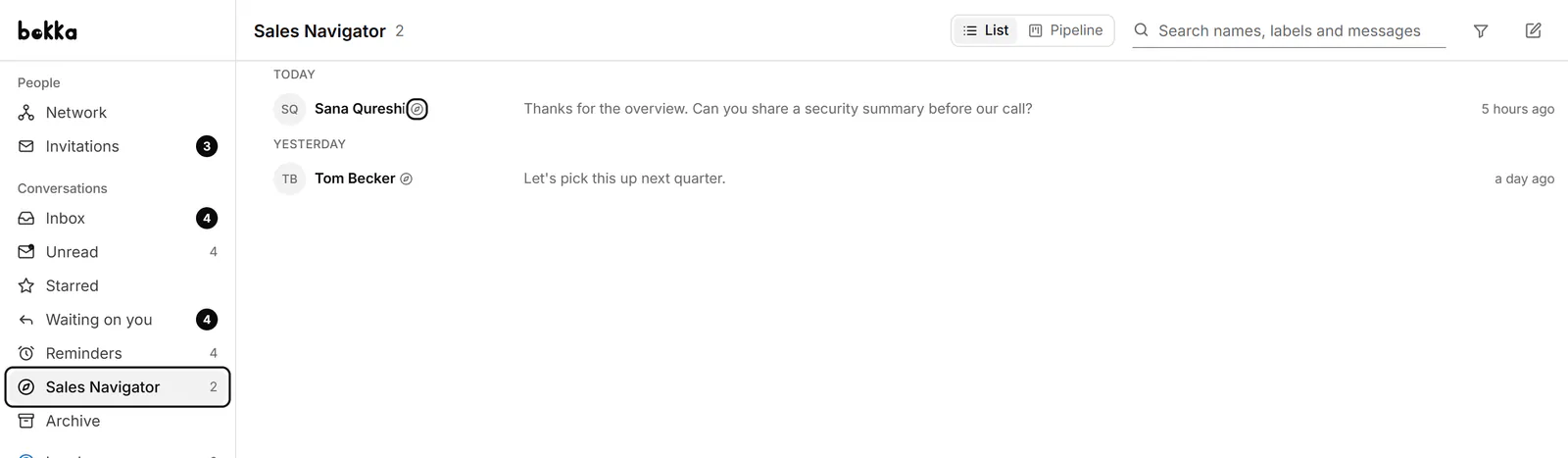
LinkedIn keeps Sales Navigator messages and regular LinkedIn messages in two separate inboxes, and there's no setting to merge them. You switch between them with the Go to LinkedIn Messaging link. To read both in one app, use an inbox tool that handles both: Bokka Pro shows your Sales Navigator conversations in their own view beside your LinkedIn inbox.
Sales Navigator is LinkedIn's paid tool for finding leads and sending InMail. InMail is a message to someone you aren't connected to. Bokka is an AI-first CRM for your LinkedIn inbox.
Which inbox a message lands in
From LinkedIn Help (Messages in Sales Navigator or LinkedIn inbox, retrieved 24 October 2026):
| You | The reply lands in |
|---|---|
| Send an InMail from Sales Navigator | Your Sales Navigator inbox |
| Message a connection or lead from Sales Navigator | Their LinkedIn inbox |
| Send a message or InMail from LinkedIn | Your LinkedIn inbox |
| Get a message you didn't start in Sales Navigator | Your LinkedIn inbox |
For example, a founder who sends InMail to investors from Sales Navigator, but meets customers at events and connects on LinkedIn, will find investor replies in Sales Navigator and customer replies in LinkedIn. So a lead you first wrote to by InMail lives in Sales Navigator, while a connection you met at an event lives in LinkedIn. Over a few months, half your pipeline is in each, and checking both becomes its own job.
How to switch inboxes on LinkedIn
In the Sales Navigator inbox, click Go to LinkedIn Messaging in the top right. To get back, open Sales Navigator again. There's no combined view, and labels, stars and notes don't carry from one to the other.
How to read both in Bokka
- Press G then S, or show the view: click Organize in the sidebar, then the eye next to Sales Navigator.
- If it says Sales Navigator isn't connected in this browser, click Open Sales Navigator, let it load once in a tab, then come back.
- Open conversations as in any other view. Sales Navigator conversations carry the Sales Navigator icon.
What's shared and what's different
- Shared: labels, notes and About on a person are the same in your LinkedIn and Sales Navigator conversations with them.
- Shared: the contact panel shows the person's headline, location and company, even if you only talk on Sales Navigator.
- Different: you can't star or mute Sales Navigator conversations, and archiving several at once leaves them out.
- Different: Sales Navigator has no voice or video messages, and its messages can't be edited, deleted or forwarded.
- Different: if a conversation is read-only, click Reply on Sales Navigator to answer there.
If you keep Email or Phone fields, the email address and phone number a contact shares with you on Sales Navigator are added to them. Full details: Use your Sales Navigator inbox.
Weighing Sales Navigator against LinkedIn's free inbox? See Bokka vs LinkedIn messaging and Sales Navigator.
About Bokka
Bokka starts with a free 14-day trial, AI included and no credit card. After it, Starter is $25 and Pro is $35 per user a month ($19 and $30 for your first month). Team, at $50, is coming soon.
Frequently asked questions
Can I combine my Sales Navigator and LinkedIn inboxes?
Not in LinkedIn: they stay separate, with a Go to LinkedIn Messaging link to switch. In Bokka Pro, both are in one app, with Sales Navigator conversations in their own view and the same labels and notes on each person.
Why don't my Sales Navigator messages show in LinkedIn?
Replies to InMail you send from Sales Navigator go to the Sales Navigator inbox, which is separate from LinkedIn messaging.
Where do replies to my Sales Navigator InMail go?
To your Sales Navigator inbox. Messages you send to a connection from Sales Navigator, and conversations you didn't start there, show in your LinkedIn inbox.
Sources
Other products' prices and features were read on their own pages on 24 October 2026. They change; check each page before you buy.
Try Bokka free for 14 days, AI included, with no credit card. It runs in Chrome, Edge, Brave and Arc on a desktop or laptop.
Start your free trialAbout the author
Amardeep Anand founded Bokka, the AI-first CRM for your LinkedIn inbox, and runs it from Deoghar, India. Questions or corrections: support@gobokka.com.
Related
- How to label LinkedIn conversations (leads, candidates, investors)LinkedIn messaging has no labels. How to tag conversations as Lead, Candidate or Investor and work each label as its own list, in Bokka.
- Bokka vs LinkedIn messaging and the Sales Navigator inboxWhy use Bokka instead of LinkedIn messaging or the Sales Navigator inbox? Labels, reminders, pipelines, AI drafts and search, compared honestly.
- How to set a reminder to follow up on a LinkedIn messageLinkedIn has no reminders for messages. The closest built-in workaround, and how to set a follow-up that returns only if they haven't replied, in Bokka.