Can you unsend a LinkedIn message? The 60-minute rule
You can't recall a LinkedIn message, but you can edit or delete it for everyone within 60 minutes of sending. How, and what the other person sees.
By Amardeep Anand, founder of Bokka · Published
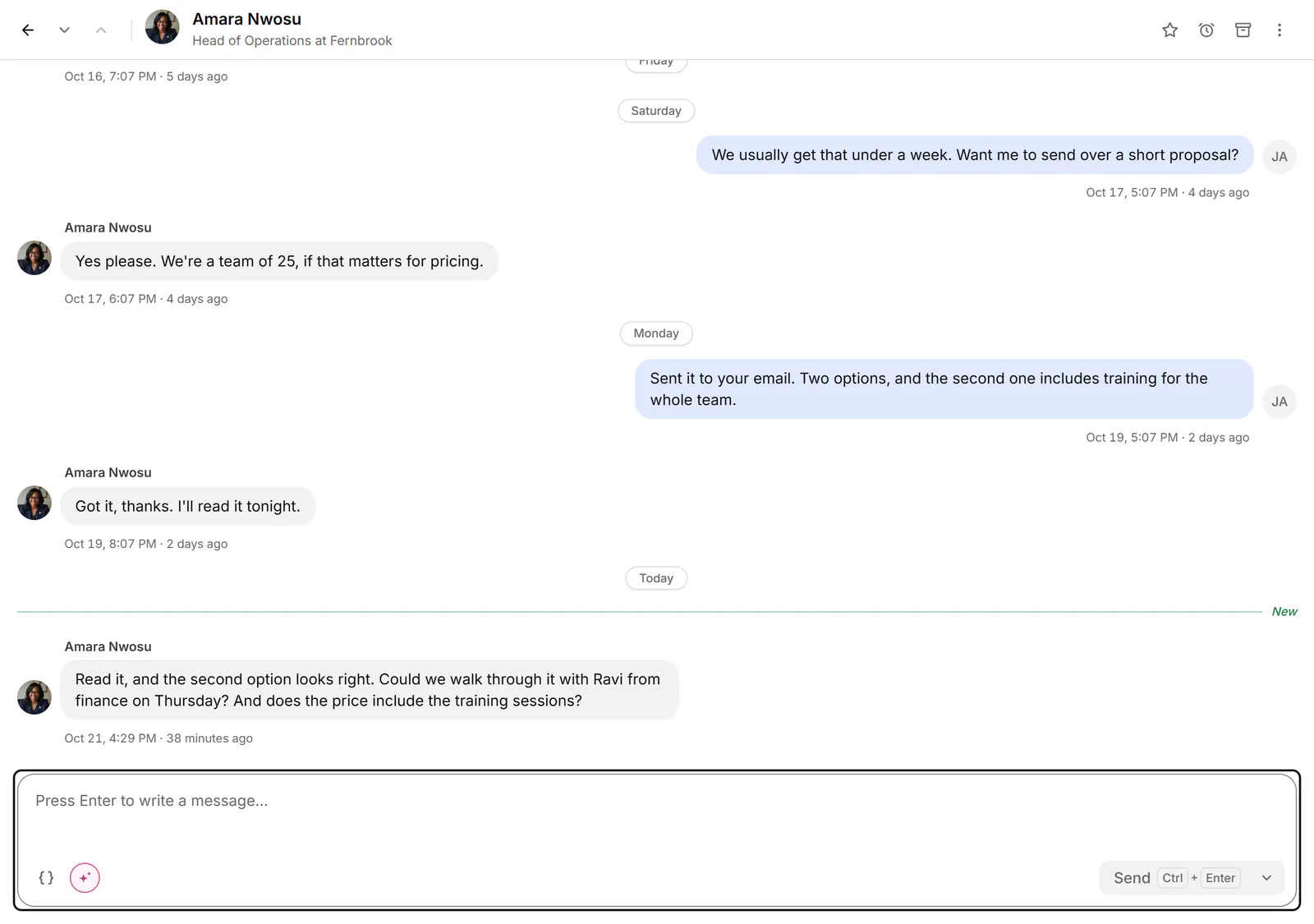
You can't recall a LinkedIn message once it's sent, but you can delete it for everyone, or edit its text, within 60 minutes of sending it. After that it stays as it is. The other person will see that it was deleted or edited.
Unsending a message means taking it back so the other person no longer sees it. On LinkedIn the closest thing is deleting a message within the conversation. Bokka is an AI-first CRM for your LinkedIn inbox.
What LinkedIn lets you do
| You want to | Possible? | Limit |
|---|---|---|
| Recall a message | No | LinkedIn says you can't recall a message you send to your connections |
| Delete it for everyone | Yes | Within 60 minutes of sending |
| Edit its text | Yes | Within 60 minutes of sending, text only |
| Delete the whole conversation | Yes | Removes it from your inbox only, not theirs |
| Delete an InMail | No | You can edit one only before it's accepted or within 60 minutes |
Sources: Edit or delete a sent message, retrieved 24 October 2026 and Recall a sent message, retrieved 24 October 2026.
How to delete or edit a sent message
- Open the conversation from the Messaging icon or the chat window.
- Point at your message and click the More icon. On the phone app, tap and hold the message.
- Choose Delete and confirm, or Edit, change the text and click Save.
What the other person sees
- After you delete a message, it's removed for everyone in the conversation and can't be retrieved. In its place, the conversation says "This message has been deleted".
- After you edit a message, it shows an Edited label.
- If they've already read it, deleting it doesn't change that. Treat the 60 minutes as a way to fix a mistake, not to take something back unseen.
After 60 minutes
There's no way to change or remove a message for the other person after the hour. You can delete the whole conversation, but that only clears your own inbox; theirs keeps every message. The practical fix is a short follow-up correcting the mistake.
Avoid sending too soon
Most messages people want back went out a moment too early, often from pressing Enter mid-thought. A few habits help:
- Write longer messages somewhere you can't send by accident, then paste them in.
- Read the first line again before you send: it's the part people see in their inbox.
- Use saved replies for messages you send often, so the wording is already checked.
In Bokka, ⌘+Enter or Ctrl+Enter sends by default, so Enter alone starts a new line; you can switch to Enter in Settings → Preferences. Snippets with fill-in gaps such as {{first_name}} won't send until every gap is filled. And within the same hour, you can still fix a message from the keyboard: T edits your last message, Shift+T deletes it for everyone, and Backspace hides a message from your own view only. See Reply to a conversation.
About Bokka
Bokka starts with a free 14-day trial, AI included and no credit card. After it, Starter is $25 and Pro is $35 per user a month ($19 and $30 for your first month). Team, at $50, is coming soon.
Frequently asked questions
Can you unsend a message on LinkedIn?
Not after the fact. LinkedIn has no recall, but you can delete a message for everyone in the conversation within 60 minutes of sending it.
Does the other person know if I delete a LinkedIn message?
Yes. The deleted message is replaced by "This message has been deleted" in the conversation, and if they read it before you deleted it, they've already seen it.
Can I edit a LinkedIn message after sending?
Yes, within 60 minutes of sending, and the text only. The edited message shows an Edited label.
Can I delete an InMail I sent?
No. LinkedIn doesn't let you delete a sent InMail within a conversation. You can edit it only before it's accepted or within 60 minutes of sending.
Sources
Other products' prices and features were read on their own pages on 24 October 2026. They change; check each page before you buy.
Try Bokka free for 14 days, AI included, with no credit card. It runs in Chrome, Edge, Brave and Arc on a desktop or laptop.
Start your free trialAbout the author
Amardeep Anand founded Bokka, the AI-first CRM for your LinkedIn inbox, and runs it from Deoghar, India. Questions or corrections: support@gobokka.com.
Related
- How to archive LinkedIn messages, one or many at onceArchive a LinkedIn conversation from its More menu, or many at once with Manage conversations. Where archived messages go, and how to bring them back.
- LinkedIn grey check mark meaning: sent, not read (yet)A grey check mark on a LinkedIn message means Sent: it reached their inbox but isn't shown as read. Why it can stay that way, and what to do next.
- How to label LinkedIn conversations (leads, candidates, investors)LinkedIn messaging has no labels. How to tag conversations as Lead, Candidate or Investor and work each label as its own list, in Bokka.