Use ChatGPT or Cursor with your LinkedIn messages: setup and prompts
Connect ChatGPT or Cursor to your LinkedIn messages through Bokka over MCP. The setup for each, prompts that work, and requests that can't.
By Amardeep Anand, founder of Bokka · Published · 2 min read
On this page
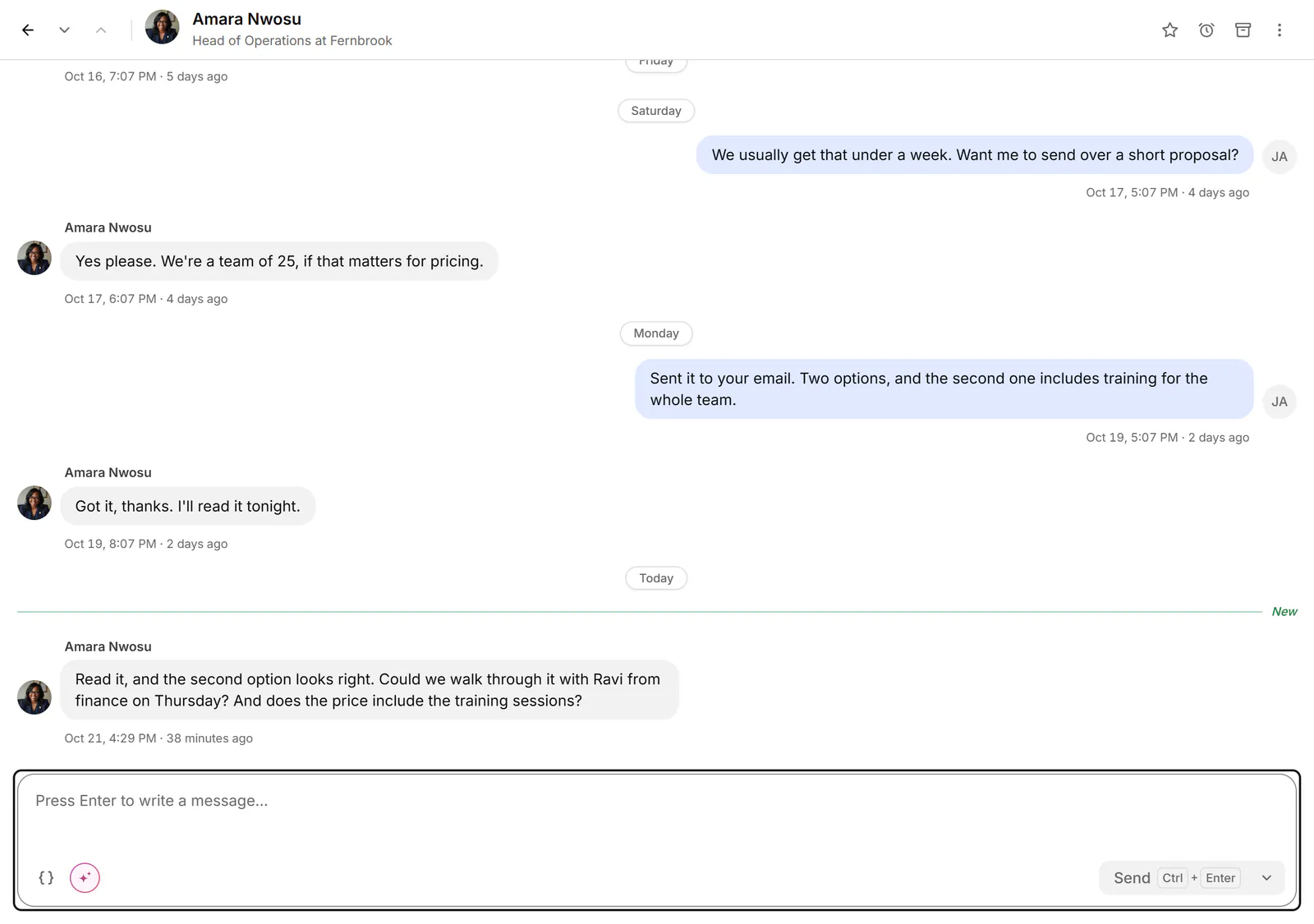
You can use ChatGPT or Cursor with your LinkedIn messages by connecting either one to Bokka's MCP server. In ChatGPT you add it from the Plugins page; in Cursor you add one entry to a settings file. The assistant then reads what Bokka has stored in your browser and saves drafts for you to send.
MCP (Model Context Protocol) is an open-source standard for connecting AI applications to external systems (the MCP docs, retrieved October 30, 2026). Bokka is an AI-first CRM for your LinkedIn inbox.
What you need
- Bokka Pro. Assistants are on Pro, at $35 per user a month. Starter and the free trial don't include them.
- Bokka open in a browser tab for chats, people and drafts. Labels, fields, reminders, notes on a person and snippets work with it closed.
- The server URL, below, or under Settings → MCP in the app.
https://relay.gobokka.com/mcp
Set up ChatGPT
From OpenAI's docs (Connect and test, retrieved October 30, 2026):
- Open the Plugins page at chatgpt.com/plugins.
- Click the plus button and choose Add custom MCP server.
- Enter a name, such as Bokka, and a short description.
- Under Connection, paste the server URL.
- Set up authentication, read the risk warning, and choose I understand and want to continue.
- Choose Create as a plugin, then review the tools ChatGPT found.
- Install the plugin. When ChatGPT sends you to Bokka, sign in and choose Allow.
- Start a new conversation, type @ and pick Bokka.
Check your plan first. OpenAI's developer pages don't list which plans can add a custom server, and they say workspace permissions and security restrictions apply (Add custom MCP server, retrieved October 30, 2026). If you don't see the option, your plan or workspace admin decides that.
OpenAI says "ChatGPT currently requires manual confirmation in any conversation before write actions can be taken" (OpenAI's MCP docs, retrieved October 30, 2026). So expect it to ask before it saves a draft or a label.
Set up Cursor
Add this to ~/.cursor/mcp.json for every project, or to .cursor/mcp.json for one (Cursor docs, retrieved October 30, 2026):
{
  "mcpServers": {
    "bokka": {
      "url": "https://relay.gobokka.com/mcp"
    }
  }
}Turn the server on under Customize in the sidebar, then sign in to Bokka and choose Allow. Cursor registers itself, so you don't need a client ID or a token.
Cursor asks for approval before it runs an MCP tool, and you can expand a call to see its arguments. In its Auto-review run mode, allowlisted tools run straight away, so keep Bokka's writing tools off that list.
Prompts that work
A good prompt says which chats, what you want back, and when to stop and check with you. These all map to tools the server has:
| To get | Ask |
|---|---|
| A triage | "List my unread chats, one line each: who, what they want, what you'd do. Don't change anything yet." |
| Follow-ups | "Draft a follow-up for each chat labelled Lead where I wrote last more than 3 days ago. Show me the drafts first, and use {{word}} for anything you don't know." |
| Today's list | "What do I need to follow up on today? Overdue first." |
| CRM upkeep | "Read my Demo-stage chats and fill in deal size and next step from what they said. Leave a field empty if they didn't say." |
| A weekly review | "How did my outreach go this week compared with last, and who am I keeping waiting?" |
| A call brief | "Brief me on Priya before our call: how we know each other, what we last discussed, and anything open." |
| A search | "Find my connections at Acme." |
The connections search only looks through what Bokka has stored, so if it comes back empty, open People → Connections in Bokka first.
Where Cursor fits best
ChatGPT suits inbox work. Cursor is useful when the task touches a project you're editing, such as putting your Bokka contact card on your own site. Where widgets are on, the server can give Cursor the embed code for your framework, and Cursor can add it where you ask. You still confirm before anything goes live.
Requests that won't work
| You ask | What happens |
|---|---|
| "Send this to Priya" | It saves a draft. You send it yourself |
| "Message this new person" | Drafts go only into chats you already have |
| "Accept my invitations" | It can list them, not act on them |
| "Find CTOs in Berlin on LinkedIn" | It never searches LinkedIn |
| "What has Priya posted lately?" | No tool reads posts |
| "Archive these on LinkedIn" | It archives them in Bokka on that device only. Archive on LinkedIn from Bokka yourself |
Two things to watch
- Other people's words can carry instructions. A prompt injection is text written to steer the model. OpenAI warns that if a model obeys one, it "may take actions the user and developer never intended" (OpenAI's MCP docs, retrieved October 30, 2026). Bokka's tools tell the assistant to treat message text as content, not orders, and it still pays to read what you approve.
- Your messages leave your browser when you ask for them. Message text travels in memory from your tab, through Bokka's server, to the assistant you connected. Bokka doesn't store it, and its log of assistant calls keeps which tool ran, whether it worked, and how long it took, never what was asked or answered. Once text reaches the assistant, that assistant's own data rules apply.
To disconnect either app, open Settings → MCP in Bokka and click Disconnect. Full tool tables are in Connect an AI assistant. Using Claude instead? See how to connect Claude to your LinkedIn inbox.
About Bokka
Bokka starts with a free 14-day trial, AI included and no credit card. After it, Starter is $25 and Pro is $35 per user a month ($19 and $30 for your first month). Team, at $50, is coming soon. The free trial includes Bokka's own AI, but connecting an assistant takes Pro.
Frequently asked questions
Can ChatGPT read my LinkedIn messages?
Yes, if you connect it to a tool that has them, such as Bokka. It reads what Bokka has stored while Bokka is open in a browser tab.
Can ChatGPT reply to LinkedIn messages for me?
It can save a draft in Bokka's reply box. Bokka has no send tool, so you send the reply yourself.
Do I need to be a developer to use Cursor with Bokka?
You need to be comfortable pasting a few lines into a settings file. If you don't use Cursor already, ChatGPT or Claude will suit inbox work better.
Which ChatGPT plans can add a custom MCP server?
OpenAI's developer pages don't list them, and say workspace rules apply. Check the Plugins page in your own account.
Sources
Other products' prices and features were read on their own pages on October 30, 2026. They change; check each page before you buy.
Join the waitlist for early access to Bokka. Your first 14 days are free, AI included, with no credit card. It runs in Chrome, Edge, Brave and Arc on a desktop or laptop.
Join the waitlistAbout the author
Amardeep Anand founded Bokka, the AI-first CRM for your LinkedIn inbox, and runs it from Deoghar, India. Questions or corrections: support@gobokka.com.