How to add private notes to a LinkedIn contact
LinkedIn messaging has no private notes; Sales Navigator has them on saved leads. How to keep a note on everyone you message, in Bokka.
By Amardeep Anand, founder of Bokka · Published
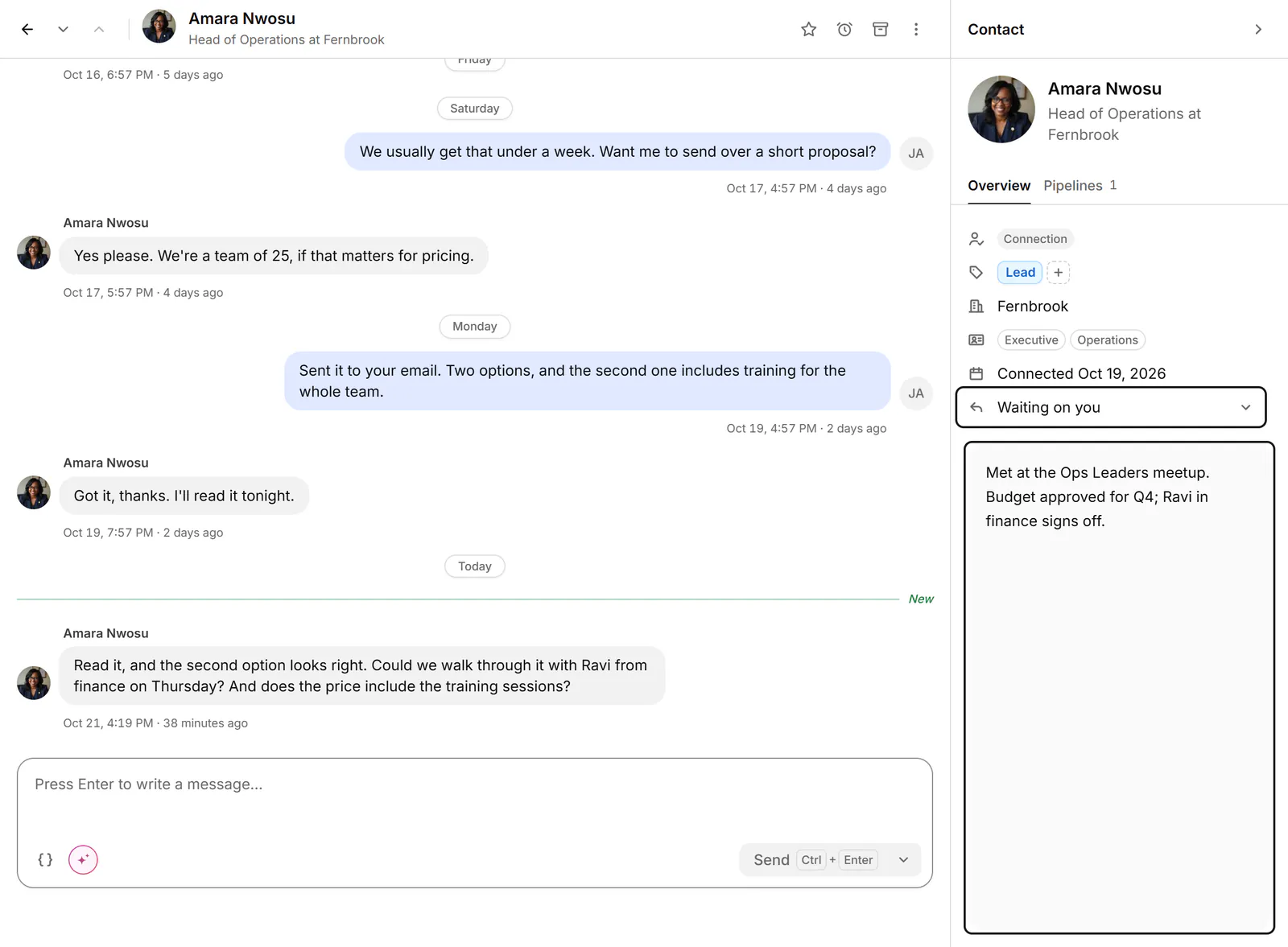
LinkedIn's regular messaging has no private notes on a contact. Sales Navigator does, on leads and accounts you've saved. To keep a note on anyone you message, use an inbox tool: in Bokka, open the conversation and press N.
A private note is text about a person that only you can see: where you met, what they need, what you promised. Bokka is an AI-first CRM for your LinkedIn inbox.
Notes in Sales Navigator
If you pay for Sales Navigator, you can add a note from a saved lead's or account's page with Add Note, or from the Notes column of a saved list. Each note can be Private (only you) or Public (everyone on your contract), and you can see the history of your notes (LinkedIn Help: notes for leads and accounts, retrieved 24 October 2026).
The catch: notes live on the lead in Sales Navigator, not in your conversations, and not for people you message from your regular LinkedIn inbox.
How to write a note in Bokka
- Open the conversation. The contact panel sits to its right; press I if it's hidden.
- Press N, or click the note field.
- Type. The note saves as you go and shows Saved. A note can be up to 10,000 characters.
Notes belong to the person, not to one conversation. You see the same note in the inbox, in People and on the pipeline board, and in your Sales Navigator conversations with them on Pro. A group conversation has its own note.
What to put in a note
- Where you met and who introduced you.
- What they need, in their words.
- What you promised and by when.
- Personal details they shared: a launch date, a holiday, a team change.
- The next step, if it isn't obvious from the conversation.
Who can see your notes
Only you. Notes are kept in your Bokka account, so they follow you to any computer, and they're never added to LinkedIn: the other person can't see them. Your messages themselves stay in your browser, on your device. See where your LinkedIn messages go in Bokka.
Notes are on every Bokka plan. Full details: Notes and details about a person.
About Bokka
Bokka starts with a free 14-day trial, AI included and no credit card. After it, Starter is $25 and Pro is $35 per user a month ($19 and $30 for your first month). Team, at $50, is coming soon.
Frequently asked questions
Can you add notes to LinkedIn connections?
Not in regular LinkedIn messaging. Sales Navigator lets you add notes to saved leads and accounts. Inbox tools such as Bokka let you keep a note on anyone you message.
Can the other person see my notes?
No. Notes in Bokka are private to you and are never added to LinkedIn.
Are Sales Navigator notes private?
You choose. Each Sales Navigator note can be Private, visible only to you, or Public, visible to everyone on your contract.
Sources
Other products' prices and features were read on their own pages on 24 October 2026. They change; check each page before you buy.
Try Bokka free for 14 days, AI included, with no credit card. It runs in Chrome, Edge, Brave and Arc on a desktop or laptop.
Start your free trialAbout the author
Amardeep Anand founded Bokka, the AI-first CRM for your LinkedIn inbox, and runs it from Deoghar, India. Questions or corrections: support@gobokka.com.
Related
- How to label LinkedIn conversations (leads, candidates, investors)LinkedIn messaging has no labels. How to tag conversations as Lead, Candidate or Investor and work each label as its own list, in Bokka.
- Sales Navigator and LinkedIn messages in one place: howSales Navigator and LinkedIn keep separate inboxes. Where replies land, how to switch, and how to read both in one app with the same labels and notes.
- Does LinkedIn have message folders? What to use insteadLinkedIn messaging has no custom folders, only Focused, Other, Archived and Spam plus a few filters. How to organise conversations by person and deal instead.