How to forward a LinkedIn message, on a computer or the app
Point at the message, click More, then Forward, and pick a connection. They see who wrote it, and images and attachments can come along.
By Amardeep Anand, founder of Bokka · Published · 2 min read
On this page
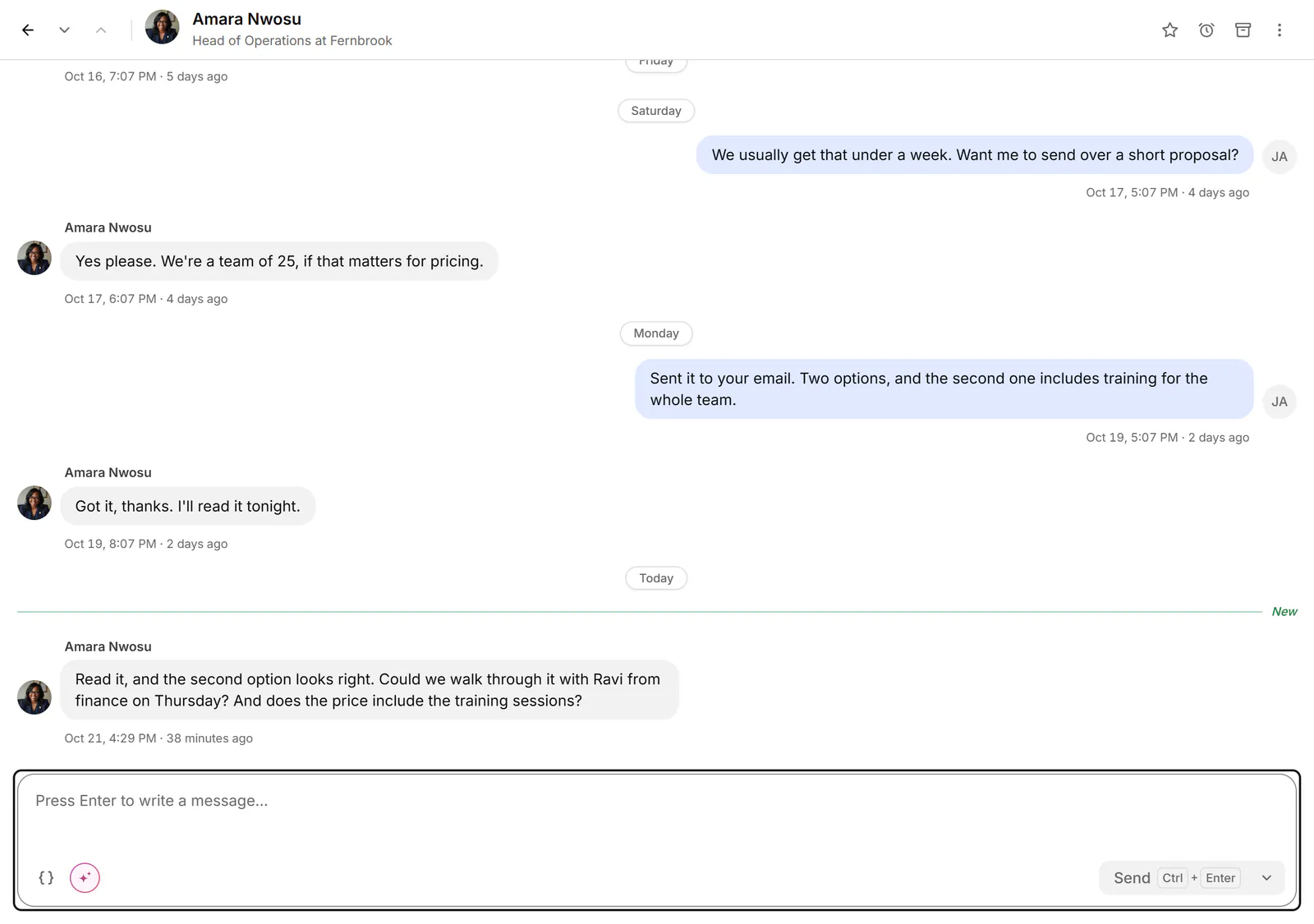
To forward a LinkedIn message, point at it, click the More icon beside it and choose Forward, then type a connection's name and click Send. In the app, tap and hold the message instead. The person you forward it to sees who wrote it and a preview of what it says, and images and attachments can come along.
Forwarding sends a copy of one message from a conversation to someone else. Share via email sends it from your own email account rather than through LinkedIn. Bokka is an AI-first CRM for your LinkedIn inbox.
Forward a message on a computer
- Click the Messaging icon at the top of your LinkedIn homepage, or use the messaging window in the lower right.
- Open the conversation with the message you want to forward.
- Point at the message and click the More icon next to it.
- Choose Forward to send it as a LinkedIn message, or Share via email.
- Type a name in the Type a name field and select the person.
- Click Send.
Source: LinkedIn Help: forward a message, retrieved November 10, 2026.
Forward a message in the LinkedIn app
- Tap the Messaging icon in the upper right.
- Open the conversation with the message.
- Tap and hold the message.
- Choose Forward to send it as a LinkedIn message, or Share via to send it by email or another app.
- Type a name in the To field and select the person.
- Tap the Send icon.
LinkedIn's page gives one set of app steps, not separate ones for iPhone and Android (LinkedIn Help: forward a message, retrieved November 10, 2026).
What the person you forward it to sees
A message forwarded inside LinkedIn includes the original sender's name and a preview of the message (LinkedIn Help: forward a message, retrieved November 10, 2026). LinkedIn's page doesn't say whether the original sender is told that you forwarded it, so this post doesn't guess.
Do attachments come along?
| Where you forward from | Attachments |
|---|---|
| LinkedIn Messaging | Images and attachments can be forwarded |
| Sales Navigator InMail | Not included: attach the files again |
| Share via email | LinkedIn's page doesn't say |
Sources: LinkedIn Help: forward a message, retrieved November 10, 2026 and LinkedIn Help: forward an InMail in Sales Navigator, retrieved November 10, 2026.
What you can't forward
- A message that was already forwarded. A forwarded message can't be forwarded again (LinkedIn Help: forward a message, retrieved November 10, 2026).
- Into a group conversation from LinkedIn Groups. You can't forward a message to a conversation started in LinkedIn Groups (LinkedIn Help: forward a message, retrieved November 10, 2026).
- To someone outside your connections, inside LinkedIn. Forwarding within LinkedIn goes to your 1st-degree connections; to reach anyone else, LinkedIn's options are email and other apps.
Forwarding by email
Share via email doesn't go through LinkedIn. The email is sent from your primary email account and isn't delivered by LinkedIn; to use a different account, change your default email settings (LinkedIn Help: forward a message, retrieved November 10, 2026).
Forward an InMail in Sales Navigator
- Sign in to Sales Navigator and open Messaging at the top.
- Select the conversation.
- Click Forward in the conversation window.
- Enter the names of the people to send it to.
- Remove any text you don't want to send: the whole conversation is included by default.
- Attach any files again, then click Send.
Source: LinkedIn Help: forward an InMail in Sales Navigator, retrieved November 10, 2026.
Forwarding in Bokka
In Bokka, point at a message to see its actions, or select it with ↑ and ↓, and press F to forward it. As with every message in Bokka, nothing is sent until you press Send yourself. You can't forward a Sales Navigator message in Bokka. The other per-message actions are in Read and reply to a conversation.
If you need the same text in several conversations rather than one message passed on, message several LinkedIn connections at once covers that, and a sent message you regret is in can you unsend a LinkedIn message?.
About Bokka
Bokka starts with a free 14-day trial, AI included and no credit card. After it, Starter is $25 and Pro is $35 per user a month ($19 and $30 for your first month). Team, at $50, is coming soon.
Frequently asked questions
How do I forward a message on LinkedIn?
On a computer, point at the message, click the More icon beside it, choose Forward, type a connection's name and click Send. In the app, tap and hold the message, tap Forward, pick the person and tap Send.
Can I forward a LinkedIn message to someone I'm not connected to?
Not inside LinkedIn: forwarding goes to your 1st-degree connections. You can share the message by email, which is sent from your own email account, or through another app on your phone.
Does the person I forward a LinkedIn message to see who wrote it?
Yes. LinkedIn says a forwarded message includes the original sender's name and a preview of the message.
Can I forward attachments on LinkedIn?
In LinkedIn Messaging, yes: images and attachments can be forwarded. In Sales Navigator, forwarding an InMail doesn't include its attachments, so you attach them again.
Why can't I forward a LinkedIn message?
It may already be a forwarded message, which can't be forwarded again, or you may be trying to forward it into a conversation started in LinkedIn Groups, which LinkedIn doesn't allow.
Sources
Other products' prices and features were read on their own pages on November 10, 2026. They change; check each page before you buy.
Join the waitlist for early access to Bokka. Your first 14 days are free, AI included, with no credit card. It runs in Chrome, Edge, Brave and Arc on a desktop or laptop.
Join the waitlistAbout the author
Amardeep Anand founded Bokka, the AI-first CRM for your LinkedIn inbox, and runs it from Deoghar, India. Questions or corrections: support@gobokka.com.