How to send files on LinkedIn messages: types and size limit
Click the Attach icon, or drag the file into the message box. LinkedIn takes documents, images and MP4 or MOV videos up to 20 MB each.
By Amardeep Anand, founder of Bokka · Published · 2 min read
On this page
To send a file in a LinkedIn message, click the Attach icon in the message box, or drag the file in, then click Send. Each file can be up to 20 MB, and LinkedIn takes common documents (PDF, Word, Excel, PowerPoint), images and MP4 or MOV videos.
An attachment is a file sent with a message. A message request is a message from someone you aren't connected to, waiting for you to accept it. Bokka is an AI-first CRM for your LinkedIn inbox.
Attach a file on a computer
- Click the Messaging icon at the top of your LinkedIn homepage, or use the messaging window in the lower right.
- Open a conversation, or click the Compose icon and pick the person.
- Click the Attach icon, or drag and drop the file into the message box.
- Choose a file of up to 20 MB.
- Click Send.
Source: LinkedIn Help: attach files to messages, retrieved November 10, 2026.
Attach a file in the app
- Tap the Messaging icon, then open a conversation or tap Compose.
- Tap the Attach icon (or Add, depending on your phone) and choose Send a document.
- Pick a file of up to 20 MB.
- Tap Send.
Source: LinkedIn Help: attach files to messages, retrieved November 10, 2026.
Which file types LinkedIn takes
| Documents | Images | Videos | |
|---|---|---|---|
| Computer | XLS, XLSX, DOC, DOCX, PPT, PPTX, PDF | GIF, JPEG, JPG, PNG, BMP | MP4, MOV |
| iPhone | XLS, XLSX, DOC, DOCX, PPT, PPTX, PDF, TXT | GIF, JPEG, JPG, PNG, BMP | MP4, MOV |
| Android | PDF, DOC, PPTX | GIF, JPEG, JPG, PNG, BMP | MP4, MOV |
Source: LinkedIn Help: attach files to messages, retrieved November 10, 2026. The size limit is 20 MB per file. LinkedIn's page doesn't say how many files one message can carry. It also says the person you send to may get an email with the attached files, depending on their notification settings.
Send a photo, video or GIF
On a computer, open the conversation and use the Picture icon for photos and videos, or the GIF icon to search for a GIF, which sends as soon as you pick it. In the app, tap Attach or Add to take a photo or video, choose one from your library, or send a GIF (LinkedIn Help: send a photo, video or GIF, retrieved November 10, 2026). Voice messages are a separate thing: LinkedIn sends them from the mobile app only, to 1st-degree connections (LinkedIn Help: messaging FAQ, retrieved November 10, 2026). On a computer, see how to send a voice note on LinkedIn from a computer.
What to do when a file won't send
- Check the size. Over 20 MB won't go. Compress the file, split it, or send a link to it instead. For a long screen recording, sending a screen recording in a LinkedIn message has options.
- Check the type against the list. An audio file or a ZIP isn't on it. On Android, the documents list is only PDF, DOC and PPTX, so save a DOCX or XLSX as PDF first.
- Check whether it's a message request. Attachments can't be sent in message requests (LinkedIn Help: message requests, retrieved November 10, 2026). Once the request is accepted, attach it in the conversation. More in LinkedIn message requests.
- Try a computer. The computer list is longer than Android's, and dragging the file into the box is a second way in if the Attach icon doesn't respond.
If you were passing on a file someone else sent you, forwarding can carry it: images and attachments can be forwarded in LinkedIn Messaging. See how to forward a LinkedIn message.
Attachments in Bokka
- Up to 5 files at once, 20 MB each: photos, videos or files. You can also drag or paste them into the box.
- Check before you send: the eye on a photo, video, PDF or text file opens it in place.
- Files you receive: the eye opens a photo, video, PDF or text file, and Download saves it.
- Voice, video and screen: record a voice message of up to 2 minutes; a video of up to 1 minute on Starter and Pro; your screen for up to 1 minute on Pro, sent as a video.
- If it doesn't go: a message says Not sent. with the reason, and offers Retry, Edit or Discard. Nothing is retried on its own.
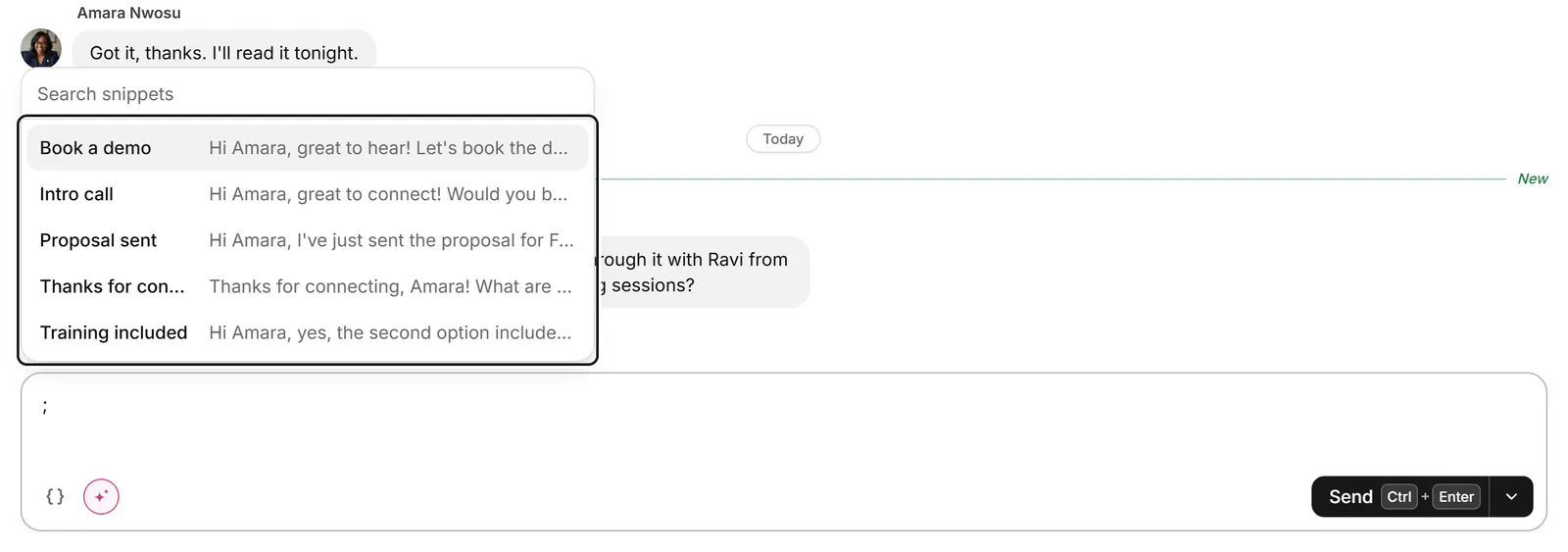
Files you send often can live in a snippet: a saved reply that carries up to 5 photos, videos or files, each up to 20 MB, and one voice note of up to 2 minutes. Inserting it fills the box, and nothing goes until you press Send. Snippet files stay in your browser and are never uploaded to Bokka. Sales Navigator takes no voice messages or videos. See Read and reply to a conversation, Reuse a reply with snippets and saved replies with files and voice notes.
About Bokka
Bokka starts with a free 14-day trial, AI included and no credit card. After it, Starter is $25 and Pro is $35 per user a month ($19 and $30 for your first month). Team, at $50, is coming soon.
Frequently asked questions
How do I send a file on LinkedIn messages?
Open the conversation, click the Attach icon or drag the file into the message box, then click Send. In the app, tap Attach or Add, choose Send a document, pick the file and tap Send.
What is the file size limit for LinkedIn messages?
20 MB per file, according to LinkedIn Help.
Can I send a PDF on LinkedIn?
Yes. PDF is on LinkedIn's list of document types on a computer, iPhone and Android, up to 20 MB.
Why can't I attach a file in a LinkedIn message?
It may be over 20 MB, not on LinkedIn's list of file types, or in a message request, where attachments can't be sent. On Android the documents list is shorter, so try a computer.
Can I send a ZIP or audio file on LinkedIn?
Neither is on LinkedIn's list of file types for messages, which covers documents, images and MP4 or MOV videos.
Sources
Other products' prices and features were read on their own pages on November 10, 2026. They change; check each page before you buy.
Join the waitlist for early access to Bokka. Your first 14 days are free, AI included, with no credit card. It runs in Chrome, Edge, Brave and Arc on a desktop or laptop.
Join the waitlistAbout the author
Amardeep Anand founded Bokka, the AI-first CRM for your LinkedIn inbox, and runs it from Deoghar, India. Questions or corrections: support@gobokka.com.