Can you schedule a LinkedIn message? Not in regular messaging
Not in regular messaging: LinkedIn Help describes scheduled messages only for InMail in Recruiter and Recruiter Lite. What you can do instead.
By Amardeep Anand, founder of Bokka · Published · 2 min read
On this page
No, you can't schedule a regular LinkedIn message. LinkedIn Help's page on sending messages has no send-later option; the only scheduled messages it describes are InMail sent from Recruiter and Recruiter Lite.
Scheduling a message means writing it now and having it sent automatically at a time you pick. An away message is a note LinkedIn shows to connections who write to you while you're away. Bokka is an AI-first CRM for your LinkedIn inbox.
What LinkedIn lets you schedule
| What | Can you schedule it? | Who can |
|---|---|---|
| A regular message to a connection | No send-later option is described | No one |
| InMail to a candidate | Yes: pick a date, time and time zone | Recruiter and Recruiter Lite |
| A follow-up InMail | Yes: about 72 hours to 28 days after the first | Recruiter only, not Recruiter Lite |
| A post | Yes: 10 minutes to 3 months ahead | From the clock icon when you post |
| An away message | Set a start and end date, up to three months | Premium members |
Sources: LinkedIn Help: send messages to connections, retrieved November 10, 2026, LinkedIn Help: schedule a message in Recruiter, retrieved November 10, 2026, LinkedIn Help: schedule posts, retrieved November 10, 2026 and LinkedIn Help: away messages, retrieved November 10, 2026.
Regular messages: send now, or keep a draft
LinkedIn's steps for messaging a connection, from Messaging, from your Connections list or from a profile, all end with Send, and the page mentions no way to pick a later time (LinkedIn Help: send messages to connections, retrieved November 10, 2026). LinkedIn's scheduling page for posts says that event and job posts can't be scheduled, and says nothing about messages (LinkedIn Help: schedule posts, retrieved November 10, 2026).
So the plain way to send at a better time is to write the message, leave it unsent and come back to press Send. How LinkedIn keeps an unsent message is in how to save a LinkedIn message as a draft.
Scheduled InMail in Recruiter and Recruiter Lite
LinkedIn's hiring tools are the one place its help describes a send time (LinkedIn Help: schedule a message in Recruiter, retrieved November 10, 2026):
- Click the Message icon on a candidate's profile and write the subject and message, from a saved template or from scratch.
- Open the Send immediately via InMail dropdown.
- Under Send message, choose Later, then pick the date, time and time zone, and save.
- Send it. In Recruiter, you can also add a follow-up before you send.
A scheduled follow-up goes out between about 72 hours and 28 days after the first InMail, 7 days by default, and isn't sent if the candidate replies to the first one (LinkedIn Help: schedule a message in Recruiter, retrieved November 10, 2026). Follow-ups are in Recruiter only, not Recruiter Lite.
Away messages: the nearest thing for everyone else
If what you want is for people to hear from you while you're on leave, LinkedIn's answer is an away message, not a scheduled one. Premium members can set one with a start and end date, for up to three months. It shows to connections who message you directly, and not in group chats (LinkedIn Help: away messages, retrieved November 10, 2026).
Bokka doesn't schedule messages, by design
Bokka has no send-later. A message goes only when you press the key to send it, and nothing is ever sent while you're away. That's a choice: LinkedIn's help centre says it doesn't permit third-party software, including browser extensions, that automates activity on its website (LinkedIn Help: prohibited software and extensions, retrieved November 10, 2026), and a message that sends itself at 9 AM tomorrow is automated activity. The reasons are in why Bokka doesn't automate LinkedIn.
What Bokka does instead
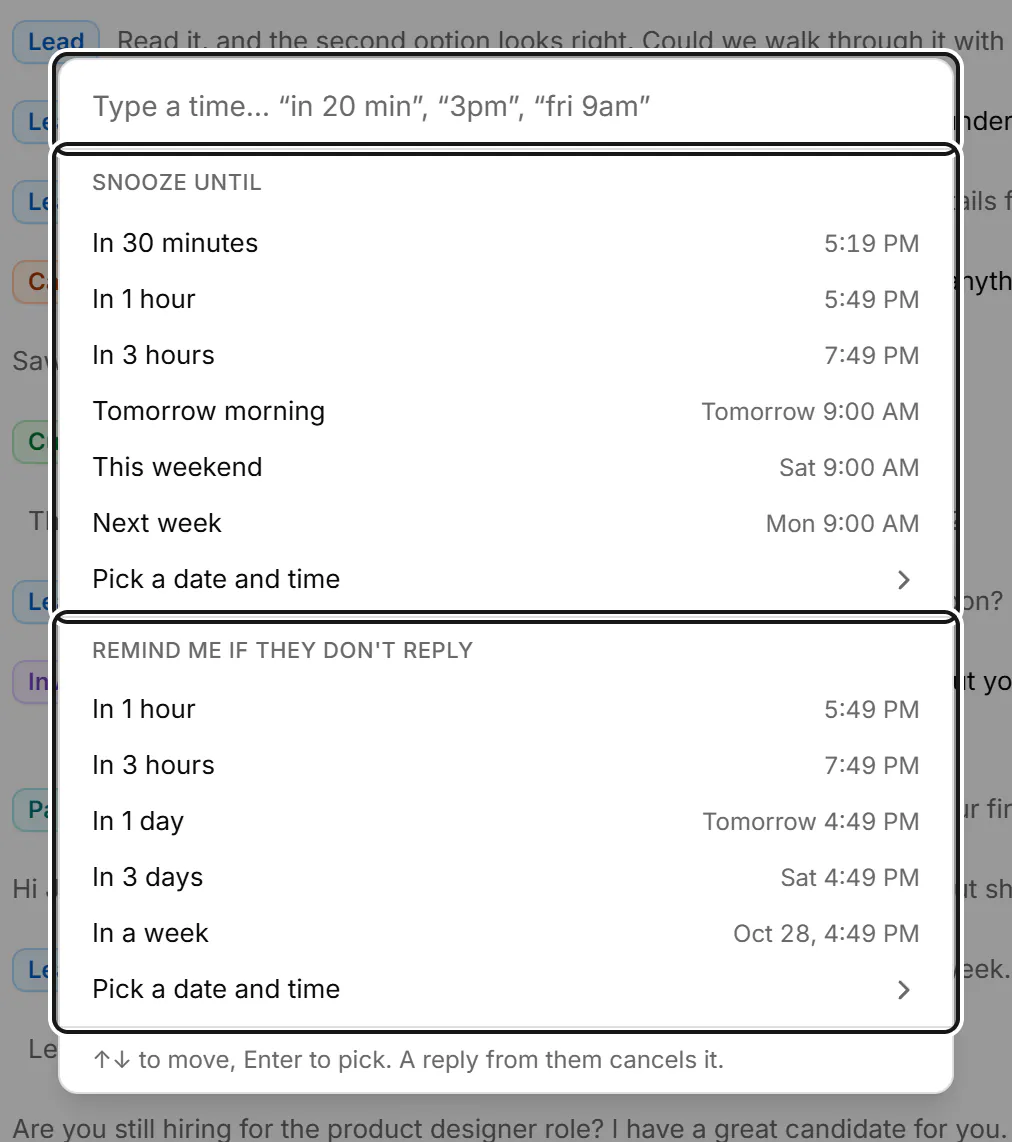
- Send and set a reminder. Ctrl+Shift+Enter sends your reply and opens the reminder picker. The reminder brings the conversation back to you; nothing is sent later.
- Remind me if they don't reply. Press H, choose Remind me and type a time such as “fri 9am”. If they haven't replied by then, the conversation shows Time to follow up. A new message from them cancels it.
- Snooze until later. The same picker hides a conversation until the time you pick, then brings it back marked Back from snooze.
- Keep the draft. Each conversation keeps what you wrote in this browser, and G then E lists every unsent draft in Drafts, latest first.
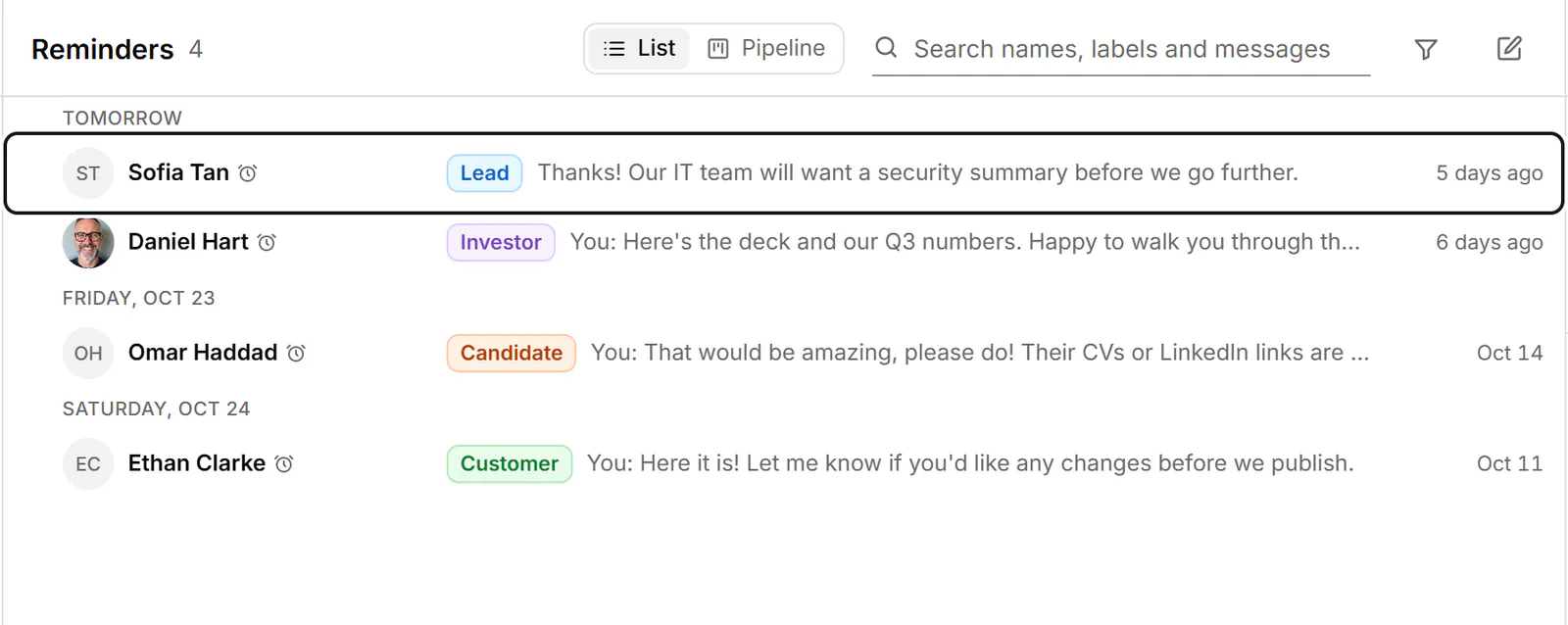
So the workflow is: write the message now, set a reminder for when you want it to go, and press Send when it comes back. Reminders show in Bokka only, with no email or browser notification. Steps are in Get reminded to follow up and Use the inbox views; more on the approach in how to set a reminder on a LinkedIn message.
About Bokka
Bokka starts with a free 14-day trial, AI included and no credit card. After it, Starter is $25 and Pro is $35 per user a month ($19 and $30 for your first month). Team, at $50, is coming soon.
Frequently asked questions
Can you schedule a message on LinkedIn?
Not a regular message. LinkedIn Help's page on sending messages has no send-later option. Scheduled sending is described only for InMail in Recruiter and Recruiter Lite.
Can LinkedIn Premium schedule messages?
LinkedIn Help doesn't describe message scheduling as a Premium feature. Premium members can set an away message for up to three months, which shows to connections who write to them.
How do I schedule an InMail in LinkedIn Recruiter?
Write the InMail, open the Send immediately via InMail dropdown, choose Later under Send message, pick the date, time and time zone, save and send. Follow-ups can be scheduled in Recruiter, not Recruiter Lite.
Can I schedule a LinkedIn post instead?
Yes. LinkedIn lets you schedule posts from 10 minutes to 3 months ahead with the clock icon. Event and job posts can't be scheduled.
Does Bokka schedule LinkedIn messages?
No. Bokka never sends without your click. It keeps your draft and can remind you at the time you pick, and you press Send then.
Sources
Other products' prices and features were read on their own pages on November 10, 2026. They change; check each page before you buy.
Join the waitlist for early access to Bokka. Your first 14 days are free, AI included, with no credit card. It runs in Chrome, Edge, Brave and Arc on a desktop or laptop.
Join the waitlistAbout the author
Amardeep Anand founded Bokka, the AI-first CRM for your LinkedIn inbox, and runs it from Deoghar, India. Questions or corrections: support@gobokka.com.