How to see your LinkedIn followers, and who you follow
On a computer, click My Network, then Following & followers: the Followers tab lists who follows you, Following who you follow. Your count, and the app.
By Amardeep Anand, founder of Bokka · Published · 3 min read
On this page
- How to see your followers on LinkedIn
- How to see who you follow on LinkedIn
- Seeing your followers in the LinkedIn app
- How to see your follower count
- Can you see someone else's followers?
- Followers vs connections on LinkedIn
- How to show Follow on your LinkedIn profile
- Who can see the people you follow
- How to unfollow someone, or remove your followers
- How Bokka lists your followers and the people you follow
- About Bokka
To see your LinkedIn followers on a computer, click My Network at the top of LinkedIn, open Manage my network, click Following & followers, then the Followers tab (LinkedIn Help: view your followers, retrieved November 10, 2026). The Following tab on the same page lists the people and companies you follow. Your follower count is Total followers, at the top of audience analytics.
Followers are people who see your public posts and articles in their feed. Your 1st-degree connections follow you automatically, and anyone else can follow you too (LinkedIn Help: manage who can follow you, retrieved November 10, 2026). Bokka is an AI-first CRM for your LinkedIn inbox.
How to see your followers on LinkedIn
LinkedIn gives these steps for a computer (LinkedIn Help: view your followers, retrieved November 10, 2026):
- Click the My Network icon at the top of your LinkedIn homepage.
- Click the Manage my network dropdown on the left.
- Click Following & followers.
- Click the Followers tab near the top of the page.
The Followers tab is a list of the people who currently follow you (LinkedIn Help: manage your feed preferences, retrieved November 10, 2026). LinkedIn sends you a notification whenever someone who isn't a connection follows you (LinkedIn Help: view your followers, retrieved November 10, 2026).
These steps are for your own profile. LinkedIn says you can't view the followers of a LinkedIn Page this way (LinkedIn Help: view your followers, retrieved November 10, 2026).
How to see who you follow on LinkedIn
The people you follow are on the same page, in the Following tab: click My Network, then Following & followers under Manage my network. LinkedIn describes the tab as a list of the people and companies you currently follow (LinkedIn Help: manage your feed preferences, retrieved November 10, 2026).
Seeing your followers in the LinkedIn app
LinkedIn's help page on viewing your followers gives steps for a computer only (LinkedIn Help: view your followers, retrieved November 10, 2026), so this post doesn't guess at the taps in the app. What LinkedIn does give for the app is the way to your follower count, in the next section.
How to see your follower count
Your follower count is Total followers, at the top of your audience analytics. Every LinkedIn member has creator analytics, and LinkedIn gives the way there for both a computer and the app (LinkedIn Help: view your creator analytics, retrieved November 10, 2026).
On a computer
- Click the Me icon at the top of your LinkedIn homepage, then View Profile.
- Scroll down to the Analytics section and click Show all.
- Click Audience analytics in the left pane. Total followers is at the top.
In the mobile app
- Tap your profile photo, then tap it again to open your profile.
- In your Analytics section, tap Show all.
- Tap Overview at the top, then select Audience analytics. Total followers is at the top.
The date range under New followers changes the new followers graph and the demographics, not the total (LinkedIn Help: view your creator analytics, retrieved November 10, 2026). Audience analytics also shows your followers' top job titles, locations, industries, seniority, company sizes and companies, five of each, and you can export it to an .XLSX file.
The totals of followers and connections listed on a member's profile leave out inactive accounts, such as restricted and hibernated ones, and LinkedIn says it updates those counts regularly (LinkedIn Help: inactive account filtering, retrieved November 10, 2026). That LinkedIn Help page was last updated three years ago. So a count can drop without anyone choosing to unfollow you.
If you want the number on your own website, a media kit or a speaker page, that's covered in how to show your LinkedIn follower count on your website.
Can you see someone else's followers?
LinkedIn Help doesn't describe a way to list another member's followers. It says the total number of followers and connections is listed on a member's profile (LinkedIn Help: inactive account filtering, retrieved November 10, 2026).
Who someone follows is up to them. Each member chooses whether only they or anyone on LinkedIn can see the members they follow. Either way, if you follow a member, that member can always see that you follow them (LinkedIn Help: follow visibility, retrieved November 10, 2026).
Followers vs connections on LinkedIn
| Follower | Connection | |
|---|---|---|
| What it is | Someone who sees your public posts and articles in their feed, without a connection invitation | A member you know and trust: you're 1st-degree connections |
| Who | Anyone on LinkedIn, unless you limit followers to your connections | People you know from work, school or your community, LinkedIn suggests |
| Network and messages | Following doesn't put you in each other's network | You can message each other directly |
| Posts | One way: they see your posts; you don't automatically see theirs | Both ways: you see each other's posts and updates |
| In your follower count | Yes | Yes: 1st-degree connections follow your posts automatically |
Sources: LinkedIn Help: follow and connect on LinkedIn, retrieved November 10, 2026 and LinkedIn Help: manage who can follow you, retrieved November 10, 2026. Because your connections follow you automatically, your follower count is usually the larger number. If you limit followers to your connections, the two are the same (LinkedIn Help: manage who can follow you, retrieved November 10, 2026). For what 1st, 2nd and 3rd mean, see LinkedIn 1st, 2nd and 3rd degree.
How to show Follow on your LinkedIn profile
LinkedIn's help pages read for this post don't describe a setting that shows your follower count in place of your connections. What LinkedIn does let you choose is the main button on your profile: with Make follow primary on, members viewing your profile see Follow as the primary action; with it off, they see Connect (LinkedIn Help: manage who can follow you, retrieved November 10, 2026).
- Click the Me icon at the top of your LinkedIn homepage and select Settings & Privacy.
- Select Visibility in the left pane.
- Under Visibility of your LinkedIn activity, click Followers.
- Under Who can follow you, choose Everyone on LinkedIn or Your connections, and turn Make follow primary on or off.
In the app: tap your profile photo, then Settings & Privacy, the Visibility tab, and Followers under Visibility of your LinkedIn activity. LinkedIn says changes can take up to 24 hours.
Who can see the people you follow
You decide who sees the list of members you follow (LinkedIn Help: follow visibility, retrieved November 10, 2026). On a computer: click Me, then Settings & Privacy, Visibility, Visibility of your profile & network, and Change next to Follow visibility. Choose Only visible to me or Anyone on LinkedIn. In the app: tap your profile photo, then Settings, Visibility and Follow visibility. The setting covers members you follow, not Groups or LinkedIn Pages.
How to unfollow someone, or remove your followers
To unfollow someone on a computer (LinkedIn Help: manage your feed preferences, retrieved November 10, 2026):
- Click My Network, then Following & followers under Manage my network.
- In the Following tab, click Following next to the person or company.
- In the Unfollow dialog, click Unfollow. The button changes back to Follow.
If you unfollow a connection, you stay connected but stop seeing their updates in your feed, and they aren't notified. That's from an older LinkedIn Help page, last updated five years ago (LinkedIn Help: follow or unfollow member articles, retrieved November 10, 2026).
LinkedIn Help gives no way to remove one follower at a time. The removal it describes is all at once: if you change Who can follow you to Your connections, followers outside your network are removed, your follower count becomes the same as your connections, and the Follow button no longer appears next to your posts or articles (LinkedIn Help: manage who can follow you, retrieved November 10, 2026).
How Bokka lists your followers and the people you follow
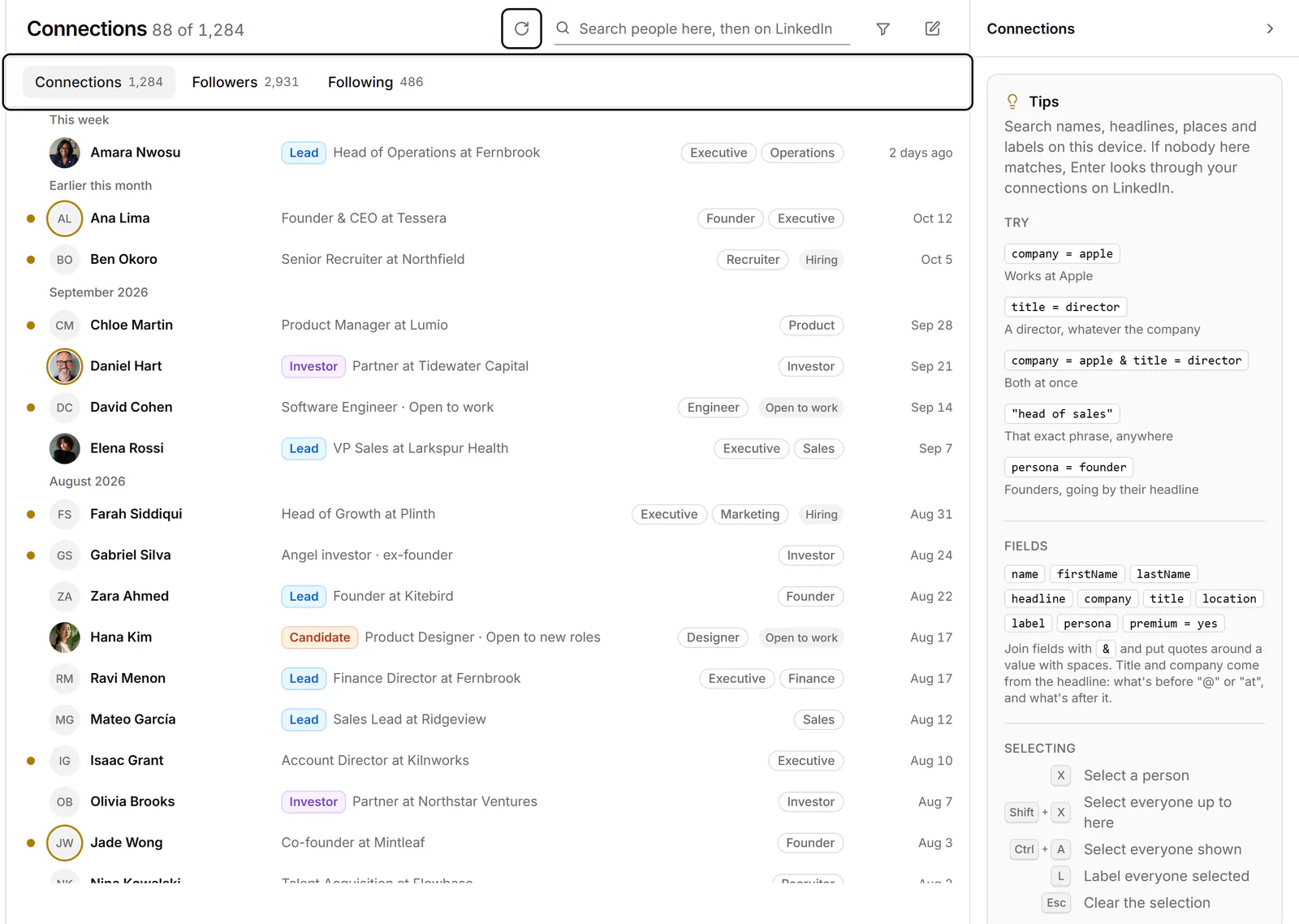
Seeing your followers is one thing; working through them is another. Bokka's People view lists your LinkedIn connections, followers and the people you follow, each in its own tab with a count. Under People, choose Network (or press G then C), and [ and ] step between Connections, Followers and Following.
- New people when you look. Each list checks LinkedIn for new people every time you open it, and more load as you scroll.
- Search and filter. Press / to search names, headlines, places and labels, or a field such as
company = apple. On Followers and Following, older pages load until that person turns up. - Label and note. Press L to label someone, or N to write a note. People carry the same labels and notes as their conversations.
- Message. Press Enter to open your conversation with them, or to start one if you're connected.
Bokka works through your own LinkedIn session in your browser, with a small extension, only while Bokka is open. Steps are in Work through connections, followers and following and Find the right people.
About Bokka
Bokka starts with a free 14-day trial, AI included and no credit card. After it, Starter is $25 and Pro is $35 per user a month ($19 and $30 for your first month). Team, at $50, is coming soon.
Frequently asked questions
How do I see my followers on LinkedIn?
On a computer, click My Network at the top of LinkedIn, open the Manage my network dropdown, click Following & followers, then the Followers tab. It lists the people who currently follow you.
How do I view who I follow on LinkedIn?
Go to My Network, then Following & followers under Manage my network, and open the Following tab. It lists the people and companies you currently follow, and you can unfollow them there.
Where do I see my follower count on LinkedIn?
Open your profile, click Show all in the Analytics section, then open Audience analytics. Total followers is at the top. LinkedIn gives these steps for both a computer and the app.
How do I show followers on my LinkedIn profile?
LinkedIn Help doesn't describe a setting that shows your follower count instead of connections. You can make Follow the main button on your profile: in Settings & Privacy, Visibility, Followers, turn on Make follow primary.
Can I see someone else's followers on LinkedIn?
LinkedIn Help doesn't describe a way to list another member's followers. Their total followers and connections are listed on their profile, and each member chooses who can see the members they follow.
Can I remove a follower on LinkedIn?
LinkedIn Help gives no way to remove one follower. If you limit who can follow you to your connections, LinkedIn removes all followers outside your network.
Sources
Other products' prices and features were read on their own pages on November 10, 2026. They change; check each page before you buy.
- LinkedIn Help: view your followers
- LinkedIn Help: manage your LinkedIn feed preferences
- LinkedIn Help: view your creator analytics
- LinkedIn Help: manage who can follow you
- LinkedIn Help: follow visibility
- LinkedIn Help: follow and connect on LinkedIn
- LinkedIn Help: inactive account filtering
- LinkedIn Help: follow or unfollow member articles
- Bokka docs: work through connections, followers and following
Join the waitlist for early access to Bokka. Your first 14 days are free, AI included, with no credit card. It runs in Chrome, Edge, Brave and Arc on a desktop or laptop.
Join the waitlistAbout the author
Amardeep Anand founded Bokka, the AI-first CRM for your LinkedIn inbox, and runs it from Deoghar, India. Questions or corrections: support@gobokka.com.
Related
How to show your LinkedIn follower count on your website
2 min read
What 1st, 2nd and 3rd mean on LinkedIn, and who you can message
2 min read
How to show your LinkedIn follower growth on your website
2 min read
LinkedIn message requests: what they are and how to answer
2 min read