How to send LinkedIn conversations to Notion or Google Sheets
LinkedIn only exports your data as a download. How to send the conversations you label to a Notion database or Google sheet in Bokka, message text optional.
By Amardeep Anand, founder of Bokka · Published · 2 min read
On this page
LinkedIn has no built-in way to send conversations to Notion or Google Sheets; its only export is a one-off download of your account data. To keep a live sheet or database of your LinkedIn conversations, use an integration such as Bokka's, which sends the chats you choose as they change.
An integration is a connection that sends data from one app to another automatically. A webhook is a web address that receives that data, for tools such as Zapier. Bokka is an AI-first CRM for your LinkedIn inbox.
What LinkedIn offers: a data download
- Click Me at the top of your LinkedIn homepage, then Settings & Privacy.
- Click Data Privacy on the left.
- Under How LinkedIn uses your data, click Download your data.
- Select the data you want and click Request archive.
Messages are included, with the date each was sent or received, its subject line, its content and the member's public profile URL. Smaller selections arrive within minutes; the full archive can take up to 24 hours. The download is available for 72 hours, and the feature isn't available on mobile (LinkedIn Help: download your account data, retrieved November 1, 2026).
It's a snapshot. You'd import it by hand and repeat the whole thing next month, with no labels, stages or notes attached.
Send conversations to Notion or Sheets in Bokka
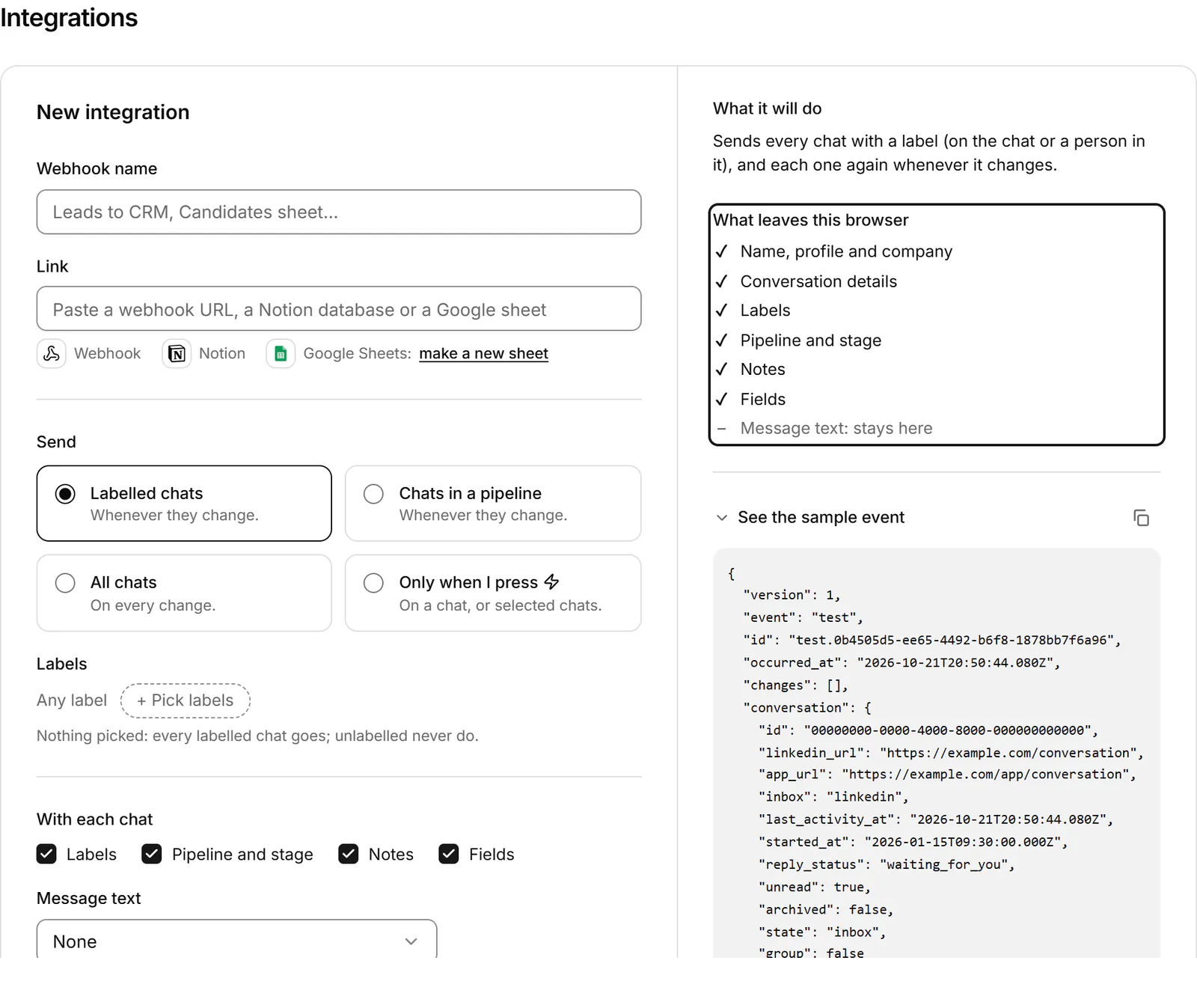
- Go to Settings → Integrations and choose Create an integration.
- Under Where to, give it a name and paste a Link: a Notion database, a Google sheet or a webhook URL. For Notion, choose Connect Notion. For Google Sheets, choose make a new sheet, or paste a sheet you have and follow the steps to add our script to it.
- Under What goes, choose what to Send: Labeled chats or Chats in a pipeline whenever they change, All chats on every change, or Only when I press. With labels, + Pick labels narrows it.
- Under With each chat, tick what goes along: Labels, Pipeline and stage, Notes and Fields. Message text is None unless you choose New messages or The whole conversation.
- Check the panel beside the form: What it will do says which chats go and when, What leaves this browser lists what's sent, and See the sample event shows an example with made-up names.
- Choose Test then save. It checks the destination before saving.
What leaves your browser
Every integration sends the person's name, profile and company, and the conversation's details. Labels, pipeline and stage, notes and fields go only if you ticked them. Message text goes only if you set Message text to new messages or the whole conversation.
One exception to know: in an open conversation, the Sync conversation history button sends that conversation with its whole message history, whatever Message text is set to. See where your LinkedIn messages go.
Three setups that work
- A recruiter's candidate sheet. Send Labeled chats, pick the label Candidate, tick Pipeline and stage and Fields, leave message text off. The hiring manager sees who's at which stage without seeing your messages.
- A founder's investor database in Notion. Send Chats in a pipeline for your fundraising pipeline, with Notes and Fields such as cheque size.
- A Zap on a label. Send Labeled chats with the label Hot lead to a webhook, and have Zapier create a task in your CRM.
For example, a recruiter labels a conversation Candidate and moves it to Interview. The Google sheet gets a row for that person with the stage, and the row updates when the stage changes again. The messages themselves never leave the recruiter's browser.
Send by hand
With Only when I press, or any time, select conversations and choose Send to… in the toolbar or the command palette, then pick the integration.
If something goes wrong
- "Paused after 10 failed sends": fix the destination, then choose Retry now.
- Reconnect Notion or Reconnect Google Sheets: access was lost. Choose it and sign in again.
- "Pro has up to 5 integrations." Delete one to make another.
Full details: Send conversations to Notion, Google Sheets or a webhook. To label conversations first, see how to label LinkedIn conversations.
About Bokka
Bokka starts with a free 14-day trial, AI included and no credit card. After it, Starter is $25 and Pro is $35 per user a month ($19 and $30 for your first month). Team, at $50, is coming soon.
Frequently asked questions
Can I export LinkedIn messages to Google Sheets?
LinkedIn's Download your data gives you a one-off archive that includes messages. To keep a sheet up to date, Bokka Pro sends the conversations you choose to a Google sheet as they change, with message text off unless you turn it on.
Does LinkedIn integrate with Notion?
LinkedIn Help doesn't describe a Notion integration for messages. Bokka Pro can send conversations, labels, stages, notes and fields to a Notion database.
Are my messages sent to Notion or Sheets?
Only if you choose. Message text is None by default; you can set it to new messages or the whole conversation for each integration.
Does it work when the browser is closed?
No. Integrations send while Bokka is open in a browser tab.
Sources
Other products' prices and features were read on their own pages on November 1, 2026. They change; check each page before you buy.
Join the waitlist for early access to Bokka. Your first 14 days are free, AI included, with no credit card. It runs in Chrome, Edge, Brave and Arc on a desktop or laptop.
Join the waitlistAbout the author
Amardeep Anand founded Bokka, the AI-first CRM for your LinkedIn inbox, and runs it from Deoghar, India. Questions or corrections: support@gobokka.com.