A LinkedIn inbox playbook for agencies and consultants
How consultants and agency founders can keep clients, referrals and prospects straight in their LinkedIn inbox, and what to do about more than one account.
By Amardeep Anand, founder of Bokka · Published · 2 min read
On this page
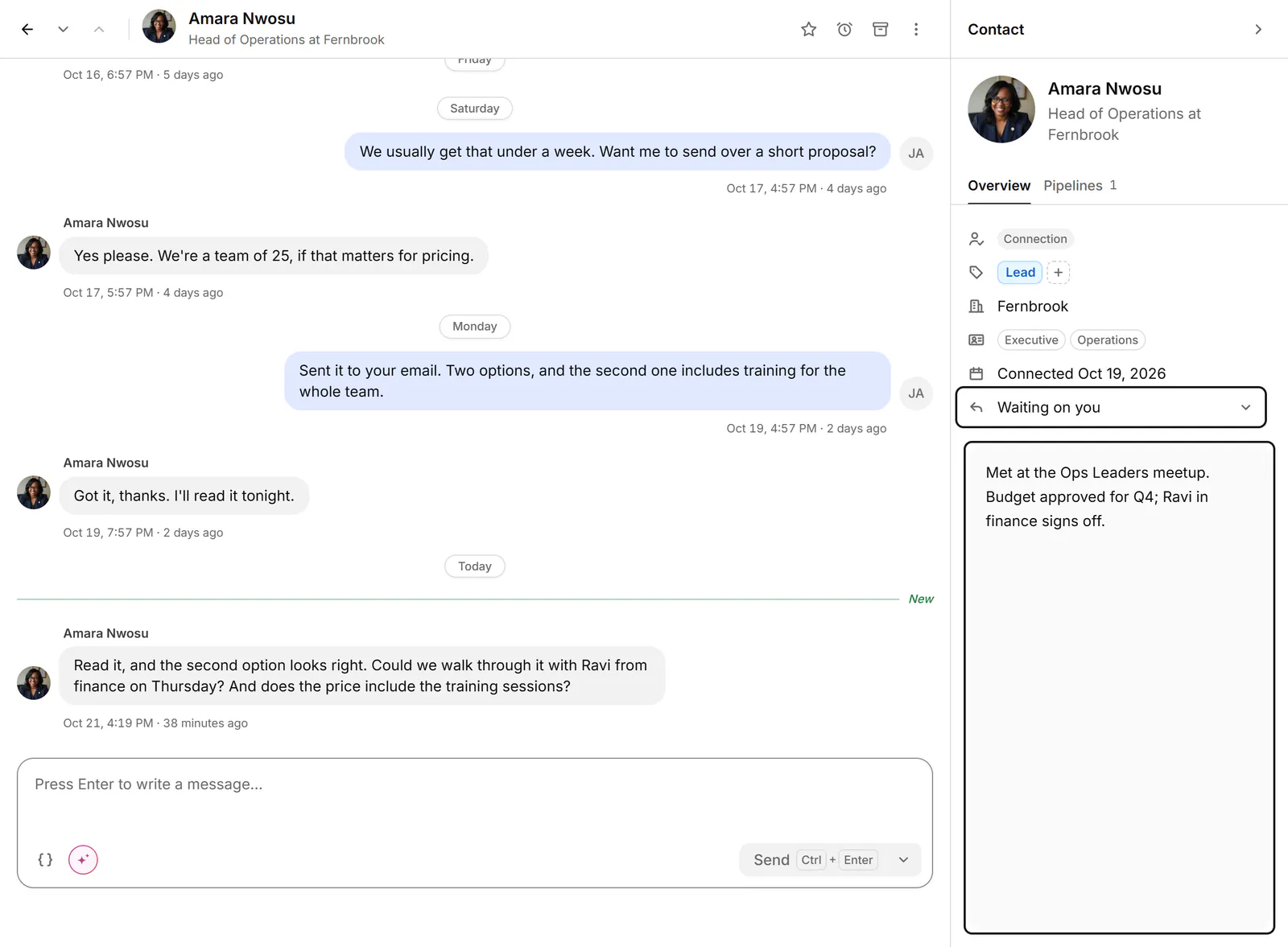
For consultants and agencies, the LinkedIn inbox works best when every conversation carries a relationship label, every person has a note, and quiet relationships come back on a date you choose. Each person works from their own LinkedIn account; a shared sheet, not a shared login, gives the team one view.
A relationship label says what someone is to you (client, prospect, referral partner), so each kind is its own list. A snooze hides a conversation until a time you pick, then brings it back. Bokka is an AI-first CRM for your LinkedIn inbox.
One account per person
LinkedIn says creating multiple profiles isn't allowed under its Professional Community Policies and User Agreement (LinkedIn Help: duplicate accounts, retrieved November 1, 2026). It also doesn't permit tools that automate activity on its site (LinkedIn Help: prohibited software and extensions, retrieved November 1, 2026). So the model that fits is simple: each consultant or account lead uses their own LinkedIn account, in their own browser, with their own Bokka plan.
Bokka works with one LinkedIn account per browser profile, and a plan syncs one LinkedIn account at a time. If your plan is in use in another browser, Bokka asks before moving sync over. It isn't built for an agency running several clients' LinkedIn accounts, and Team, at $50, is coming soon. See Signed in to a different LinkedIn account.
Label by relationship
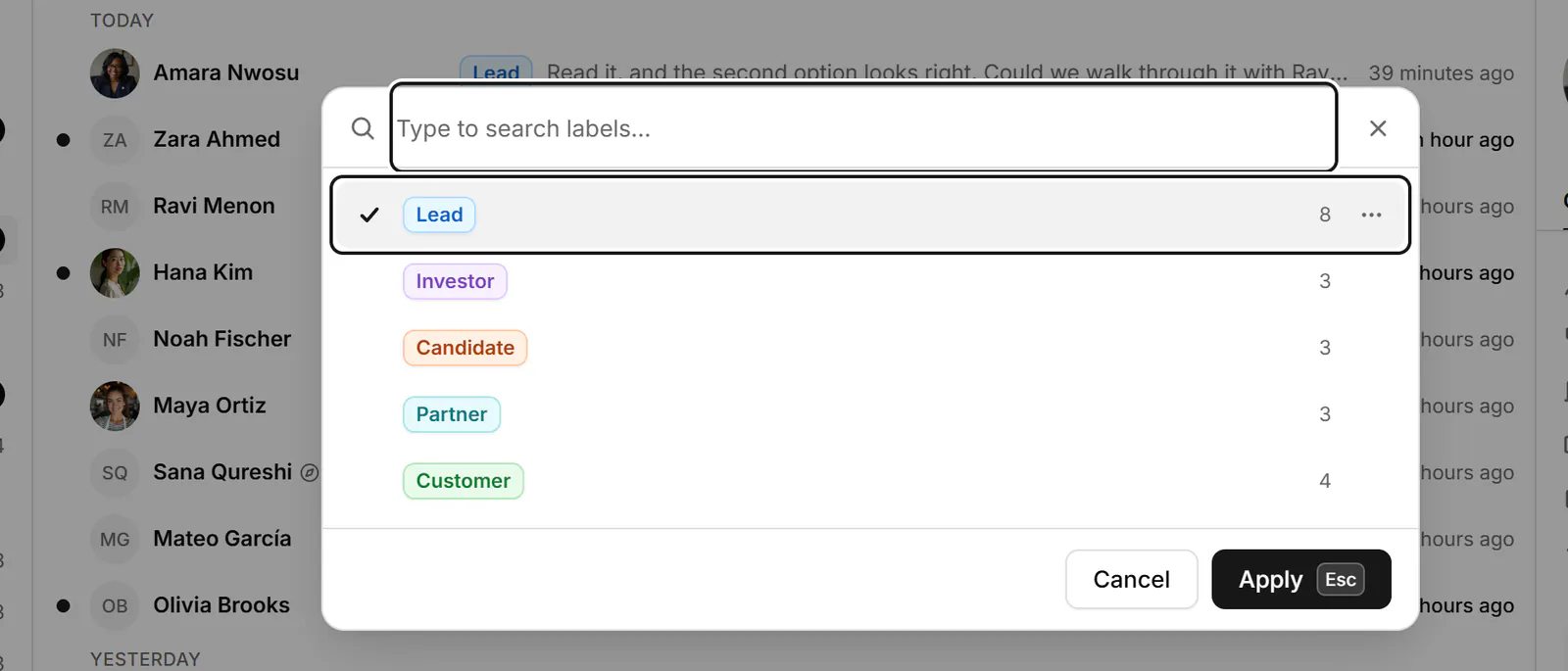
- Create labels for the relationships you have: Client, Prospect, Referral partner, Past client. Add a description to each, such as "Referral partner: has sent us work, or agreed to".
- Press L on a conversation to apply them. A person can carry more than one: a past client can also be a referral partner.
- Work each label as its own list from the sidebar. G then L jumps to your labels.
Notes that outlast the thread
Press N after every call and write what you'll need in six months: why you met, who introduced you, what they care about, what you quoted. Notes belong to the person, not to one conversation, so you see them wherever that person shows up. See how to add private notes to a LinkedIn contact.
Long reminders for long relationships
For example, a past client says their budget opens again in April. Press H, type a date ("3rd" goes straight to the next 3rd of a month), and snooze the conversation. It leaves your lists and comes back marked Back from snooze on that day, with your note waiting in the contact panel. If they write first, the snooze is cancelled.
A simple deal pipeline
Start a pipeline from Blank with stages like Conversation, Proposal sent, Signed and Not now, and mark Signed as Won and Not now as Lost. Add a Money field for the fee and a Date for the decision. See how to track deals from LinkedIn messages.
One view for the whole team
On Pro, each teammate creates an integration that sends Labeled chats (say, Client and Prospect) to the same Notion database or Google sheet, with Labels, Pipeline and stage and Notes ticked and Message text left at None. The agency gets one table of every relationship and its stage; each person's messages stay in their own browser. See send LinkedIn conversations to Notion or Google Sheets.
Turn your website into a way in
Consultants often win work from people who found them elsewhere first. Bokka's widgets put a contact form or contact card on your own site that leads back to a LinkedIn conversation; see how to add a contact form that leads to LinkedIn.
A weekly routine
- Monday: Waiting on you (Shift+W) to zero, oldest first.
- Wednesday: the Prospect label, and the pipeline's Follow-up due filter.
- Friday: the Referral partner label. Thank anyone who sent work, and snooze the rest to next quarter.
About Bokka
Bokka starts with a free 14-day trial, AI included and no credit card. After it, Starter is $25 and Pro is $35 per user a month ($19 and $30 for your first month). Team, at $50, is coming soon.
Frequently asked questions
Can an agency manage several clients' LinkedIn accounts in one inbox?
Not with Bokka. It works with one LinkedIn account per browser profile, and a plan syncs one account at a time. LinkedIn also says creating multiple profiles isn't allowed.
How can a consulting team share LinkedIn pipeline information?
Each person keeps their own account. On Bokka Pro, each one sends their labelled conversations to a shared Notion database or Google sheet, with message text left out unless they turn it on.
How do I remember to get back in touch with a past client?
Snooze the conversation until a date. In Bokka, press H and type a date; it comes back that day, unless they write first.
Sources
Other products' prices and features were read on their own pages on November 1, 2026. They change; check each page before you buy.
Join the waitlist for early access to Bokka. Your first 14 days are free, AI included, with no credit card. It runs in Chrome, Edge, Brave and Arc on a desktop or laptop.
Join the waitlistAbout the author
Amardeep Anand founded Bokka, the AI-first CRM for your LinkedIn inbox, and runs it from Deoghar, India. Questions or corrections: support@gobokka.com.