Recruiters: run a candidate pipeline in LinkedIn messages
A playbook for recruiters whose candidates reply in LinkedIn messages: a recruiting pipeline, labels per role, templates, reminders and a shared sheet.
By Amardeep Anand, founder of Bokka · Published · 2 min read
On this page
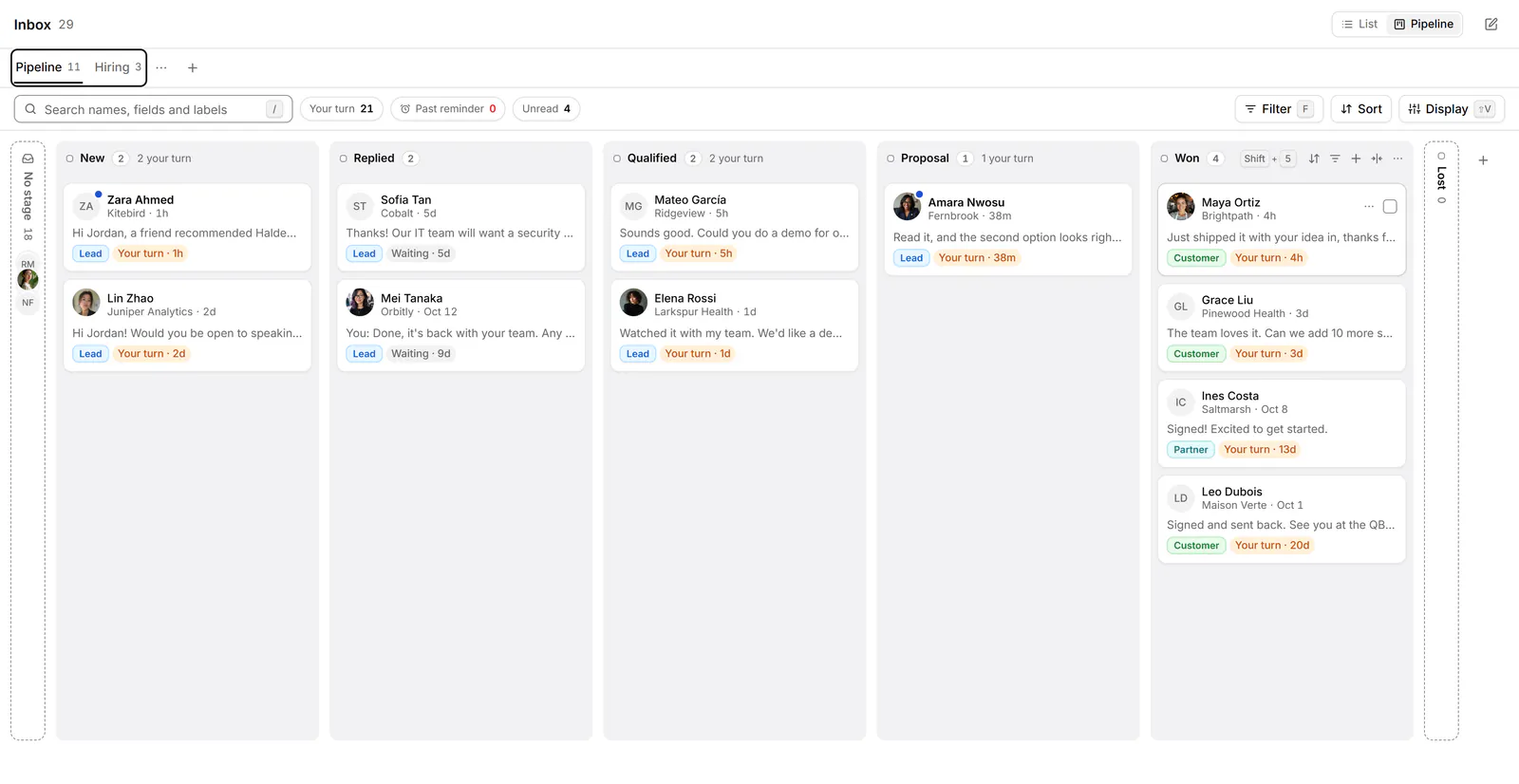
To run a candidate pipeline in LinkedIn messages, put every candidate conversation on a recruiting board, label it with the role, and set a reminder each time you write. Then the inbox shows who's at screen, who's waiting on you, and who's gone quiet, without copying anything into a spreadsheet.
A candidate pipeline is the set of stages a candidate moves through, from first contact to hired or declined. An ATS (applicant tracking system) is the software where a company keeps applications and hiring decisions. Bokka is an AI-first CRM for your LinkedIn inbox.
Is this the right setup for you?
It fits recruiters whose candidates answer in regular LinkedIn messages: founders hiring directly, in-house recruiters without a Recruiter seat, and independent recruiters. If you work from LinkedIn Recruiter, its own strengths stay with it: LinkedIn lists 40+ search filters, up to 150 InMails a month per seat, shared Projects and ATS integrations (LinkedIn Recruiter's product page, retrieved November 1, 2026). Bokka doesn't bring in Recruiter's inbox, so check where your conversations actually happen first.
Set up the board
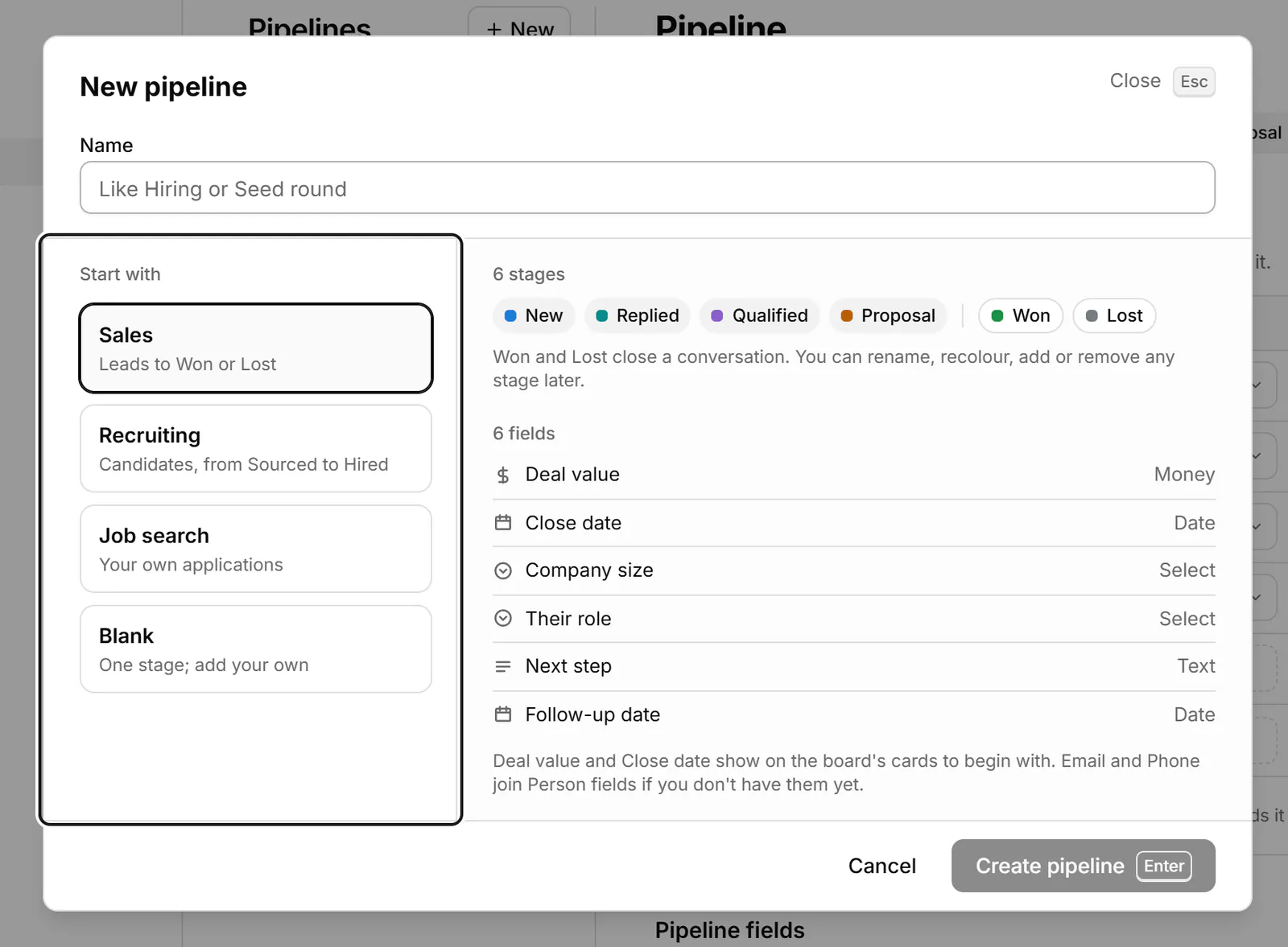
- In Settings → Pipelines, choose New, name it ("Hiring") and pick the Recruiting template. Its stages run from Sourced to Hired or Declined.
- Set Follow up after on each open stage, such as 3 days in Contacted and 7 in Interview. A candidate who's been quiet that long is marked for a follow-up.
- Add the fields you track per candidate under Pipeline fields, such as a Date for the next interview or a Select for the source.
- Press G then P to open the board. Move a card with Shift+1 to Shift+9, or drag it.
Label by role
Candidate is a starter label; add one more per open role, such as "Role: Backend" and "Role: Design lead". Press L on a conversation to apply them. A candidate can carry several labels, and each label is its own list in the sidebar, so you can work one role at a time.
Templates for each step
Save your role pitch, your scheduling message and your close-out as snippets with {{first_name}}, then type ; to insert one. The gaps fill in for each candidate, and nothing sends until you press Send. Templates to start from are in LinkedIn follow-up templates with first-name fill-ins.
The daily loop
- Open Waiting on you (Shift+W) and answer candidates first, oldest group up.
- Open the board's Waiting on you and Follow-up due filters to catch anyone the inbox view doesn't.
- After each message, press H and choose Remind me if they don't reply. If they answer first, the reminder goes away by itself.
- Candidate says "not now, try me in spring"? Snooze the conversation until a date, and move the card to Declined or leave it where it is.
For example, after a final interview you tell four shortlisted candidates the decision will come on Friday. Select their conversations with X, use Message selected with First name, and press Enter on each card. Each candidate gets their own copy, in their own conversation, and none of them sees the others.
Keep the hiring manager in the loop
On Pro, create an integration that sends Labeled chats for the role's label to a Google sheet, with Pipeline and stage and Fields ticked and Message text left at None. The hiring manager sees each candidate's stage update as you move them, and your messages stay in your browser. See send LinkedIn conversations to Notion or Google Sheets.
Invitations and InMail
- Invitations from candidates show under People, Invitations, read-only. Label or note them there, and use Respond on LinkedIn to accept.
- InMail credits are limited: 30 a month on Recruiter Lite, up to 120 held, and a credit comes back when the candidate accepts, declines or replies within 90 days (LinkedIn Help: InMail credits and renewal, retrieved November 1, 2026). See how many InMail credits you get.
What this doesn't do
Bokka doesn't search LinkedIn for new candidates, post jobs or sync to an ATS, and it never sends messages on its own: no sequences, no bulk campaigns. It works with your own messages, only while it's open in a tab. Team seats come with Team, at $50, which is coming soon.
About Bokka
Bokka starts with a free 14-day trial, AI included and no credit card. After it, Starter is $25 and Pro is $35 per user a month ($19 and $30 for your first month). Team, at $50, is coming soon. Starter, at $25, has the pipeline, labels, snippets and reminders; integrations and AI are on Pro.
Frequently asked questions
Can I track candidates from LinkedIn messages without an ATS?
Yes, for the conversation part. Bokka's Recruiting pipeline puts each candidate conversation on a board from Sourced to Hired or Declined. It doesn't replace an ATS for applications and offers.
Does Bokka work with LinkedIn Recruiter?
Bokka works with your regular LinkedIn inbox and, on Pro, your Sales Navigator inbox. It doesn't bring in LinkedIn Recruiter's inbox.
How do I share candidate progress with a hiring manager?
On Bokka Pro, send the role's labelled conversations to a Google sheet or Notion database, with stage and fields, and message text left out.
Can Bokka message candidates in bulk?
No. Message selected sends one personalised copy to each of up to 10 conversations, and you press Enter for every one.
Sources
Other products' prices and features were read on their own pages on November 1, 2026. They change; check each page before you buy.
Join the waitlist for early access to Bokka. Your first 14 days are free, AI included, with no credit card. It runs in Chrome, Edge, Brave and Arc on a desktop or laptop.
Join the waitlistAbout the author
Amardeep Anand founded Bokka, the AI-first CRM for your LinkedIn inbox, and runs it from Deoghar, India. Questions or corrections: support@gobokka.com.