LinkedIn follow-up templates with first-name fill-ins
Nine LinkedIn follow-up templates for founders, recruiters and SDRs, with first-name and company fill-ins, and how to save them as snippets in Bokka.
By Amardeep Anand, founder of Bokka · Published · 2 min read
On this page
The best LinkedIn follow-up template is short, mentions what you last talked about, and ends with one question that's easy to answer. Below are nine you can copy, with {{first_name}} and {{company}} gaps that Bokka fills in for each person.
A template is a message you reuse, with gaps for what changes from person to person. A placeholder is one of those gaps, such as {{first_name}}. Bokka is an AI-first CRM for your LinkedIn inbox, where templates are called snippets.
What makes a follow-up work
- Refer to the last message. "Following up on the deck I sent Tuesday" beats "Just checking in".
- Ask one thing. A yes-or-no question, or two times to pick from.
- Make it easy to say no. People answer when declining is painless, and a no closes the loop.
- Stop after two or three. Then mark it closed and move on.
Templates for founders
Hi {{first_name}}, following up on my note about our seed round. Would a 20-minute call next week be useful, or is it too early for {{company}}? Either answer helps.Hi {{first_name}}, quick update since we spoke: [one line of progress]. Happy to send the deck if it's worth a look for {{company}} now.Hi {{first_name|there}}, thanks again for the intro offer. Is it still a good time to connect me with [name], or should I come back in a month?Templates for recruiters
Hi {{first_name}}, following up on the [role] role. Is it worth a 15-minute call this week, or is now not the right time? No problem either way.Hi {{first_name}}, the hiring team liked your profile. Could you share two times that suit you for a first chat this week?Hi {{first_name}}, I'll close your application for [role] for now. If anything changes on your side, just reply here and I'll pick it up.Templates for SDRs
Hi {{first_name}}, following up on my note about [problem]. Is that something {{company}} is working on this quarter, or should I check back later?Hi {{first_name}}, one more idea in case it's useful: [one-line example]. Worth a short call, or not a priority right now?Hi {{first_name}}, I won't keep chasing. If [problem] comes up at {{company}} later, reply here and we'll pick it up.The square brackets are for you to fill in by hand. For example, the second SDR template becomes: "Hi Priya, one more idea in case it's useful: teams like yours cut their weekly report from a day to an hour. Worth a short call, or not a priority right now?"
Save a template as a snippet in Bokka
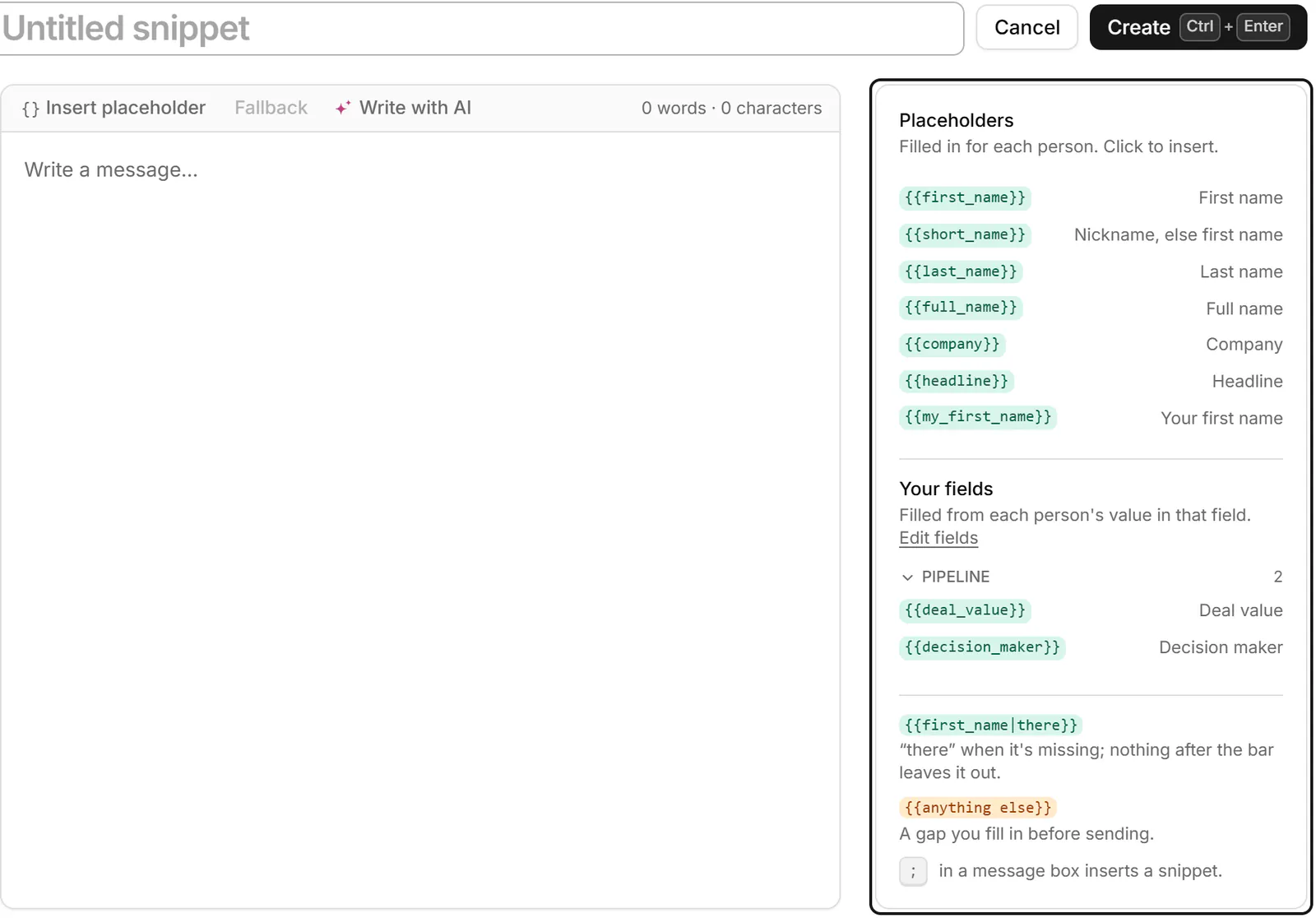
- Go to Settings → Snippets and click New snippet, or press C there.
- Give it a Name of up to 40 characters, such as "SDR follow-up 2", and paste the Message.
- Click a placeholder in the Placeholders panel to add it: first name, nickname, last name, full name, company, persona, headline, your own first name, or one of your own fields. Fallback adds a word for when a value is missing, as in
{{first_name|there}}. - Click Create, or press Ctrl+Enter.
To keep a message you've just written, use the arrow beside Send, then Save as snippet.
Insert it, check it, send it
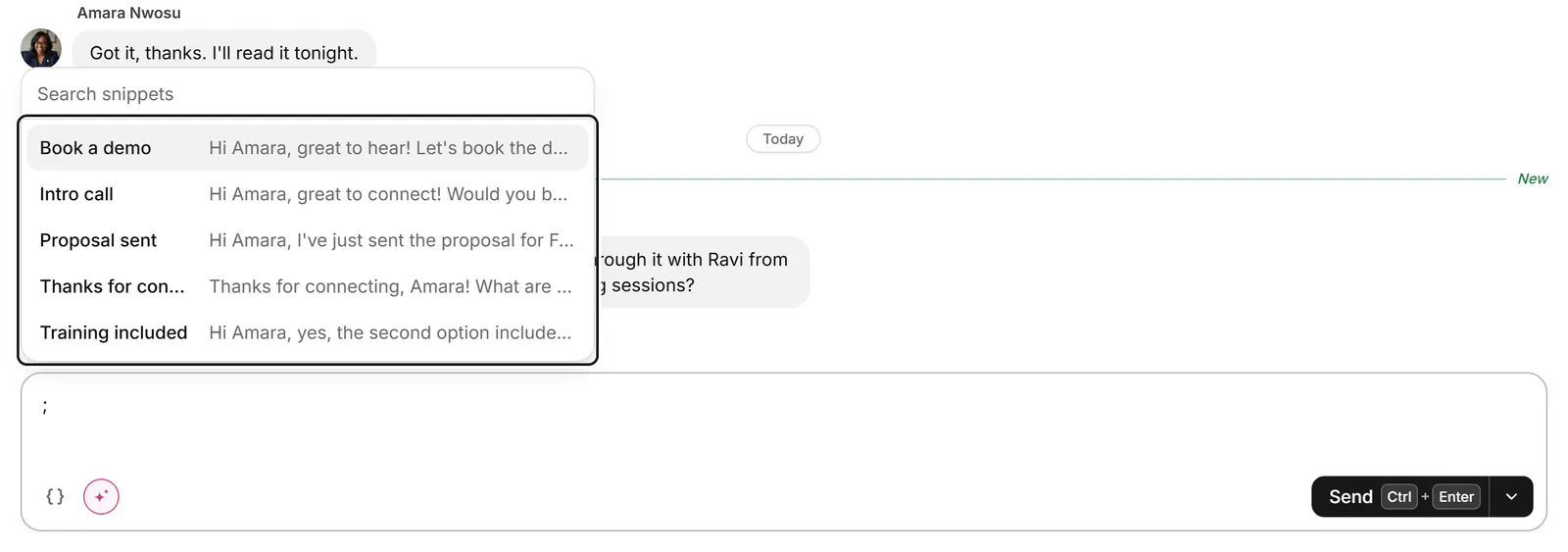
- In the message box, type ; and a few letters of the snippet's name, or click Insert a snippet.
- Pick it with the arrow keys and Enter. The placeholders fill in for the person you're writing to.
- A placeholder that can't be filled stays selected for you to type over; Tab moves to the next. Send stays off until each is filled or deleted.
- Read it, change what needs changing, and send it yourself with Ctrl+Enter.
If someone has more than one current company, Bokka asks Which company? before filling it. To send one template to several people at once, each with their own copy, use Use snippet in Message selected (text only); see Send one message to several people. Snippets are on every plan, with no limit. Full details: Reuse a reply with snippets.
Send the follow-up at the right time
A template only helps if you remember to use it. Press H after your first message and choose Remind me if they don't reply: the conversation comes back only if they stay quiet. See how to set a reminder on a LinkedIn message and whose turn it is in your inbox.
About Bokka
Bokka starts with a free 14-day trial, AI included and no credit card. After it, Starter is $25 and Pro is $35 per user a month ($19 and $30 for your first month). Team, at $50, is coming soon.
Frequently asked questions
How do I add someone's first name to a LinkedIn template?
In Bokka, put `{{first_name}}` in a snippet. It's filled in for the person you're writing to when you insert it. Add a fallback, such as `{{first_name|there}}`, for people with no first name on record.
How many times should I follow up on LinkedIn?
Two or three times is a sensible limit for most outreach. Space them out, refer to your last message each time, and close the loop politely at the end.
Does Bokka send templates automatically?
No. Inserting a snippet only fills the message box. Nothing is sent until you press Send.
Sources
Other products' prices and features were read on their own pages on November 1, 2026. They change; check each page before you buy.
Join the waitlist for early access to Bokka. Your first 14 days are free, AI included, with no credit card. It runs in Chrome, Edge, Brave and Arc on a desktop or laptop.
Join the waitlistAbout the author
Amardeep Anand founded Bokka, the AI-first CRM for your LinkedIn inbox, and runs it from Deoghar, India. Questions or corrections: support@gobokka.com.