Does LinkedIn have read receipts? Yes, and how they work
Yes. LinkedIn shows when your message is read, but only while Delivery and typing indicators is on for both of you. How to check it and turn it off.
By Amardeep Anand, founder of Bokka · Published · 3 min read
On this page
- How LinkedIn read receipts work
- What you see in each situation
- Do both people need read receipts turned on?
- How to turn read receipts on or off
- What turning read receipts off hides, and what it doesn't
- Read receipts on InMail, message requests and Sales Navigator
- How to tell if someone read your LinkedIn message
- What to do when a message stays unread
- How Bokka helps while you wait for a reply
- About Bokka
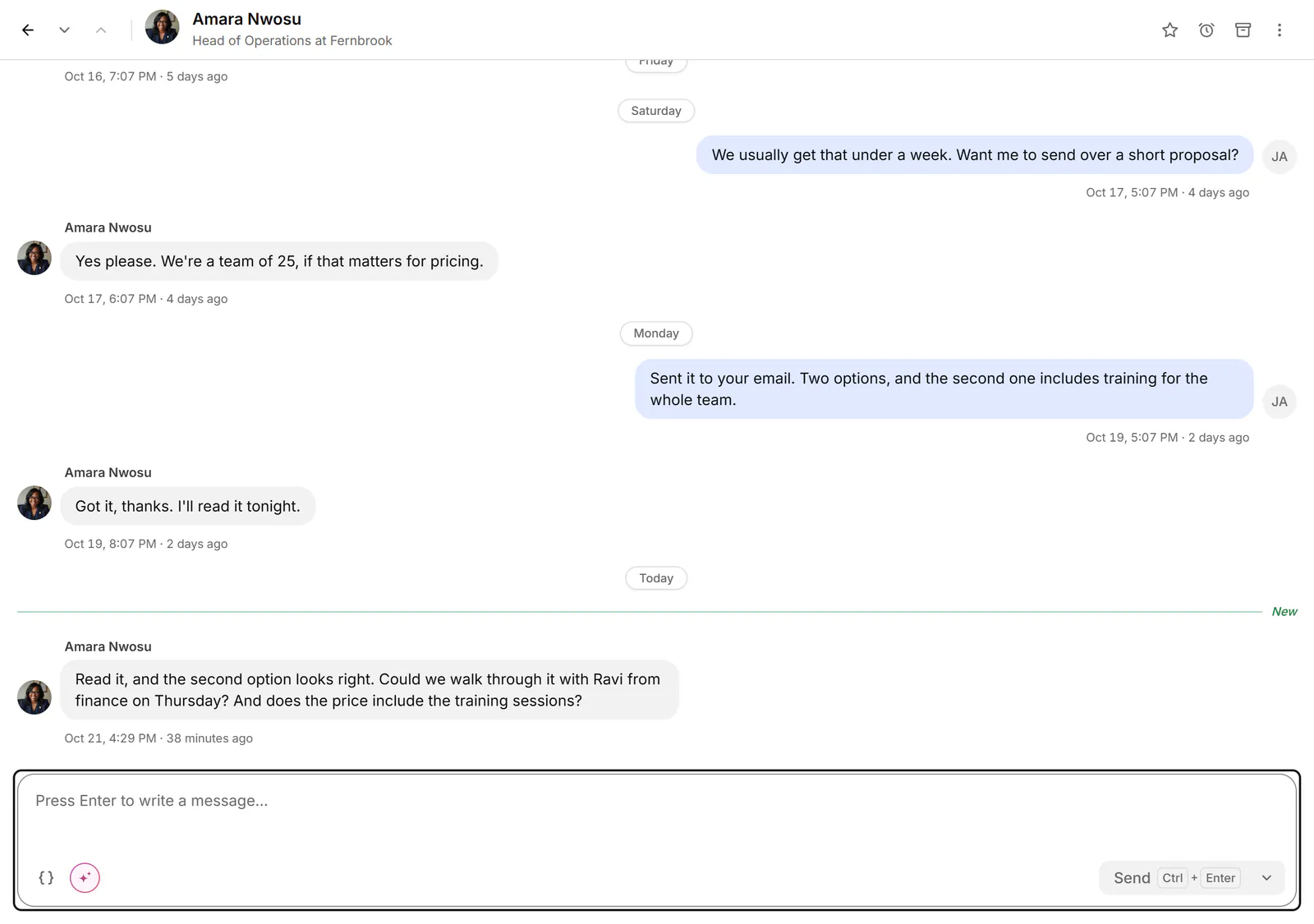
Yes, LinkedIn has read receipts. When the person you wrote to reads your message, a small profile photo appears next to it. It only works while one setting, Delivery and typing indicators, is on for both of you, and it doesn't cover InMail sent from LinkedIn.
Read receipts are LinkedIn's indicators that tell you when a message has been read. Typing indicators show when someone is writing a reply. LinkedIn controls both with a single setting called Delivery and typing indicators. Bokka is an AI-first CRM for your LinkedIn inbox.
How LinkedIn read receipts work
Every message you send carries one of three statuses (LinkedIn Help: message indicators, retrieved November 10, 2026):
- Sending: your message is on its way. If it fails, you'll see an error asking you to try again.
- Sent: your message was sent and will be delivered to the other person's inbox.
- Read: your message has been read.
Read is the read receipt. LinkedIn shows it as a small profile photo next to the message, once the person has read it (LinkedIn Help: delivery and typing indicators, retrieved November 10, 2026). While the setting is on, read receipts and typing indicators show for all messages between you and your connections.
What you see in each situation
| Situation | What you see on a message you sent |
|---|---|
| The setting is on for both of you, and they've read it | Read: a small profile photo next to the message |
| The setting is on for both of you, and they haven't read it | Sent |
| They turned the setting off | Sent, even after they've read it |
| You turned the setting off | No read status or typing for anyone in the conversation, you included |
| You sent an InMail from LinkedIn | No read receipt and no typing indicator |
| You sent a message request | A read receipt only after they accept the request |
| You sent an InMail from Sales Navigator | Read receipts and typing indicators, according to Sales Navigator's help page |
Sources: LinkedIn Help: delivery and typing indicators, retrieved November 10, 2026, LinkedIn Help: message indicators, retrieved November 10, 2026 and Sales Navigator Help: responses to InMail messages, retrieved November 10, 2026.
Do both people need read receipts turned on?
Yes. LinkedIn says it from both sides. If you turn the setting off, no one in the conversation, including you, can see whether messages have been read or whether someone is typing (LinkedIn Help: delivery and typing indicators, retrieved November 10, 2026). If the other person turns it off, you won't see when they've read your message or started a reply, and the status stays at Sent (LinkedIn Help: message indicators, retrieved November 10, 2026).
Put together, a Read status needs the setting on at both ends. You can't hide your own read status and keep seeing other people's.
How to turn read receipts on or off
LinkedIn gives one set of steps for a computer and one for the app (LinkedIn Help: delivery and typing indicators, retrieved November 10, 2026).
On a computer
- Click the Me icon at the top of your LinkedIn homepage.
- Select Settings & Privacy from the dropdown.
- Click Data privacy in the left pane.
- Under Messaging experience, click Delivery and typing indicators.
- Use the toggle to turn it on or off.
In the mobile app
- Tap your profile photo, then tap Settings & Privacy.
- Tap Data privacy.
- Under Messaging experience, tap Delivery and typing indicators.
- Use the toggle to turn it on or off.
There is one toggle for both. LinkedIn's steps give no way to turn off read receipts and keep typing indicators, or the other way round. The page says the typing indicator is on by default, and the same toggle controls read receipts.
What turning read receipts off hides, and what it doesn't
- Hidden from the other person: whether you've read their messages, and when you're typing a reply.
- Hidden from you: the same two things about them.
- Still shown: the Sent status. When the person receiving a message has the setting off, LinkedIn says the sender's message shows as Sent.
LinkedIn's help pages list nothing else that the setting changes (LinkedIn Help: delivery and typing indicators, retrieved November 10, 2026, LinkedIn Help: message indicators, retrieved November 10, 2026).
Read receipts on InMail, message requests and Sales Navigator
- InMail: read receipts and typing indicators don't appear to people who send InMail (LinkedIn Help: delivery and typing indicators, retrieved November 10, 2026). How an InMail differs from a message is in InMail vs message.
- Message requests: read receipts appear only after the person accepts the request (LinkedIn Help: delivery and typing indicators, retrieved November 10, 2026). Until then, a request can't show as Read. More in LinkedIn message requests.
- Sales Navigator: its own help page says you get real-time read receipts for InMail you send from Sales Navigator, and typing indicators while someone writes back (Sales Navigator Help: responses to InMail messages, retrieved November 10, 2026). That page shows it was last updated four years ago, so check your own Sales Navigator inbox before you rely on it.
- Group chats: LinkedIn's pages on read receipts don't say how they work in a group chat, so this post doesn't guess.
How to tell if someone read your LinkedIn message
- Check your own setting first. If Delivery and typing indicators is off for you, you won't see a read status on anything.
- Open the conversation and look next to the last message you sent.
- A small profile photo there means they've read it.
- If it still says Sent, either they haven't read it or the setting is off for one of you. Nothing in the status tells the two apart.
If what you're looking at is a small grey check mark beside your message, that icon has its own answer: what the grey check mark on a LinkedIn message means.
What to do when a message stays unread
For example, you send a proposal on Tuesday and on Friday it still says Sent. They may not have opened LinkedIn. They may have read it with the setting turned off. The status looks the same either way, so the only signal you can count on is a reply.
- Decide your follow-up day when you send. Then the wait has an end, whatever the status shows.
- Follow up with something new. A fresh detail or a simpler question gives them a reason to answer. Sending the same message again doesn't. There are examples in LinkedIn follow-up message templates.
- Don't mention the receipt. Telling someone you saw them read your message puts them on the spot. Write as if they've simply been busy.
- Keep a list of who owes whom. With dozens of open conversations, the ones waiting on the other person are the easiest to lose.
How Bokka helps while you wait for a reply
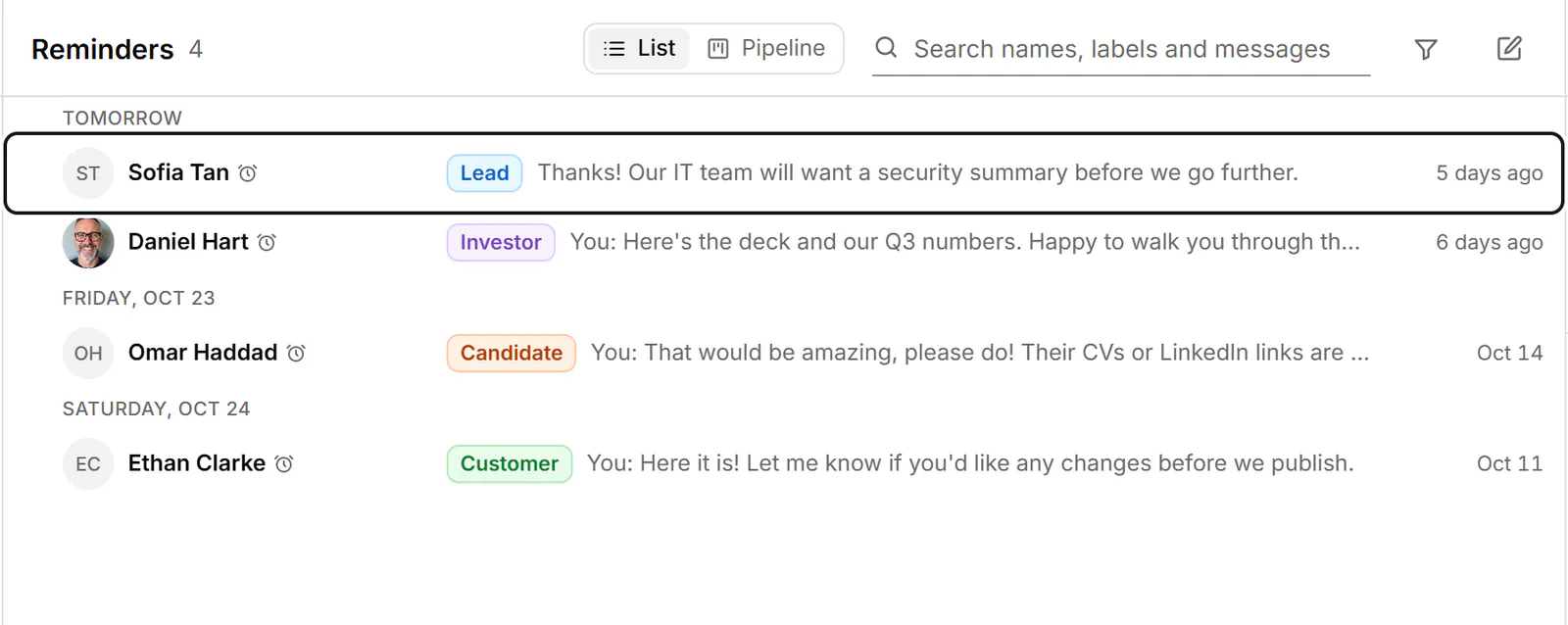
Bokka keeps track of whose turn it is from who wrote last, not from read status. Its Waiting on them view lists the one-to-one conversations where you wrote last, grouped by how long they've waited, from under a day to over 30 days. See Use the inbox views and whose turn it is in your LinkedIn inbox.
For the follow-up itself, press H, choose Remind me and pick a time. Bokka reminds you then only if they haven't replied; a new message from them cancels the reminder. Reminders show in Bokka only, and nothing is ever sent for you. Steps are in Get reminded to follow up and how to set a reminder on a LinkedIn message.
About Bokka
Bokka starts with a free 14-day trial, AI included and no credit card. After it, Starter is $25 and Pro is $35 per user a month ($19 and $30 for your first month). Team, at $50, is coming soon.
Frequently asked questions
Does LinkedIn have read receipts?
Yes. When someone reads your message, LinkedIn shows a small profile photo next to it. It needs the Delivery and typing indicators setting turned on for both of you, and it doesn't appear on InMail sent from LinkedIn.
How do I know if my LinkedIn message has been read?
Open the conversation and look next to the message you sent. A small profile photo there means they've read it. If it says Sent, they haven't read it, or one of you has the setting turned off.
Can you see read receipts on LinkedIn if yours are turned off?
No. LinkedIn says that when the setting is off, no one in the conversation, including you, can see whether messages have been read or whether someone is typing.
Does LinkedIn say when you read a message?
Yes, while Delivery and typing indicators is on for both of you: the sender sees a small profile photo next to the message once you've read it. To stop that, turn the setting off under Settings & Privacy, Data privacy, Messaging experience.
How do I turn off read receipts on LinkedIn?
Go to Settings & Privacy, then Data privacy. Under Messaging experience, open Delivery and typing indicators and switch the toggle off. The same toggle turns off typing indicators.
Do read receipts work on LinkedIn InMail?
Not on InMail sent from LinkedIn: LinkedIn says read receipts and typing indicators don't appear to people who send InMail. Sales Navigator's help page says InMail sent from Sales Navigator does get read receipts.
Sources
Other products' prices and features were read on their own pages on November 10, 2026. They change; check each page before you buy.
Join the waitlist for early access to Bokka. Your first 14 days are free, AI included, with no credit card. It runs in Chrome, Edge, Brave and Arc on a desktop or laptop.
Join the waitlistAbout the author
Amardeep Anand founded Bokka, the AI-first CRM for your LinkedIn inbox, and runs it from Deoghar, India. Questions or corrections: support@gobokka.com.