Widgets
Add your email signature
Put your name, headline and a Message me on LinkedIn link under every email you send, in Gmail, Outlook or Apple Mail.
Copy it
- In Widgets, choose New widget, then Email signature card, and pick what it shows.
- Choose Publish, so its Message link works.
- On Integration, choose Copy signature. Copy HTML is for mail apps that take HTML.
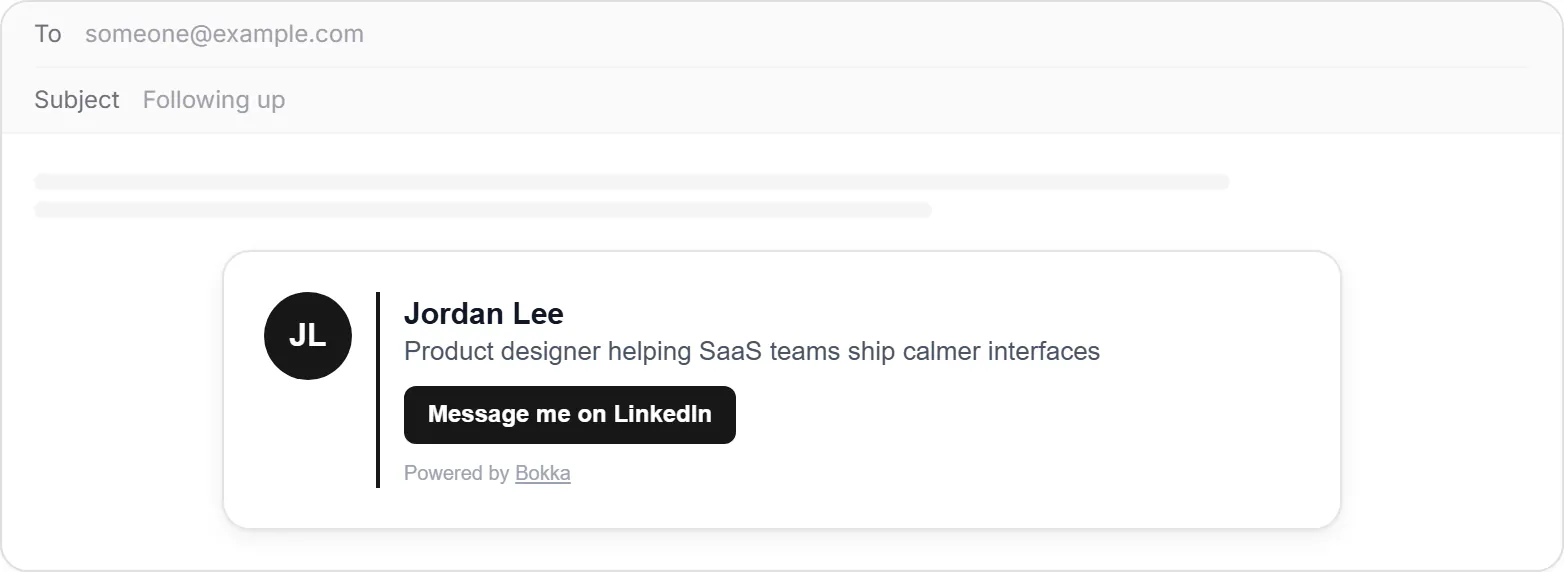
Paste it into your mail app
Gmail
- Open Settings (the cog), then See all settings.
- Under Signature, choose Create new, name it, and paste.
- Choose Save Changes at the bottom of the page.
Outlook
- On the web and in the new Outlook: Settings, Account, then Signatures. In classic Outlook for Windows: open a new email, then Message, Signature, Signatures.
- Choose New, name it, and paste.
- Save, and choose it for new messages and replies.
Apple Mail
- Open Mail, Settings, Signatures, then + under your account.
- Untick Always match my default message font, then paste.
Related
Still stuck? Email support@gobokka.com and say what you were trying to do.